
How to Add Watermark for Photos on Samsung Galaxy
 Azaz Shaikh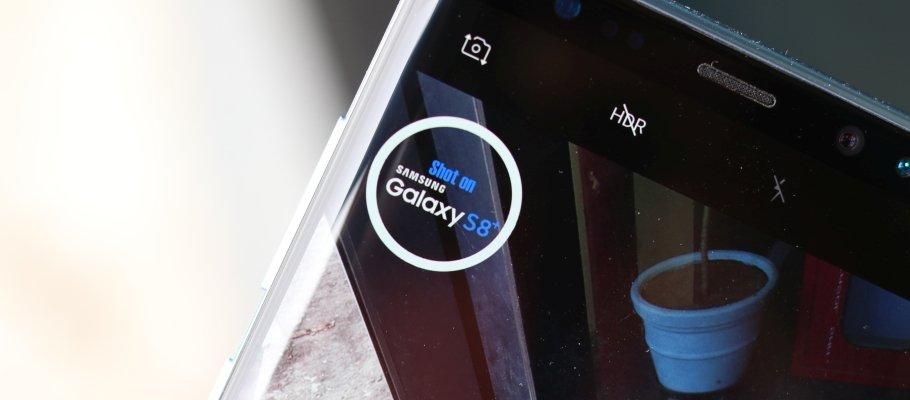
Most of the people take their photos and they will upload his picture on Facebook with the watermark. When you will see his picture with a watermark then you also need to set a watermark because with a watermark the photos look good. Once you try to set a watermark then you don know the way that you can set the watermark. Moreover, when you don’t know the way then you will search on YouTube then the video you are watching maybe it is not real. If you want to add a watermark for photos then you need to read this article. So, without wasting any time let’s get has started. From this article, you will learn How to Add Watermark for Photos on Samsung Galaxy.
Related Post: How to Record a FaceTime Call on iPhone and Mac
How to Enable for Samsung Galaxy from the Camera Settings
Step 1. First of all, open the Camera on your device after that click on the Settings at the top left corner.
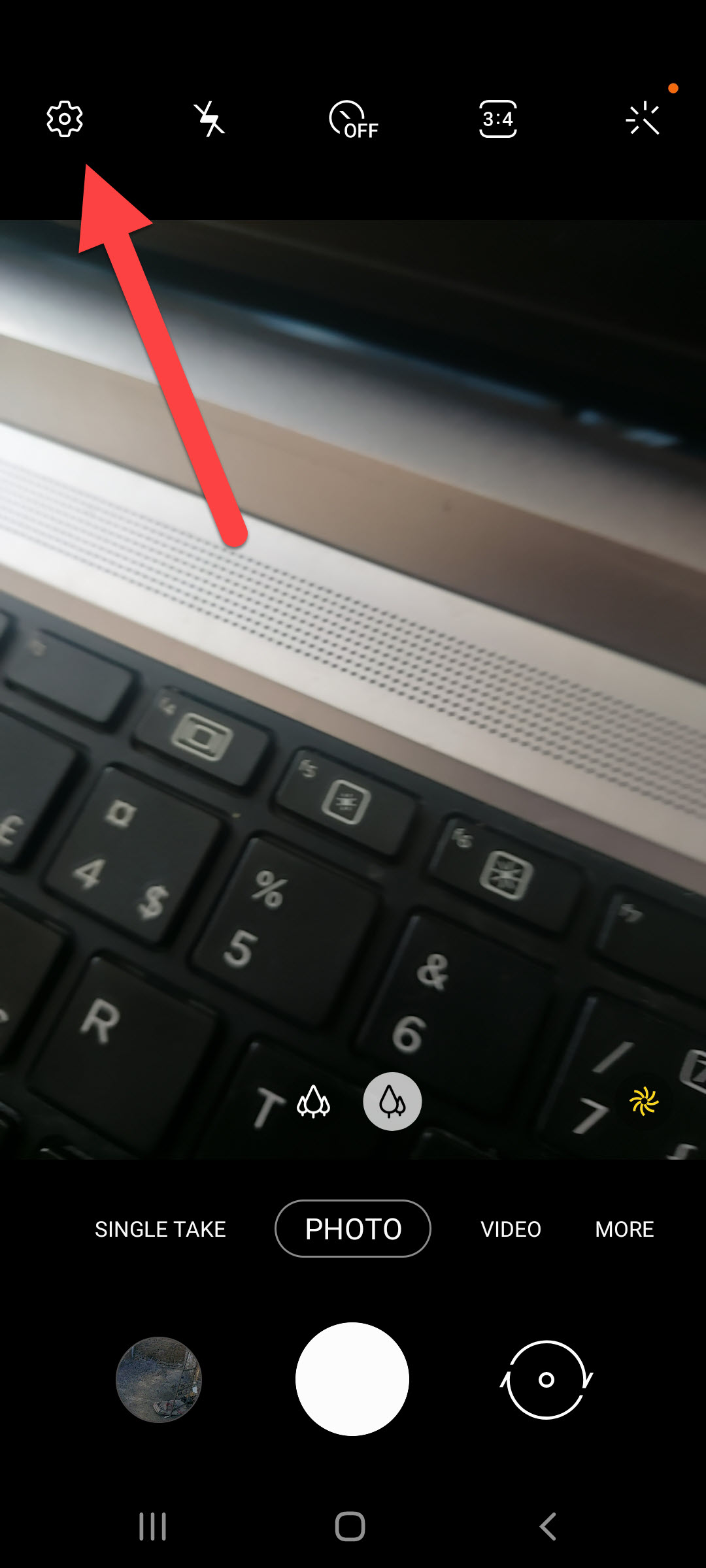 Click on the Settings
 Step 2. When the camera settings are open then scroll down to the bottom after that turn on the toggle of Watermark.
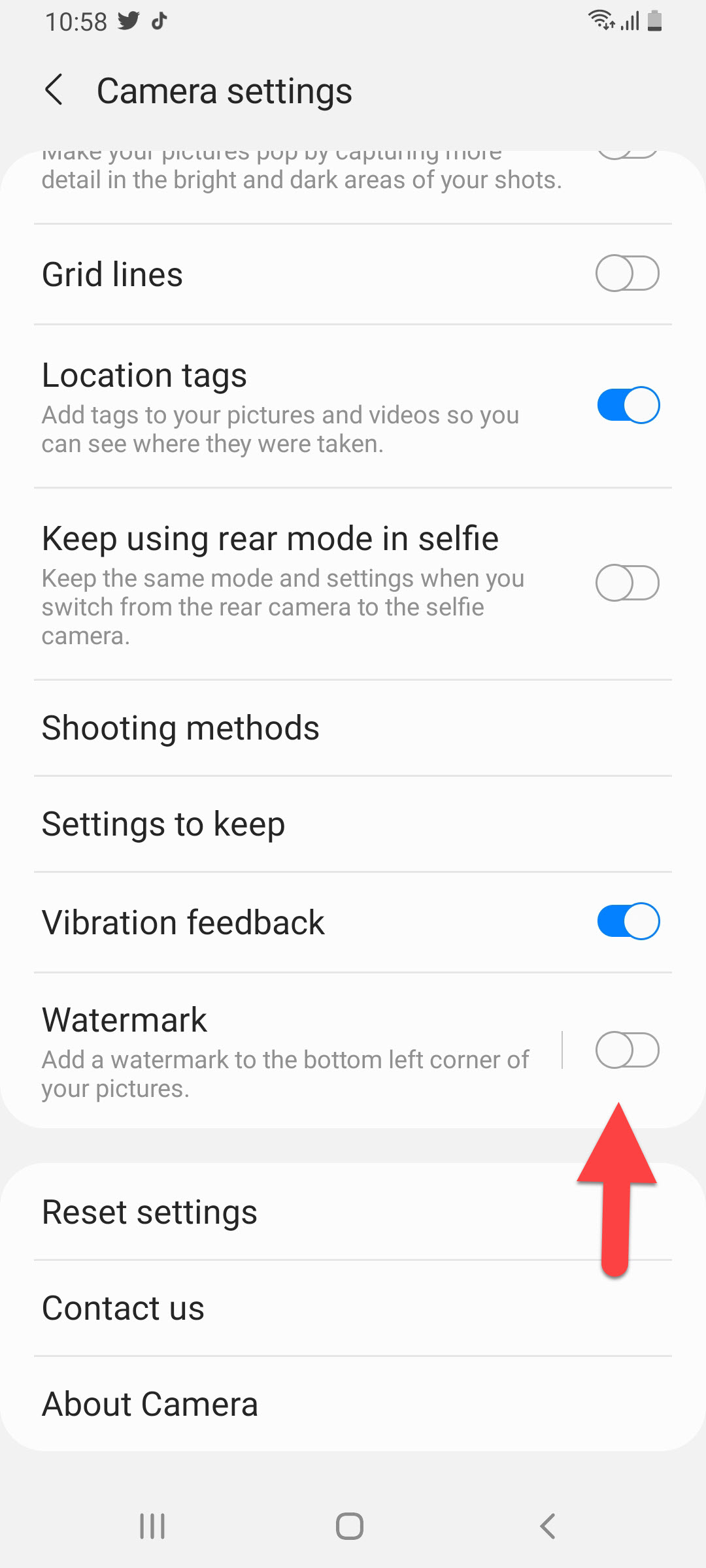 Turn On the Toggle of Watermark
 Step 3. Once the toggle is one then click on the Watermark after that you will see the default watermark if you want to change the watermark then you can.
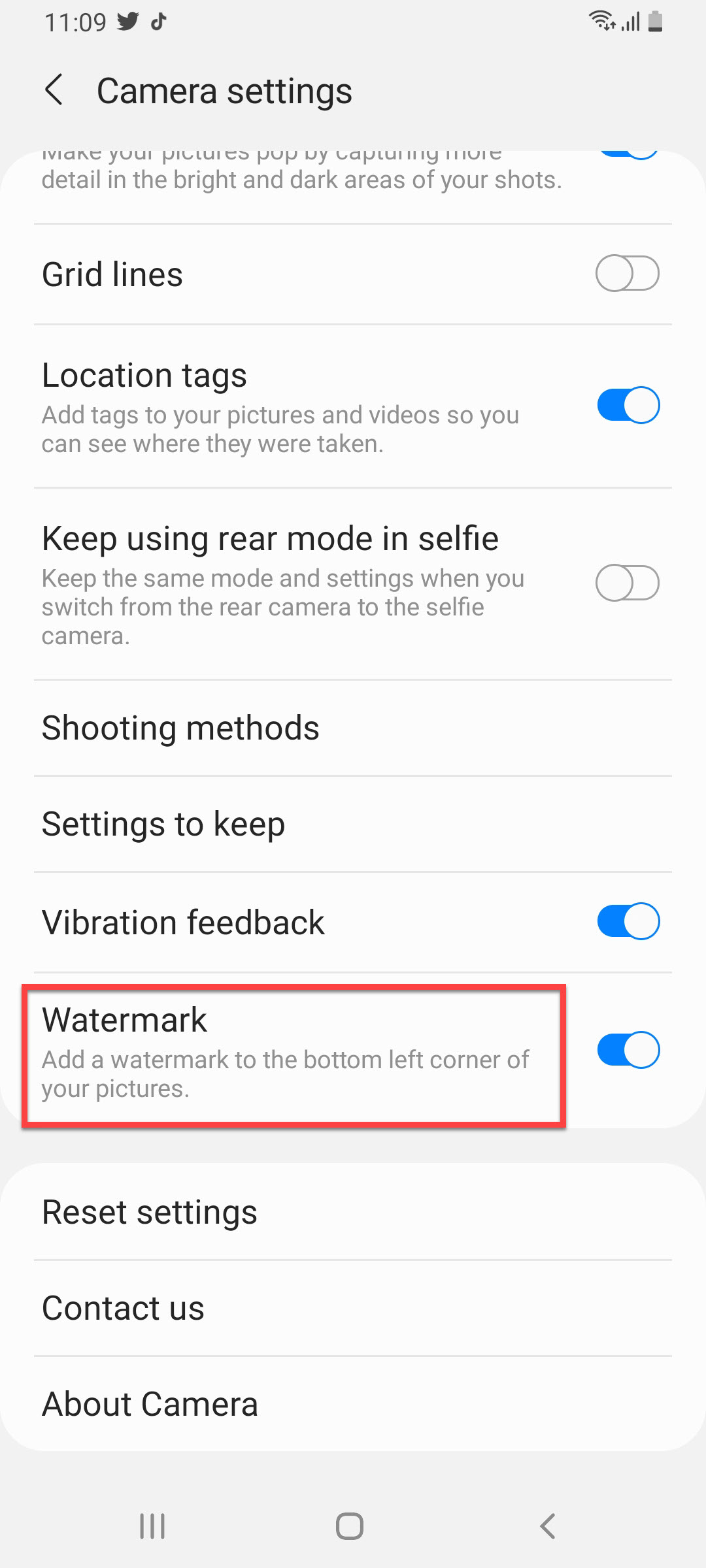 Click on the Watermark
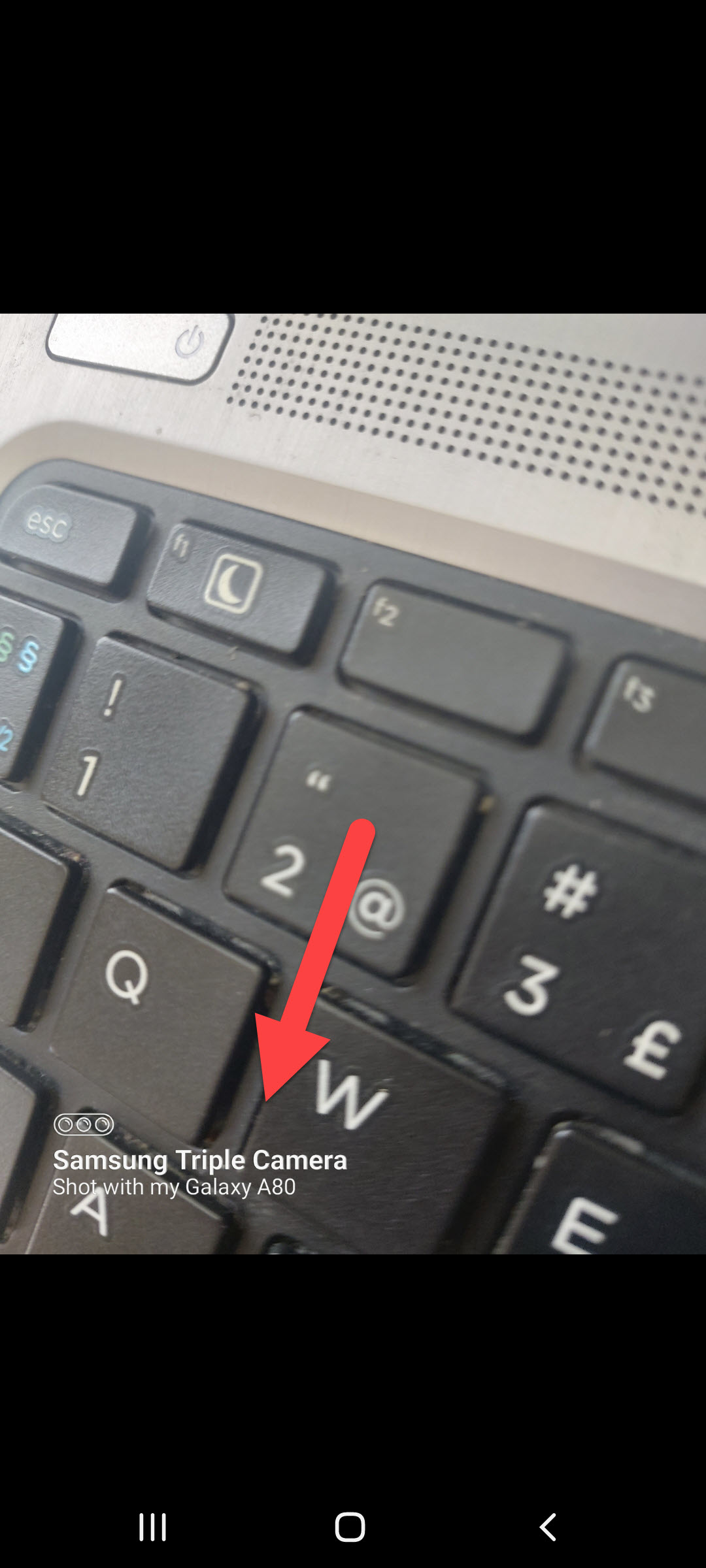
 Step 4. Now, take a picture then you can see the watermark at the bottom left corner.
How to Add Manually Watermark for Photos on Samsung Galaxy Phones
Step 1. At first, open the Gallery on your phone after that open any picture that you want to set a watermark.
Step 2. Once you open the picture then click on the Pencil Icon.
 Click on the Pencil Icon
 Step 3. Then click on the Edit Icon.
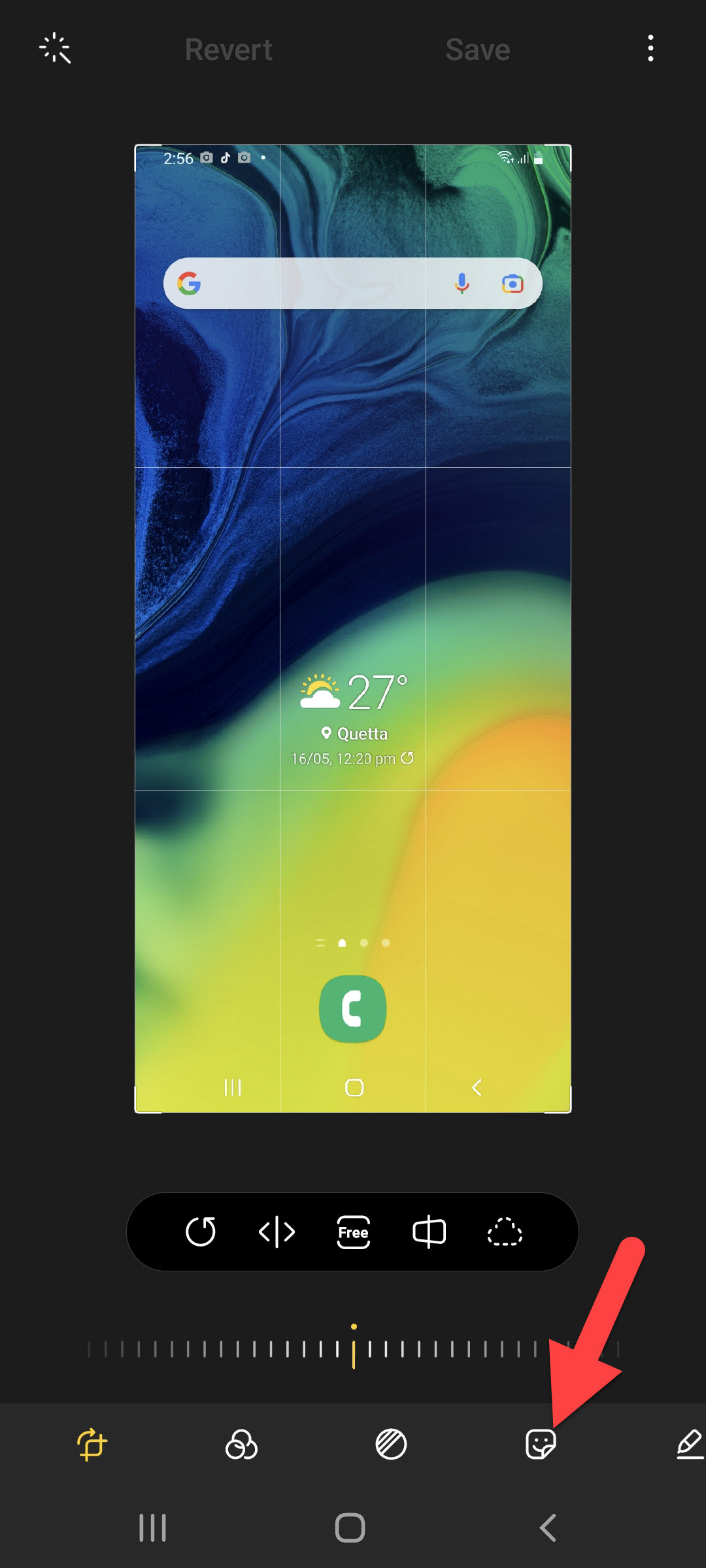 Click on the Edit Icon
 Step 4. Choose the logo of Samsung Galaxy after that set at the left bottom corner.
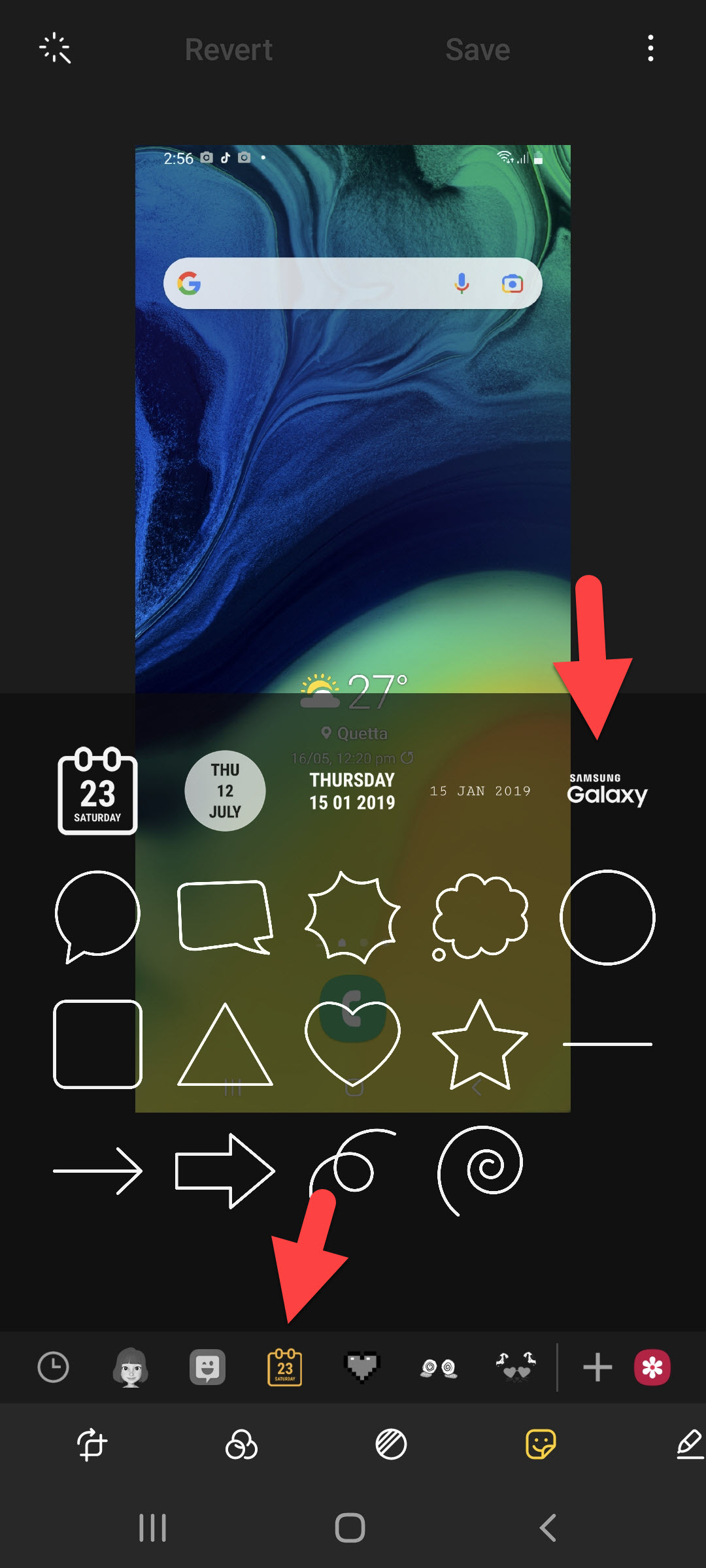 Choose the Logo of Samsung Galaxy
 Step 5. Then tap on the Save.
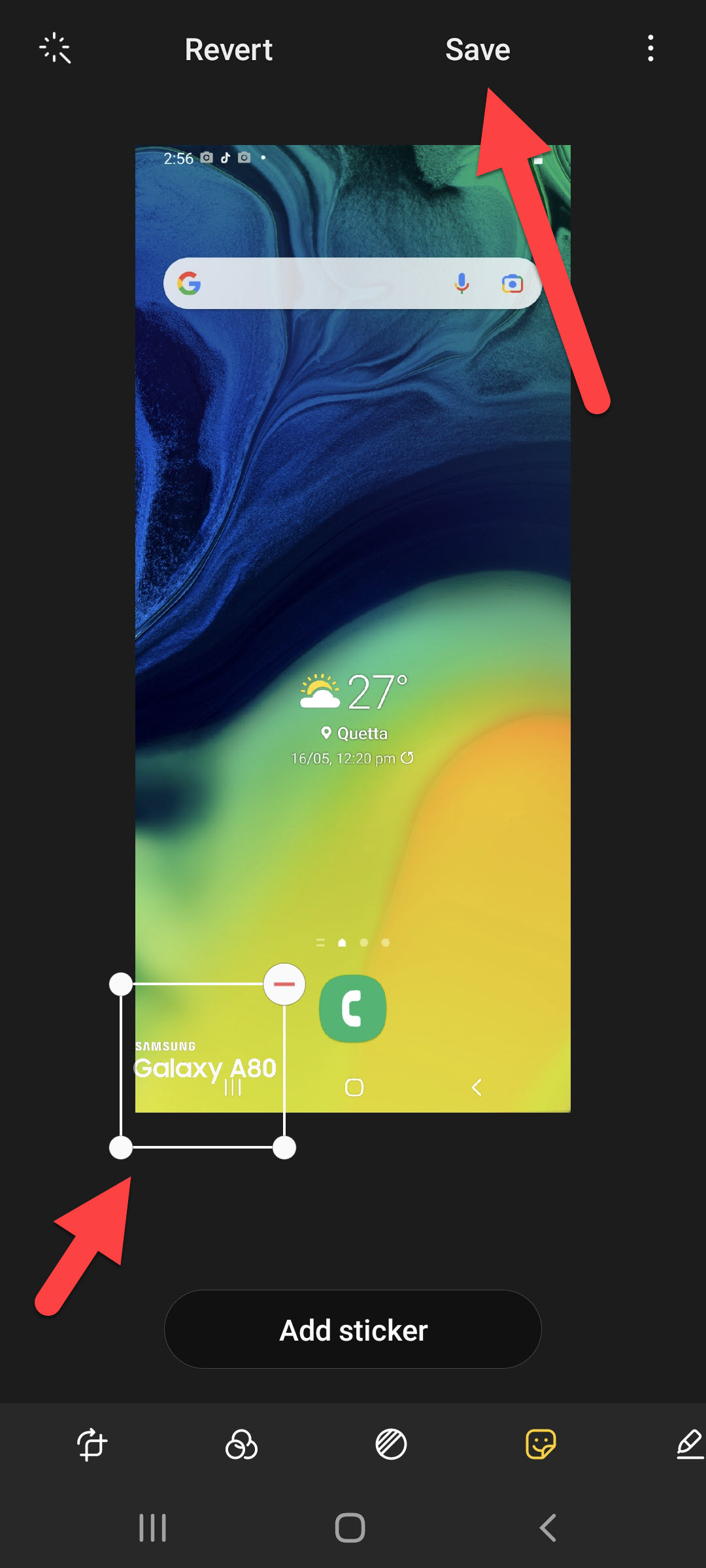 Tap on the Save
 Step 6. However, when you click on the save then you will see the watermark on your picture.
Related Post: How to Remove Camera on iPhone From the Lock Screen
Bottom Line
It was all about How to Add Watermark for Photos on Samsung Galaxy. I hope this article is very helpful for you to add a watermark. From this article, you will get something good. This is the right place to solve your problem. After following these steps I hope you will not face any kind of problem. If you faced any kind of problem and if you have any type of suggestions then do comment.
Related Post: 5 Best Mice for Mac Users in 2021
Tagged
Share This Article
Most of the people take their photos and they will upload his picture on Facebook with the watermark. When you will see his picture with a watermark then you also need to set a watermark because with a watermark the photos look good. Once you try to set a watermark then you don know the way that you can set the watermark. Moreover, when you don’t know the way then you will search on YouTube then the video you are watching maybe it is not real. If you want to add a watermark for photos then you need to read this article. So, without wasting any time let’s get has started. From this article, you will learn How to Add Watermark for Photos on Samsung Galaxy.
Related Post: How to Record a FaceTime Call on iPhone and Mac
How to Enable for Samsung Galaxy from the Camera Settings
Step 1. First of all, open the Camera on your device after that click on the Settings at the top left corner.
Click on the Settings Step 2. When the camera settings are open then scroll down to the bottom after that turn on the toggle of Watermark.
Turn On the Toggle of Watermark Step 3. Once the toggle is one then click on the Watermark after that you will see the default watermark if you want to change the watermark then you can.
Click on the Watermark Step 4. Now, take a picture then you can see the watermark at the bottom left corner.
How to Add Manually Watermark for Photos on Samsung Galaxy Phones
Step 1. At first, open the Gallery on your phone after that open any picture that you want to set a watermark.
Step 2. Once you open the picture then click on the Pencil Icon.
Click on the Pencil Icon Step 3. Then click on the Edit Icon.
Click on the Edit Icon Step 4. Choose the logo of Samsung Galaxy after that set at the left bottom corner.
Choose the Logo of Samsung Galaxy Step 5. Then tap on the Save.
Tap on the Save Step 6. However, when you click on the save then you will see the watermark on your picture.
Related Post: How to Remove Camera on iPhone From the Lock Screen
Bottom Line
It was all about How to Add Watermark for Photos on Samsung Galaxy. I hope this article is very helpful for you to add a watermark. From this article, you will get something good. This is the right place to solve your problem. After following these steps I hope you will not face any kind of problem. If you faced any kind of problem and if you have any type of suggestions then do comment.
Related Post: 5 Best Mice for Mac Users in 2021