
How to Fix Safari can’t Establish a Secure Connection
 Azaz Shaikh
Sometimes I am unable to open Facebook, Google, YouTube, and even Apple Websites on my safari browser on my Mac. Then it shows that Safari can’t establish a secure connection, due to this error websites can’t be opened. However, many websites work fine and well but some of them don’t work, and I can open the websites on another browser as well. Safari can’t establish a Secure Connection is a such an error which doesn’t allow you in order to access or open any website. Most of the time you can’t access popular websites such as YouTube, Google, Facebook, Twitter, Apple, and many more due to the error. And sometimes these errors occur with the Google and Firefox browsers too. Therefore, from this article, you will get to know How to Fix Safari can’t establish a Secure Connection.
In simple words, Safari can’t Establish a Secure Connection mean when you try to visit any website is using the server that doesn’t meet the standard privacy of Safari. But sometimes it is a precautionary measure designed to protect your security and privacy. Therefore, I will cover all the steps in order to fix.
 How to Fix Safari can’t Establish a Secure Connection
 How to Fix Safari can’t Establish a Secure Connection
So, there are many methods in which you can fix the error. But I will guide with two different methods, I am pretty sure that it will work fine and well for fixing the safari problem. Therefore, just you need to do is to follow every step below in order to fix it.
Method 1. Setup your DNS Settings
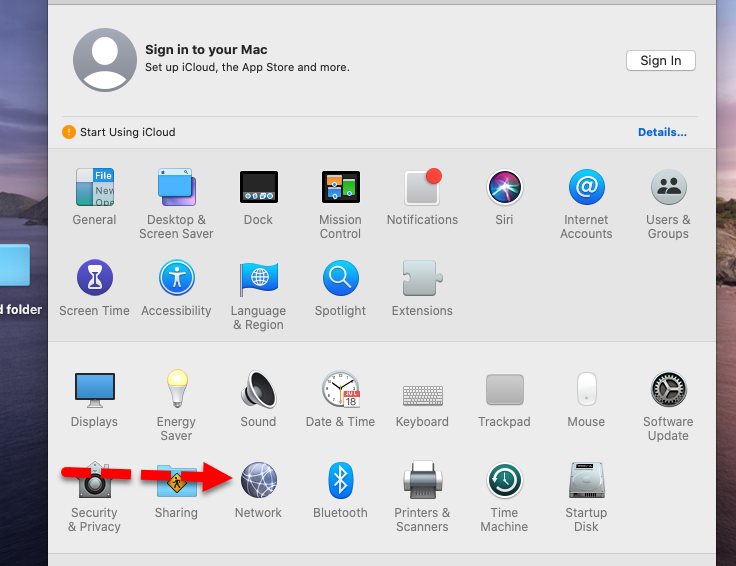
1. At the very first step, you need to turn on your Mac. You have to open the Preference window and click on the Network option.
 Network
 2. In the Network window, you have to click on the Advanced and click on the DNS.
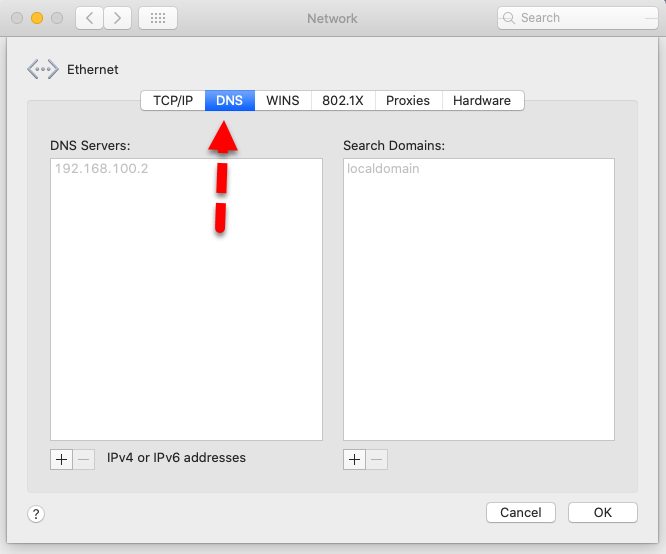 DNS Setting
 3. Now, at the bottom, you will see the + button click on that. You need to type there 8.8.8.8 and hit Enter from the keyboard.
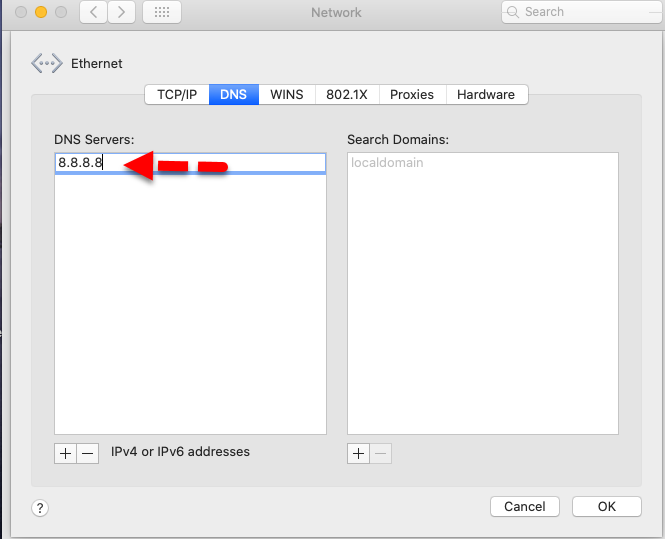 DNS Servers
 4. Once again click on the + button then type 8.8.4.4 and hit Enter button from the keyboard. When you have done then make sure to click on the Ok button below.
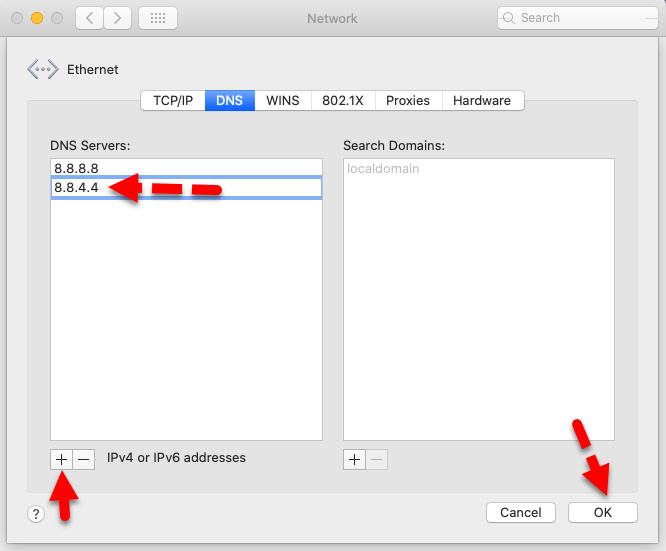 Type Server
 Method 2. Disable Internet Protocol version 6 (IPv6) on your Mac
1. You need to go to System Preference and find out the Network option then click on that.
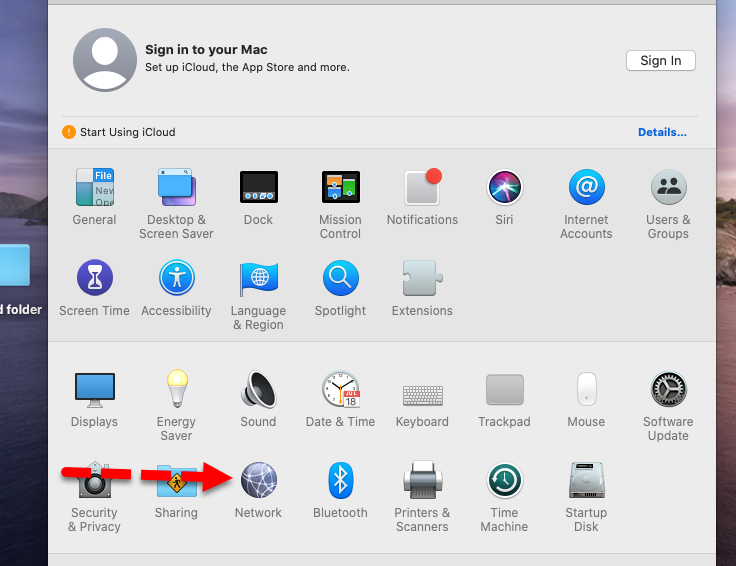 Network option
 2. Select the Ethernet from the left side and click on the Advanced option from the bottom.
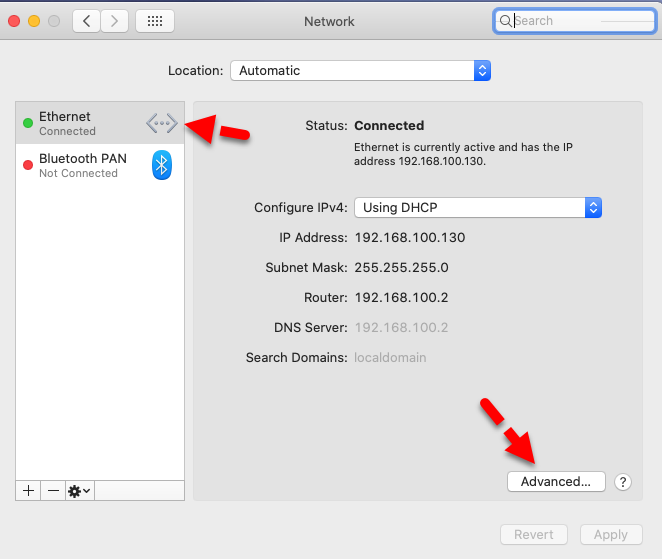 Advanced Ethernet Setting
 3. From the Configure IPv6, you need to choose Manually.
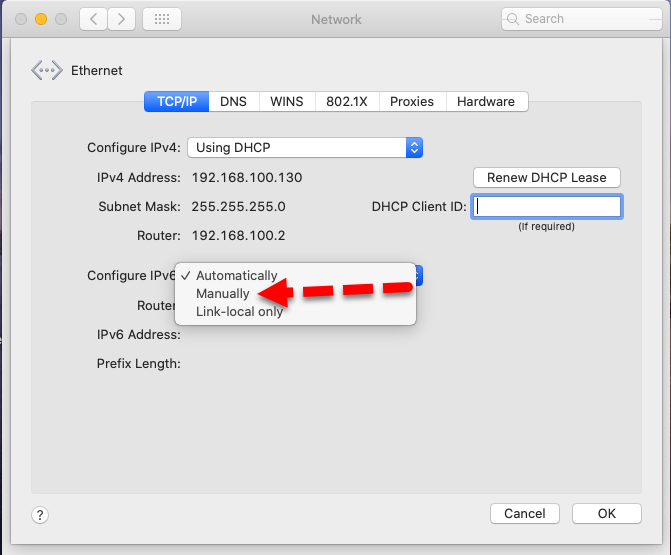 Manually
 4. When you have done each and every step then you need to click on the Ok and Apply.
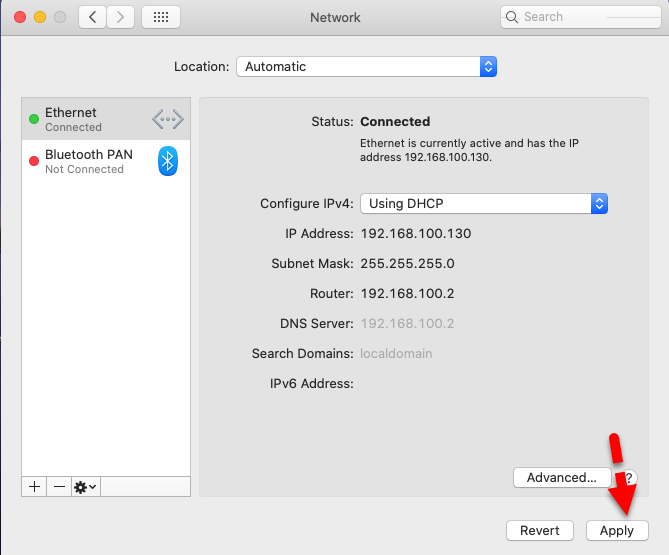 Apply the setting
 Also Read:
- How to Fix Google Drive Authorization HTTP 403 Error
- How to Turn ON Restricted Mode in TikTok on iPhone and Android
Final Words
That’s all about How to Fix Safari can’t Establish a Secure Connection. The two different methods will be work to fix the safari error. I hope these methods would work fine and beneficial for you. If you have any problem, question, and suggestion then feel free to comment below.
Tagged
Share This Article
Sometimes I am unable to open Facebook, Google, YouTube, and even Apple Websites on my safari browser on my Mac. Then it shows that Safari can’t establish a secure connection, due to this error websites can’t be opened. However, many websites work fine and well but some of them don’t work, and I can open the websites on another browser as well. Safari can’t establish a Secure Connection is a such an error which doesn’t allow you in order to access or open any website. Most of the time you can’t access popular websites such as YouTube, Google, Facebook, Twitter, Apple, and many more due to the error. And sometimes these errors occur with the Google and Firefox browsers too. Therefore, from this article, you will get to know How to Fix Safari can’t establish a Secure Connection.
In simple words, Safari can’t Establish a Secure Connection mean when you try to visit any website is using the server that doesn’t meet the standard privacy of Safari. But sometimes it is a precautionary measure designed to protect your security and privacy. Therefore, I will cover all the steps in order to fix.
How to Fix Safari can’t Establish a Secure Connection How to Fix Safari can’t Establish a Secure Connection
So, there are many methods in which you can fix the error. But I will guide with two different methods, I am pretty sure that it will work fine and well for fixing the safari problem. Therefore, just you need to do is to follow every step below in order to fix it.
Method 1. Setup your DNS Settings
1. At the very first step, you need to turn on your Mac. You have to open the Preference window and click on the Network option.
Network 2. In the Network window, you have to click on the Advanced and click on the DNS.
DNS Setting 3. Now, at the bottom, you will see the + button click on that. You need to type there 8.8.8.8 and hit Enter from the keyboard.
DNS Servers 4. Once again click on the + button then type 8.8.4.4 and hit Enter button from the keyboard. When you have done then make sure to click on the Ok button below.
Type Server Method 2. Disable Internet Protocol version 6 (IPv6) on your Mac
1. You need to go to System Preference and find out the Network option then click on that.
Network option 2. Select the Ethernet from the left side and click on the Advanced option from the bottom.
Advanced Ethernet Setting 3. From the Configure IPv6, you need to choose Manually.
Manually 4. When you have done each and every step then you need to click on the Ok and Apply.
Apply the setting Also Read:
- How to Fix Google Drive Authorization HTTP 403 Error
- How to Turn ON Restricted Mode in TikTok on iPhone and Android
Final Words
That’s all about How to Fix Safari can’t Establish a Secure Connection. The two different methods will be work to fix the safari error. I hope these methods would work fine and beneficial for you. If you have any problem, question, and suggestion then feel free to comment below.