

How to Block YouTube Ads on Chrome on Windows PC 2020
 Azaz Shaikh
Chrome is almost available for every Windows computer. It is one of the most popular browsing platforms which has billions of active users on a daily basis. In some cases, Chrome is also for Mac but the default web browsers of the macOS operating system are basically Safari. According to Technology, Google Chrome is a bit fast and more advanced than other web browsers. As you know, we all are using Google Chrome for browsing something around the globe. And it gives a better opportunity in order to solve our problem with the help of different guides available there. However, everybody is using Google Chrome for different purposes and aims.
Most of the people access YouTube through browsing on Google Chrome. You can open YouTube on Google Chrome and finding different videos and clips. On the other hand, YouTube is such a wonderful platform for watching different kinds of videos such as Educational videos, Entertainment videos, Funny videos, Health-related videos, and many more beneficial videos. Watching our favorites is a kind of interesting task but facing ADS is somewhat embarrassing. The big problem with YouTube is its Ads which most of the people don’t like that. It really annoys us while watching our different series or videos.
With one video an AD is completely fine but 2 or 3 Ads will finish the interest of video. The Ad might be on starting, between, and also in the end. Therefore, you don’t have to worry about it because we have a better solution for it. So, I will completely explore you on How to Block YouTube Ads on Chrome on Windows PC 2020.
Related Guides:
- How to Fix Black Screen Facebook Video & YouTube Google Chrome
- Upload Videos to YouTube From iPhone
- Download YouTube Videos on Computer Without IDM
How to Block YouTube Ads on Chrome on Windows PC 2020
Blocking YouTube ads is not a difficult task overall. Keep in mind that we can’t block ads directly or by any option because the creators earn money from their ads. We will use a third-party Chrome extension in order to get rid of YouTube ads and enjoy without any interruption. However, if you wish to watch YouTube videos without any Ad then you have to follow each step down below.
Step 1. First up, you have to open Google Chrome on any Windows version which you are using.
Step 2. When Google Chrome is opened, head over towards the Chrome Web Store.
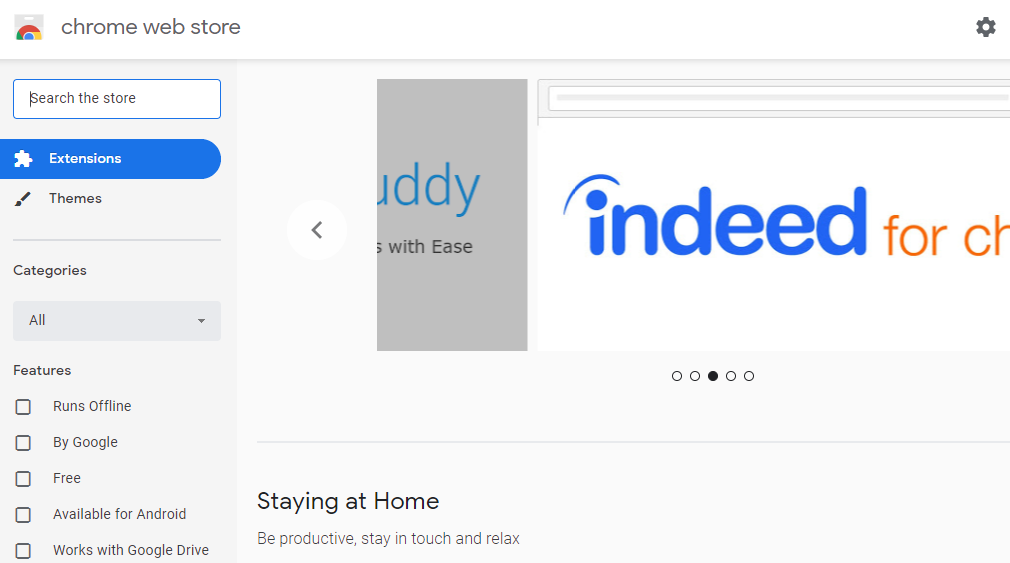 Chrome Web Store
 Step 3. On the Chrome Web Store, you can search for any chrome extension. For the purposes of this guide, you have to search AdBlock Plus on the search bar of Chrome Store and click on the Add to Chrome option.
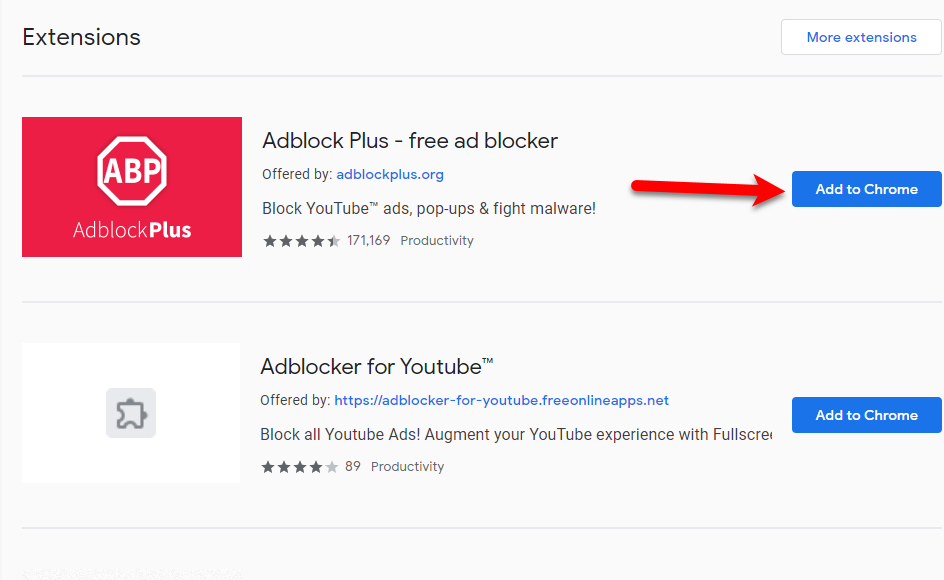 Add to Chrome
 Step 4. After that, a new dialogue box will pop up on the screen, there make sure to click on the Add extension button.
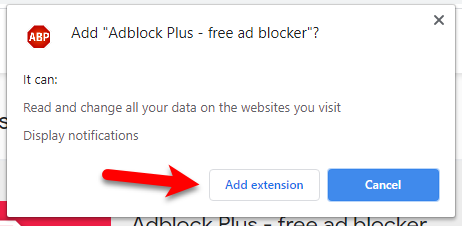 Add Extension
 Step 5. When you add to chrome then it will start installing. So, once it added and installed on Chrome. You have to open YouTube and click on the AdBlock icon from the top left corner of Chrome. Then, you have to turn on the first option because it will disable all the Ads on that website.
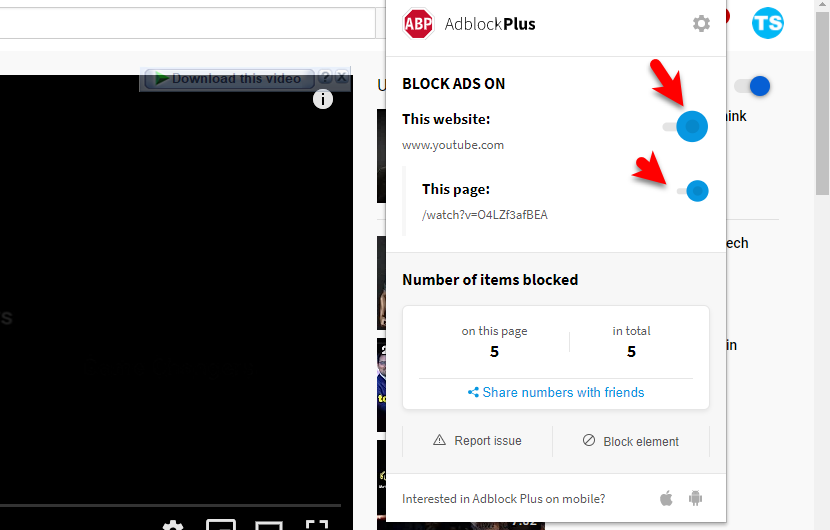 Block Ad
 What is AdBlock Plus?
AdBlock Plus is a handy extension tool that works on all web browsers. In an easy word, AdBlock Plus is an open-source browser extension for content-filtering and Ad blocking. It is the world’s first free AdBlocker that is completely free of cost to install and use. In short time, it got too much popularity on the market. The task of AdBlock Plus extension to block all the pop-ups and annoying Ad which disturbs most of the people.
It is developed by developer Wladimir Palant’s Eyeo GmbH, a German software company. Currently, AdBlock Plus has been installed on over 10 million web browsers. According to Technology, it is known as the world’s most powerful AdBlocker, and also it is pretty easy to use. The extension has been released for Mozilla Firefox, Google Chrome, Internet Explorer, Microsoft Edge, Opera, Safari, Yandex Browser, and Android
Bottom Line
It was the only and powerful method on How to Block YouTube Ads on Chrome on Windows PC 2020. The AdBlock Plus will be activated on your web browser until you uninstall the browser from your PC. It is completely free and easy to use for everyone. It doesn’t matter which web browser you are using because it works totally fine on all web browsers. The extension will block all kind of Ad whether you are watching videos on YouTube or reading articles.s
If you have faced any kind of issue then don’t hesitate to leave a comment on the comment section down below. We will be happy to read your feedback or suggestion about the articles we wrote.
Tagged
Share This Article
Chrome is almost available for every Windows computer. It is one of the most popular browsing platforms which has billions of active users on a daily basis. In some cases, Chrome is also for Mac but the default web browsers of the macOS operating system are basically Safari. According to Technology, Google Chrome is a bit fast and more advanced than other web browsers. As you know, we all are using Google Chrome for browsing something around the globe. And it gives a better opportunity in order to solve our problem with the help of different guides available there. However, everybody is using Google Chrome for different purposes and aims.
Most of the people access YouTube through browsing on Google Chrome. You can open YouTube on Google Chrome and finding different videos and clips. On the other hand, YouTube is such a wonderful platform for watching different kinds of videos such as Educational videos, Entertainment videos, Funny videos, Health-related videos, and many more beneficial videos. Watching our favorites is a kind of interesting task but facing ADS is somewhat embarrassing. The big problem with YouTube is its Ads which most of the people don’t like that. It really annoys us while watching our different series or videos.
With one video an AD is completely fine but 2 or 3 Ads will finish the interest of video. The Ad might be on starting, between, and also in the end. Therefore, you don’t have to worry about it because we have a better solution for it. So, I will completely explore you on How to Block YouTube Ads on Chrome on Windows PC 2020.
Related Guides:
- How to Fix Black Screen Facebook Video & YouTube Google Chrome
- Upload Videos to YouTube From iPhone
- Download YouTube Videos on Computer Without IDM
How to Block YouTube Ads on Chrome on Windows PC 2020
Blocking YouTube ads is not a difficult task overall. Keep in mind that we can’t block ads directly or by any option because the creators earn money from their ads. We will use a third-party Chrome extension in order to get rid of YouTube ads and enjoy without any interruption. However, if you wish to watch YouTube videos without any Ad then you have to follow each step down below.
Step 1. First up, you have to open Google Chrome on any Windows version which you are using.
Step 2. When Google Chrome is opened, head over towards the Chrome Web Store.
Chrome Web Store Step 3. On the Chrome Web Store, you can search for any chrome extension. For the purposes of this guide, you have to search AdBlock Plus on the search bar of Chrome Store and click on the Add to Chrome option.
Add to Chrome Step 4. After that, a new dialogue box will pop up on the screen, there make sure to click on the Add extension button.
Add Extension Step 5. When you add to chrome then it will start installing. So, once it added and installed on Chrome. You have to open YouTube and click on the AdBlock icon from the top left corner of Chrome. Then, you have to turn on the first option because it will disable all the Ads on that website.
Block Ad What is AdBlock Plus?
AdBlock Plus is a handy extension tool that works on all web browsers. In an easy word, AdBlock Plus is an open-source browser extension for content-filtering and Ad blocking. It is the world’s first free AdBlocker that is completely free of cost to install and use. In short time, it got too much popularity on the market. The task of AdBlock Plus extension to block all the pop-ups and annoying Ad which disturbs most of the people.
It is developed by developer Wladimir Palant’s Eyeo GmbH, a German software company. Currently, AdBlock Plus has been installed on over 10 million web browsers. According to Technology, it is known as the world’s most powerful AdBlocker, and also it is pretty easy to use. The extension has been released for Mozilla Firefox, Google Chrome, Internet Explorer, Microsoft Edge, Opera, Safari, Yandex Browser, and Android
Bottom Line
It was the only and powerful method on How to Block YouTube Ads on Chrome on Windows PC 2020. The AdBlock Plus will be activated on your web browser until you uninstall the browser from your PC. It is completely free and easy to use for everyone. It doesn’t matter which web browser you are using because it works totally fine on all web browsers. The extension will block all kind of Ad whether you are watching videos on YouTube or reading articles.s
If you have faced any kind of issue then don’t hesitate to leave a comment on the comment section down below. We will be happy to read your feedback or suggestion about the articles we wrote.