
How to Change Android DNS Setting (3 New Methods)
 Azaz Shaikh
If you want to change the DNS settings then it is very easy to change. I will find for you 3 new methods to change DNS settings. In this article, I will fully guide you on How to Change Android DNS Setting (3 New Methods).
The domain name system is indisputably one of the most important and over-locked parts of the internet. Without DNS, the internet as we know it today would collapse, and we would all be licking stamps to pay our bills. Driving to an actual store to purchase something, reading the newspaper to see what movies were showing. Or buying little sound pieces of plastic has called CDs to get our music.
However, DNS is has used to translate an actual name into these numbers. Moreover, DNS you can even though most of us get to our favorite website like YouTube.com. Then your browser actually needs to know the IP address of the website you are trying to access. So, to do this it sends a request to the DNS which is sort of like the internet’s version of yellow pages that matches a website URL or a uniform resource locator to an IP address. So the DNS request first goes to a recursive name server.
Change DNS From Setting
Step 1. Open your setting then go to Wi-Fi after that click on the Setting Icon.
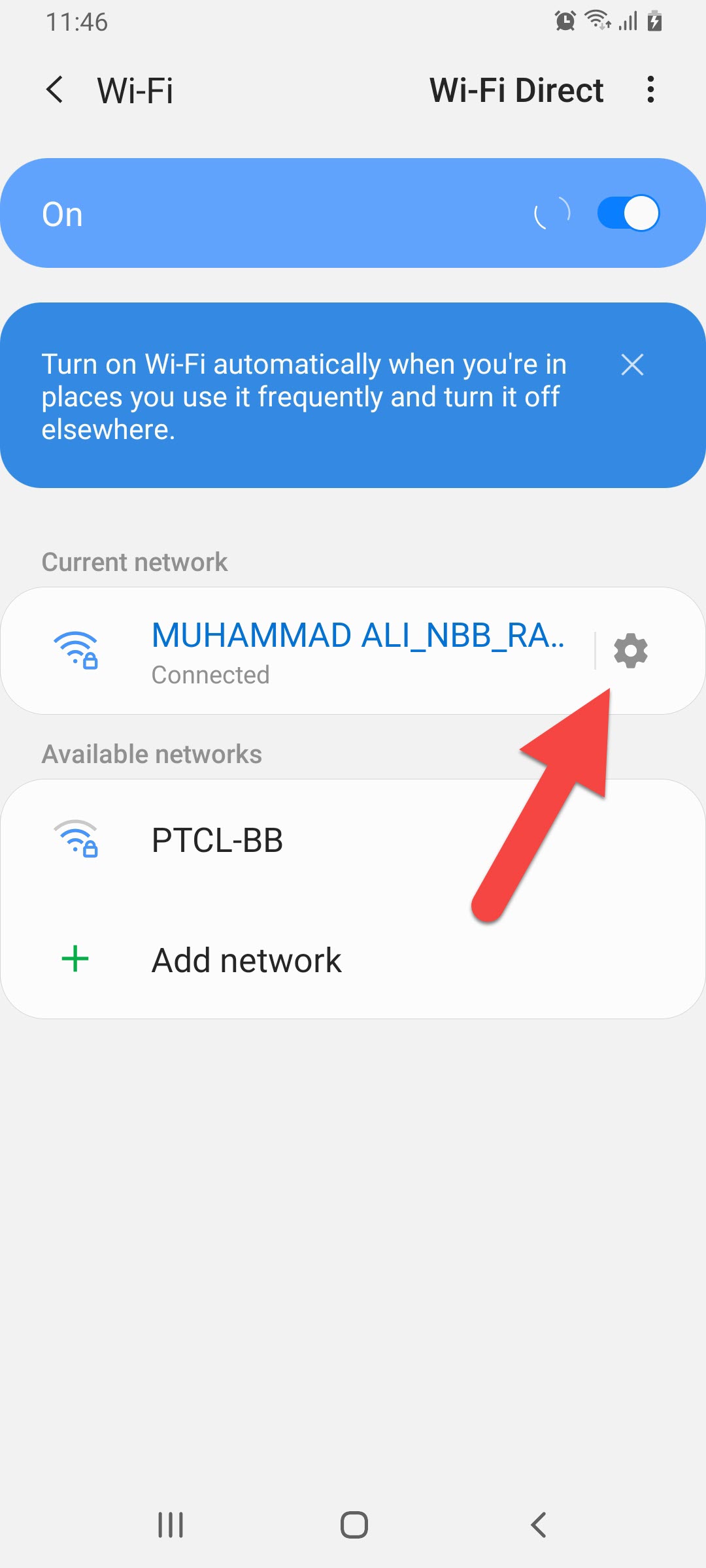 Click on the Setting Icon
 Step 2. Click on the Advanced.
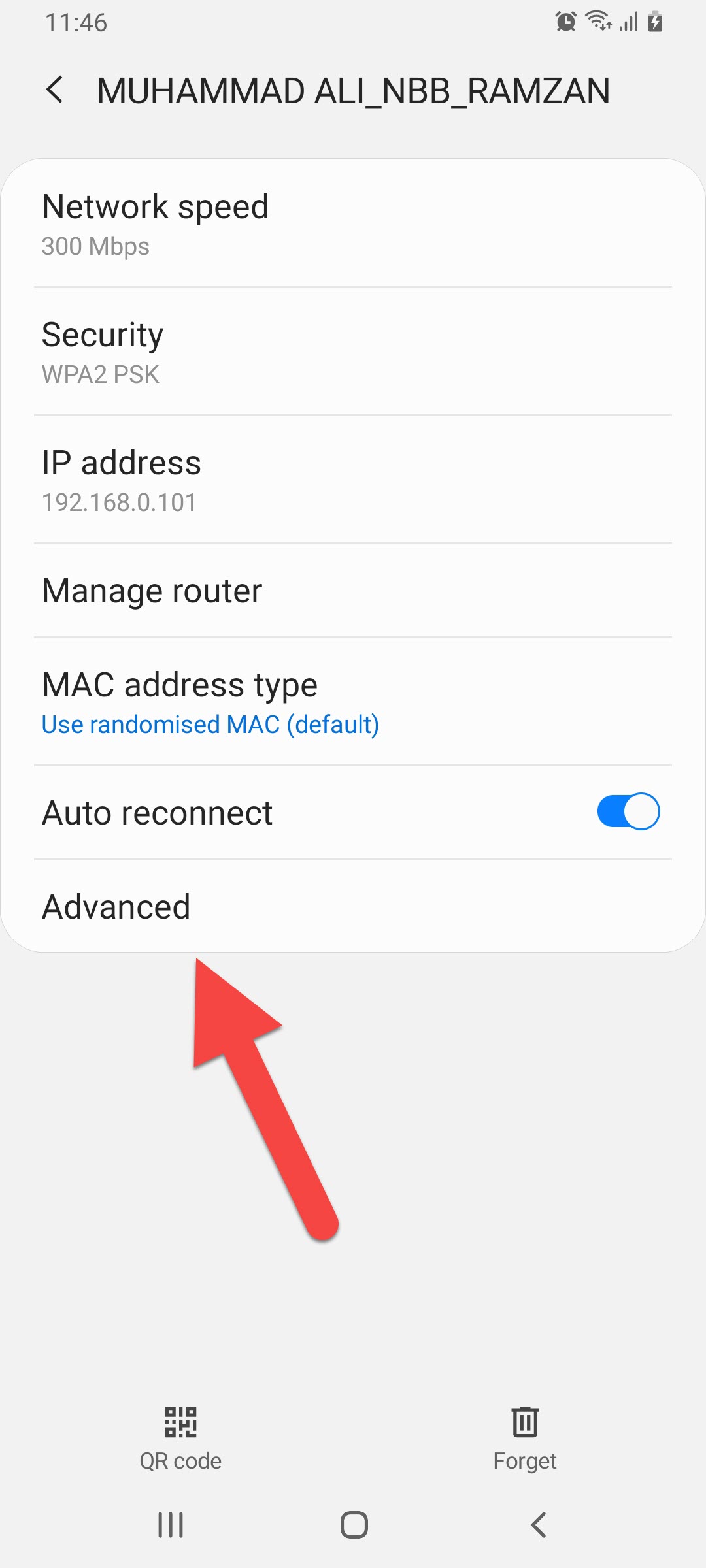 Click on the Advanced
 Step 3. Now, tap on the DHCP.
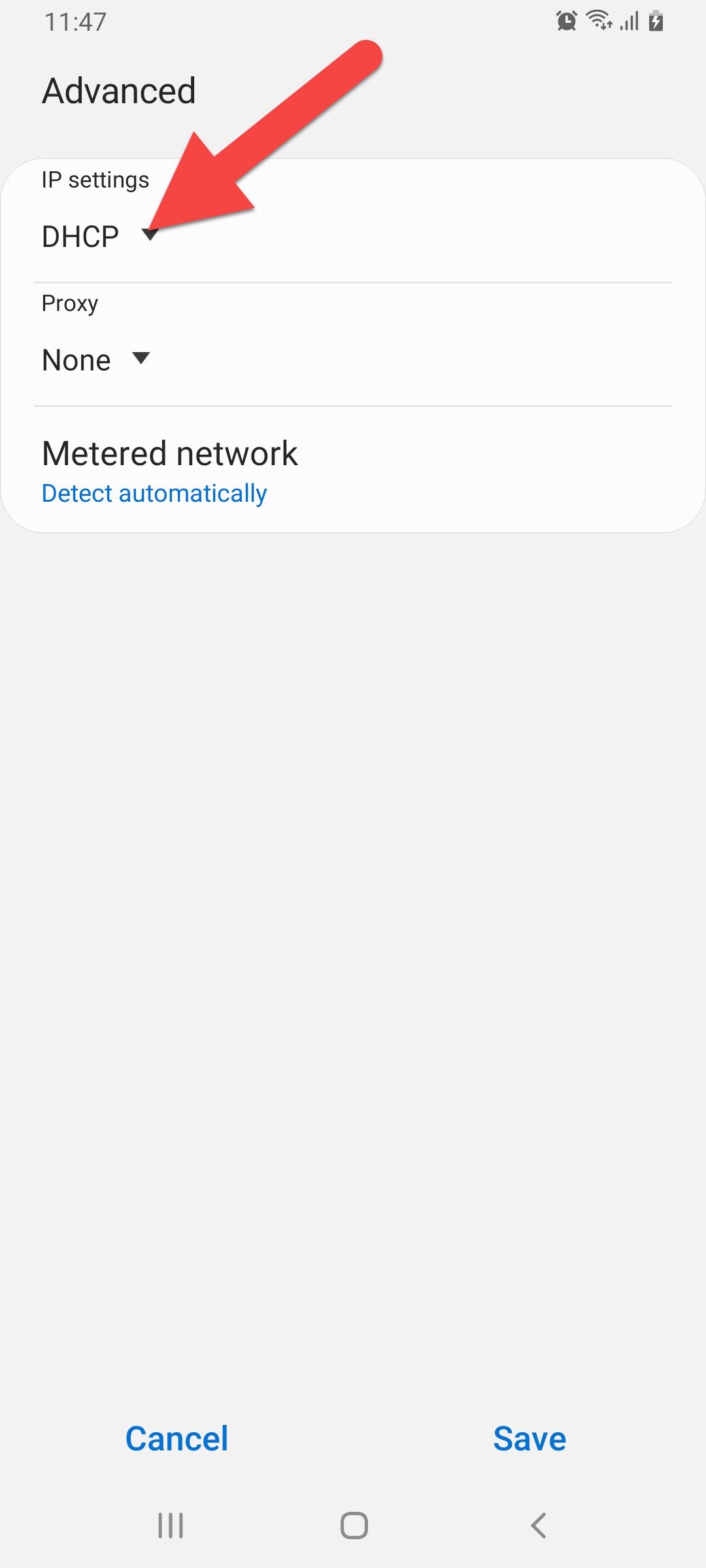 Tap on the DHCP
 Step 4. When you tap on the DHCP then select the Static.
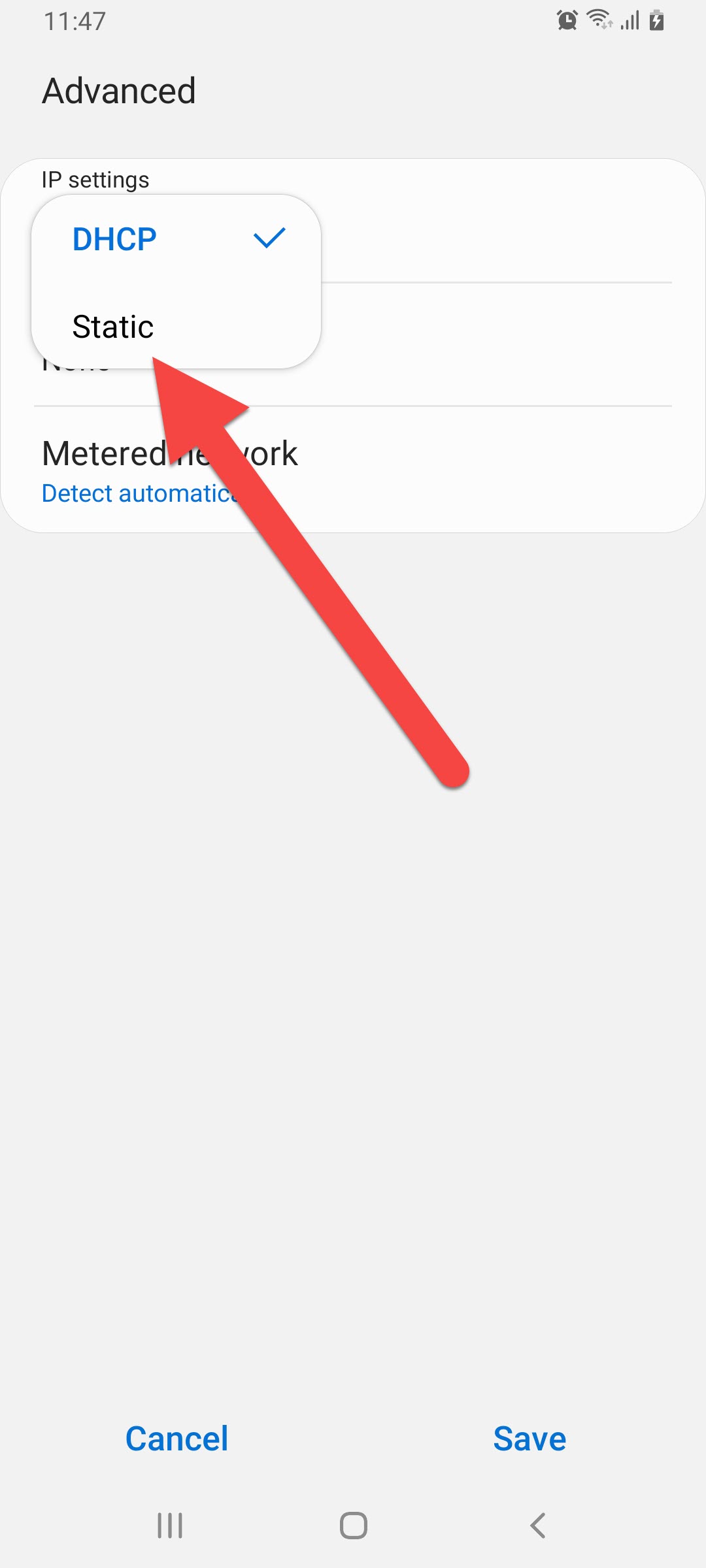 Select the Static
 Step 4. Next, type in DNS 1 8.8.8.8 then type in DNS 8.8.4.4 then click on the Save.
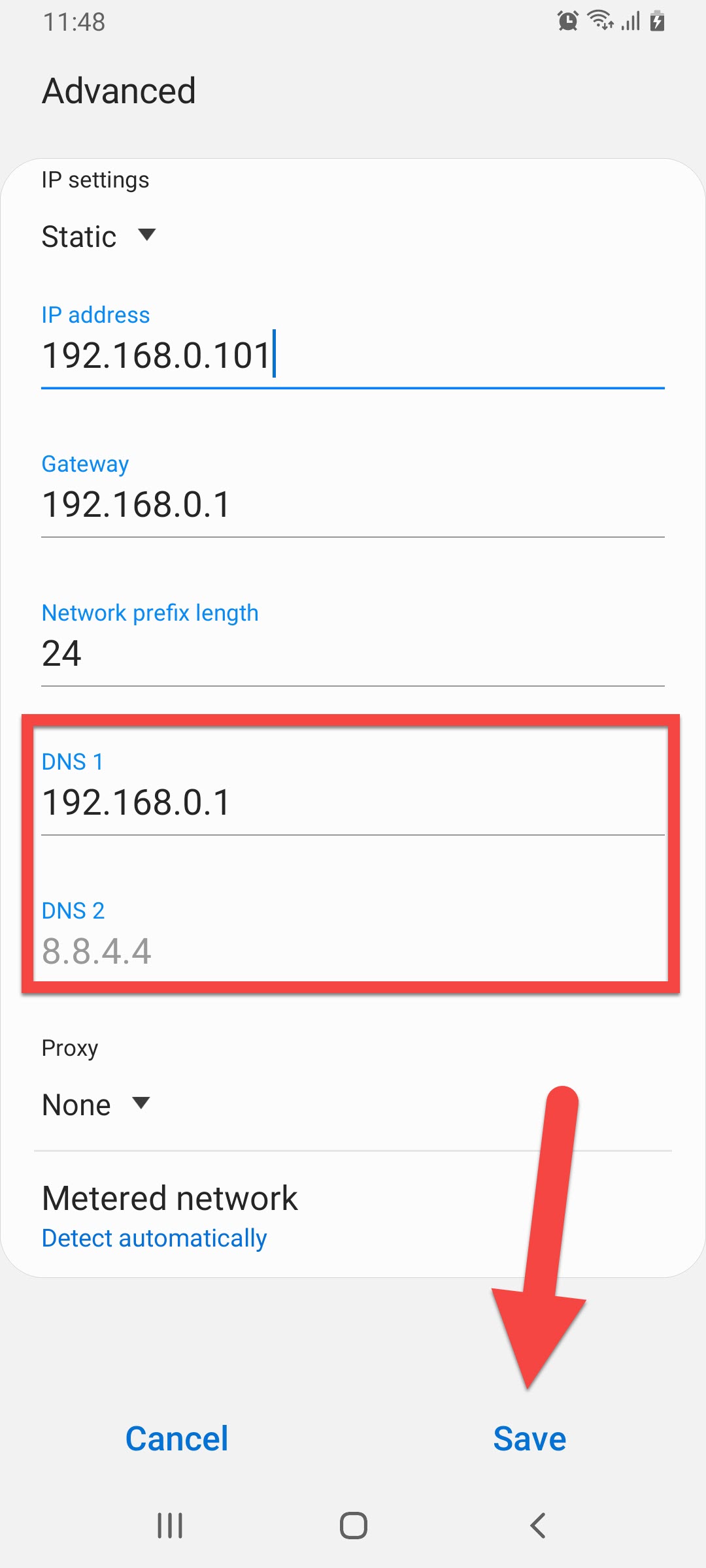 Type in DNS 1 8.8.8.8 Then Type in DNS 8.8.4.4 After That on the Save
 Step 6. At last, reconnect your network.
Change DNS With Third-Party App
Step 1. Open your play store then go to the search bar then type DNS Changer.
Step 2. When you find DNS changer then find that after that click on the Install.
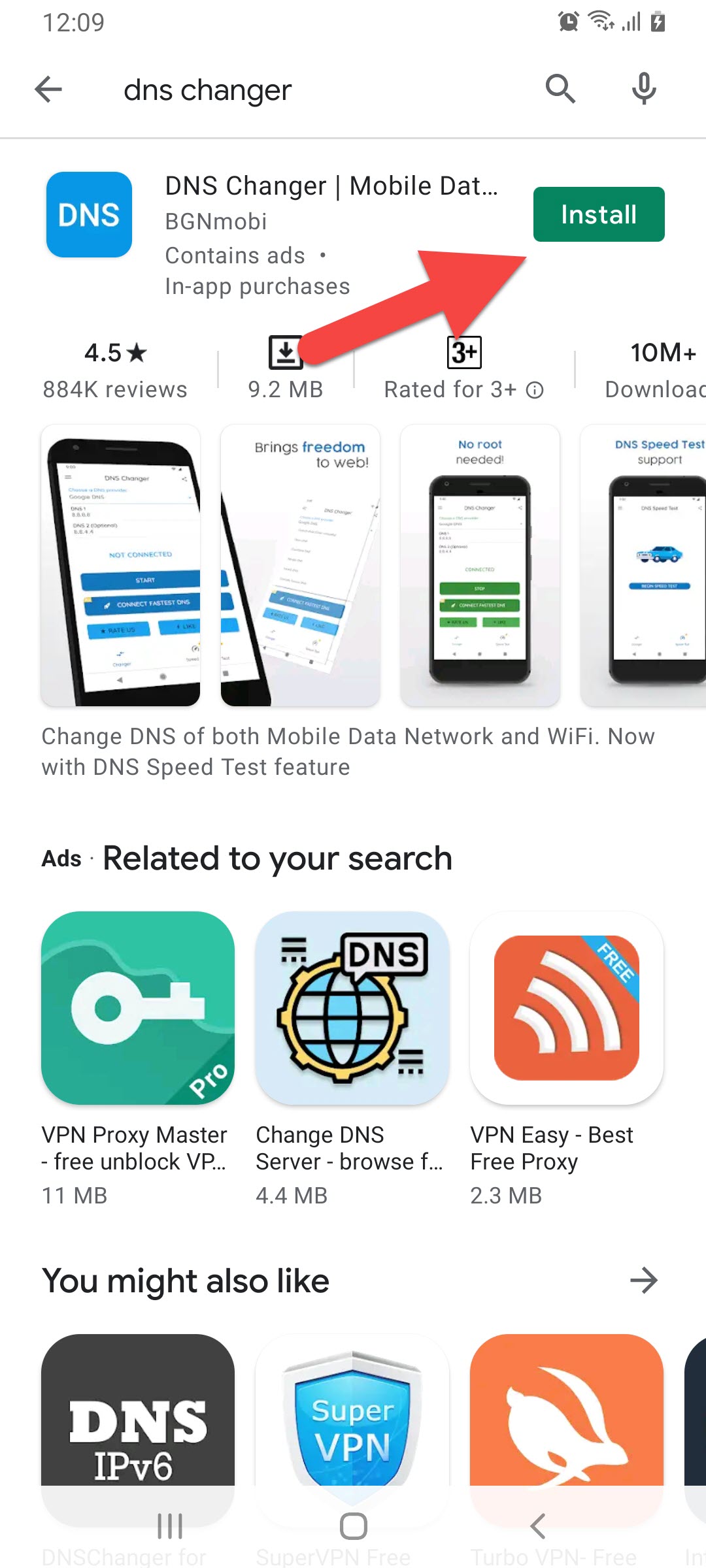 Click on the Install
 Step 3. Then wait for installation once it is done then click on the Open.
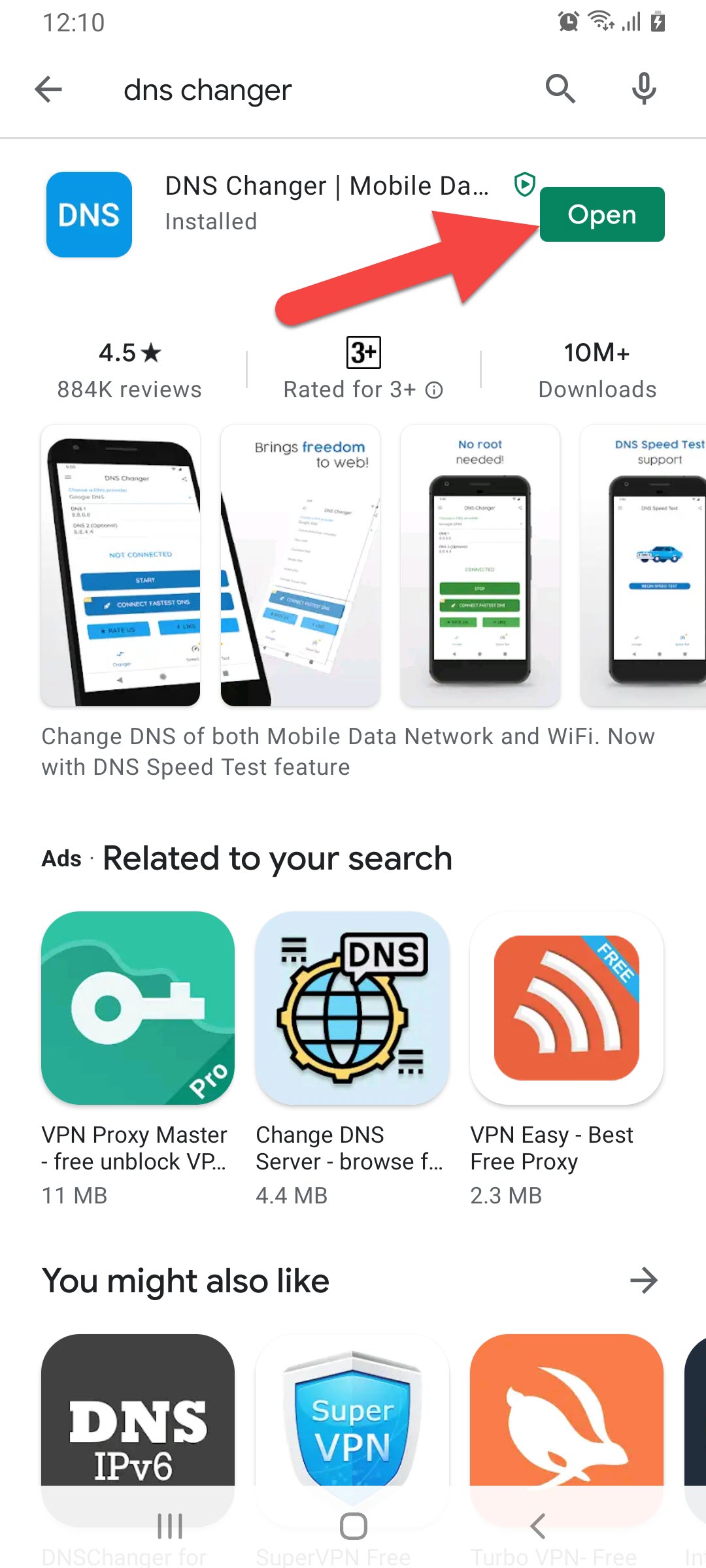 Click on the Install
 Step 4. Once the DNS changer is open then accept all agreements.
Step 5. Now, type the DNS then click on the Start.
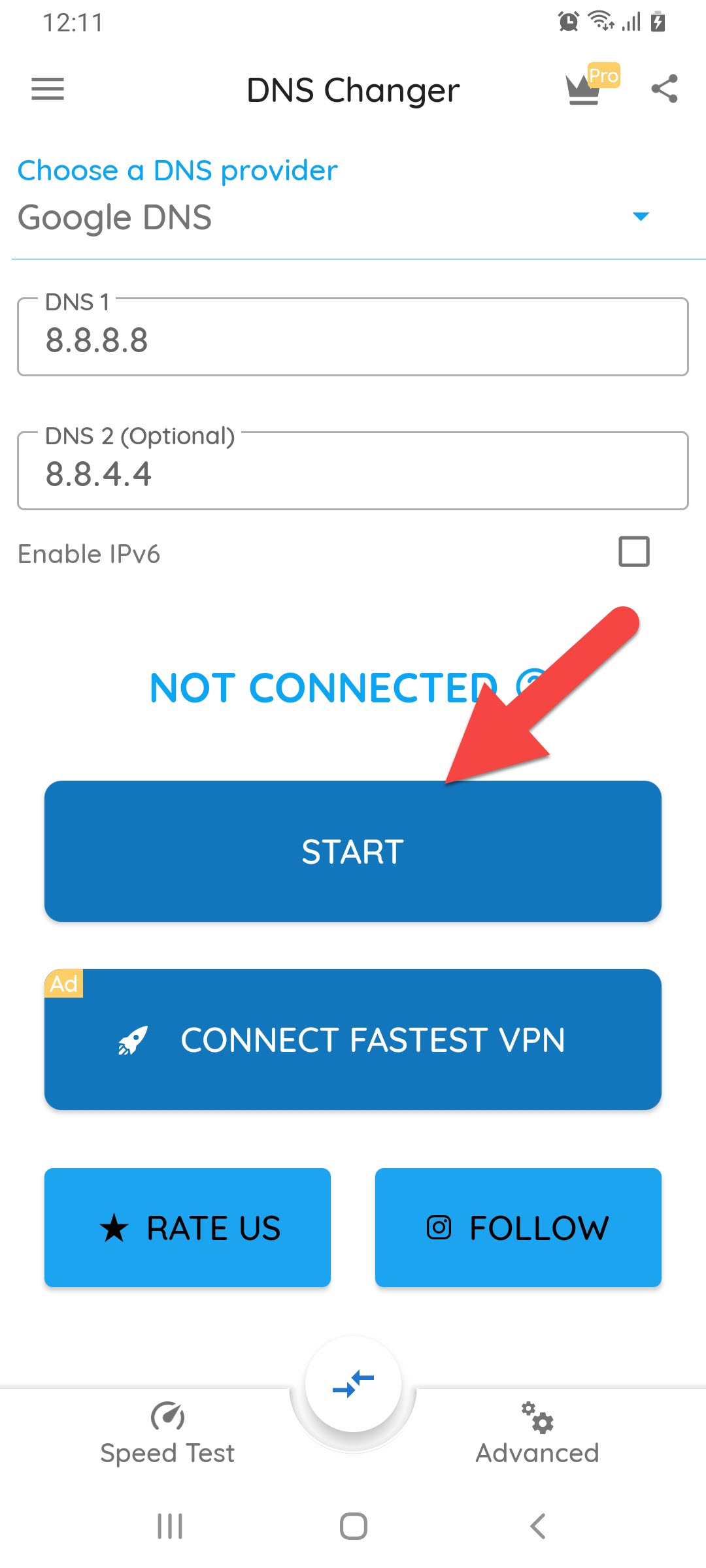 Type the DNS Then Click on the Start
 Related Post:
How to Share Audio Using Audio Sharing on iPhone
How to Use VPN to Unblock Web Services and Websites
Bottom Line
It was all about How to Change Android DNS Settings (2 New Methods). I will find for you 2 easy methods to change DNS. I hope after reading this article you will learn How to Change Android DNS Setting (3 New Methods). So, if you have faced any kind of problem and if you have any kind of suggestion so I prefer you to comment down below.
Tagged
Share This Article
If you want to change the DNS settings then it is very easy to change. I will find for you 3 new methods to change DNS settings. In this article, I will fully guide you on How to Change Android DNS Setting (3 New Methods).
The domain name system is indisputably one of the most important and over-locked parts of the internet. Without DNS, the internet as we know it today would collapse, and we would all be licking stamps to pay our bills. Driving to an actual store to purchase something, reading the newspaper to see what movies were showing. Or buying little sound pieces of plastic has called CDs to get our music.
However, DNS is has used to translate an actual name into these numbers. Moreover, DNS you can even though most of us get to our favorite website like YouTube.com. Then your browser actually needs to know the IP address of the website you are trying to access. So, to do this it sends a request to the DNS which is sort of like the internet’s version of yellow pages that matches a website URL or a uniform resource locator to an IP address. So the DNS request first goes to a recursive name server.
Change DNS From Setting
Step 1. Open your setting then go to Wi-Fi after that click on the Setting Icon.
Click on the Setting Icon Step 2. Click on the Advanced.
Click on the Advanced Step 3. Now, tap on the DHCP.
Tap on the DHCP Step 4. When you tap on the DHCP then select the Static.
Select the Static Step 4. Next, type in DNS 1 8.8.8.8 then type in DNS 8.8.4.4 then click on the Save.
Type in DNS 1 8.8.8.8 Then Type in DNS 8.8.4.4 After That on the Save Step 6. At last, reconnect your network.
Change DNS With Third-Party App
Step 1. Open your play store then go to the search bar then type DNS Changer.
Step 2. When you find DNS changer then find that after that click on the Install.
Click on the Install Step 3. Then wait for installation once it is done then click on the Open.
Click on the Install Step 4. Once the DNS changer is open then accept all agreements.
Step 5. Now, type the DNS then click on the Start.
Type the DNS Then Click on the Start Related Post:
How to Share Audio Using Audio Sharing on iPhone
How to Use VPN to Unblock Web Services and Websites
Bottom Line
It was all about How to Change Android DNS Settings (2 New Methods). I will find for you 2 easy methods to change DNS. I hope after reading this article you will learn How to Change Android DNS Setting (3 New Methods). So, if you have faced any kind of problem and if you have any kind of suggestion so I prefer you to comment down below.