
How to Convert Photo to PDF on iPhone (3 Simple Ways)
 Azaz Shaikh
When you are using your mobile then you will take a picture. Once you take a picture then the photo will save on your photos after that you want to change the PDF. When you try to convert photos to PDF then you don’t know the way that you can convert your photo to PDF. But don’t worry I here to solve your problems. If you want to convert photos to PDF then you need to read this article. So, without wasting any time let’s get has started. From this article, you will learn How to Convert Photo to PDF on iPhone (3 Simple Ways).
This all method doesn’t want any third-party app to convert photo to PDF.
Related Post: How to Sync and Move Folders, Software, and Settings Between Windows 10 PCs
Convert Photo to PDF Using Print Option
This method is very easy to convert photo to PDF you will convert by the helpful feature of the photo.
Step 1. At first, open your Photos on your iPhone the select multiple photos.
Step 2. Once you select the multiple photos then click on the Share at the bottom left corner of your screen.
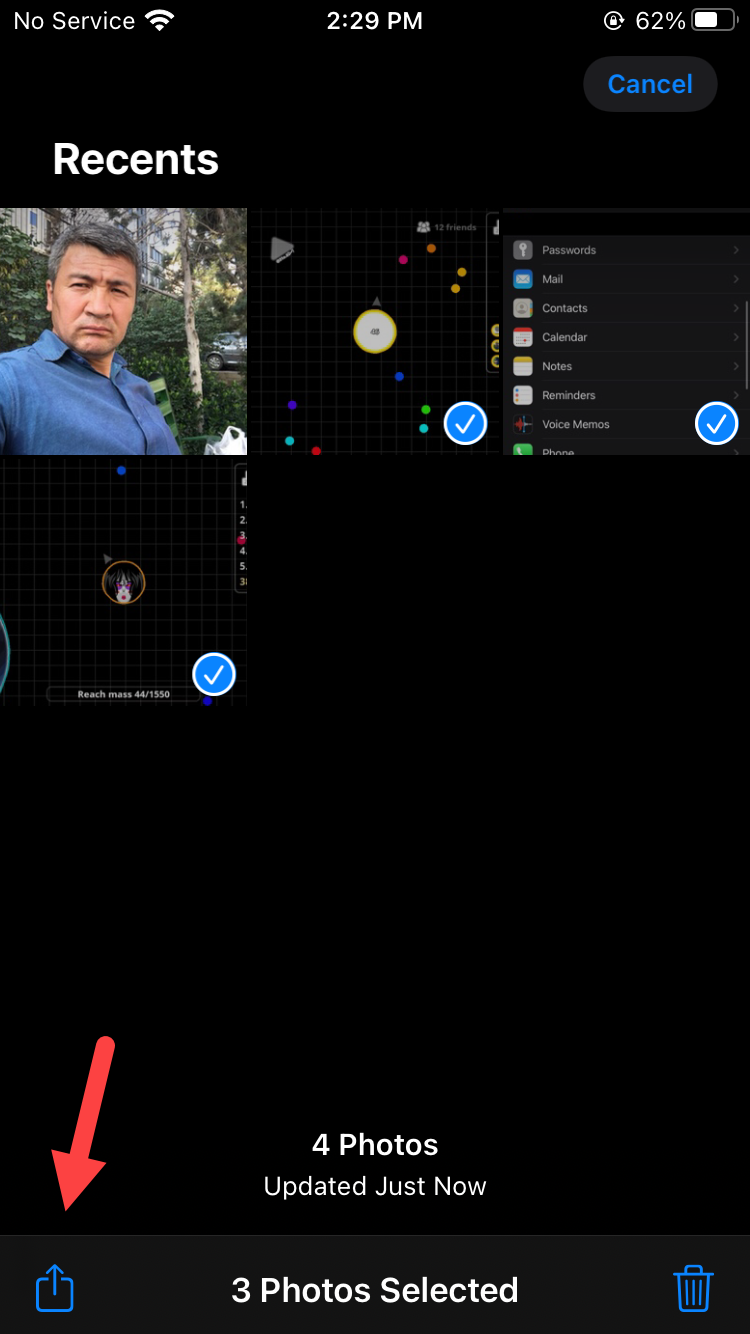 Click on the Share
 Step 3. Now, when you click on the share then scroll down after that click on the Print.
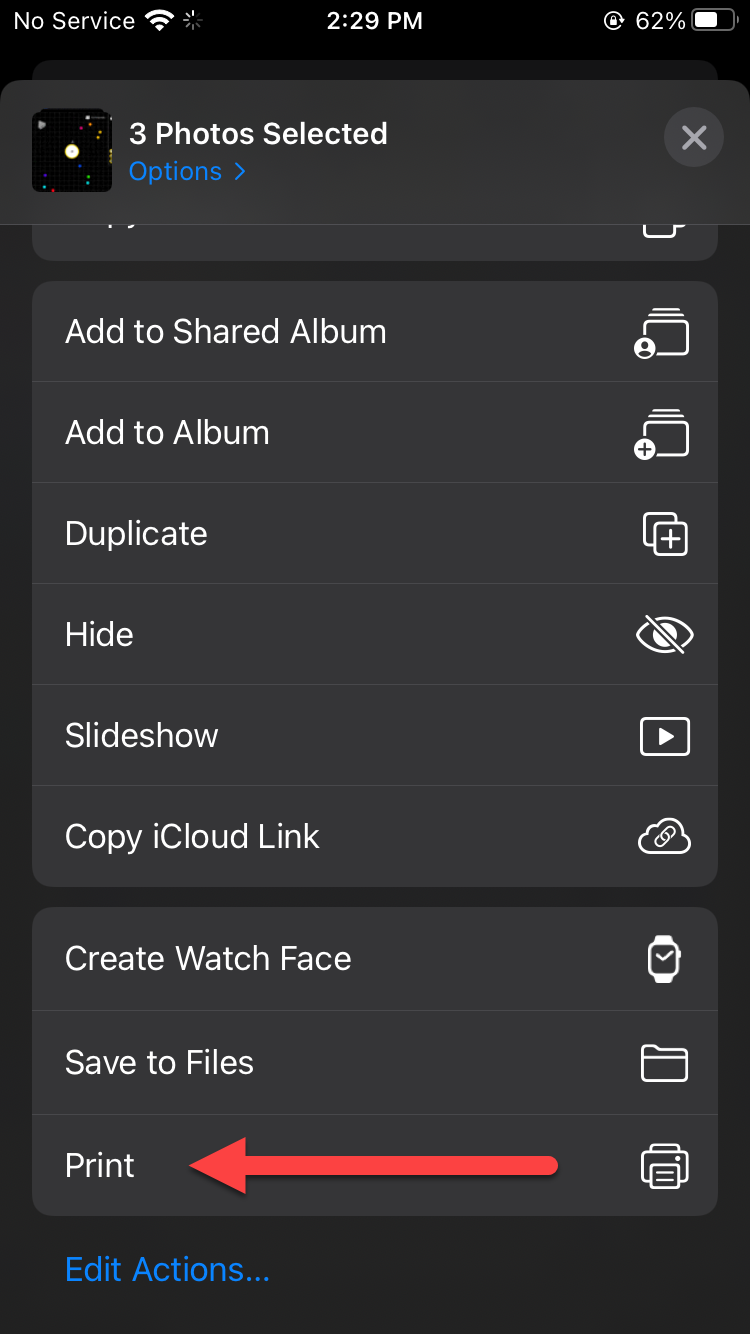 Click on the Print
 Step 4. Next, here you need to use your two fingers to view the photos.
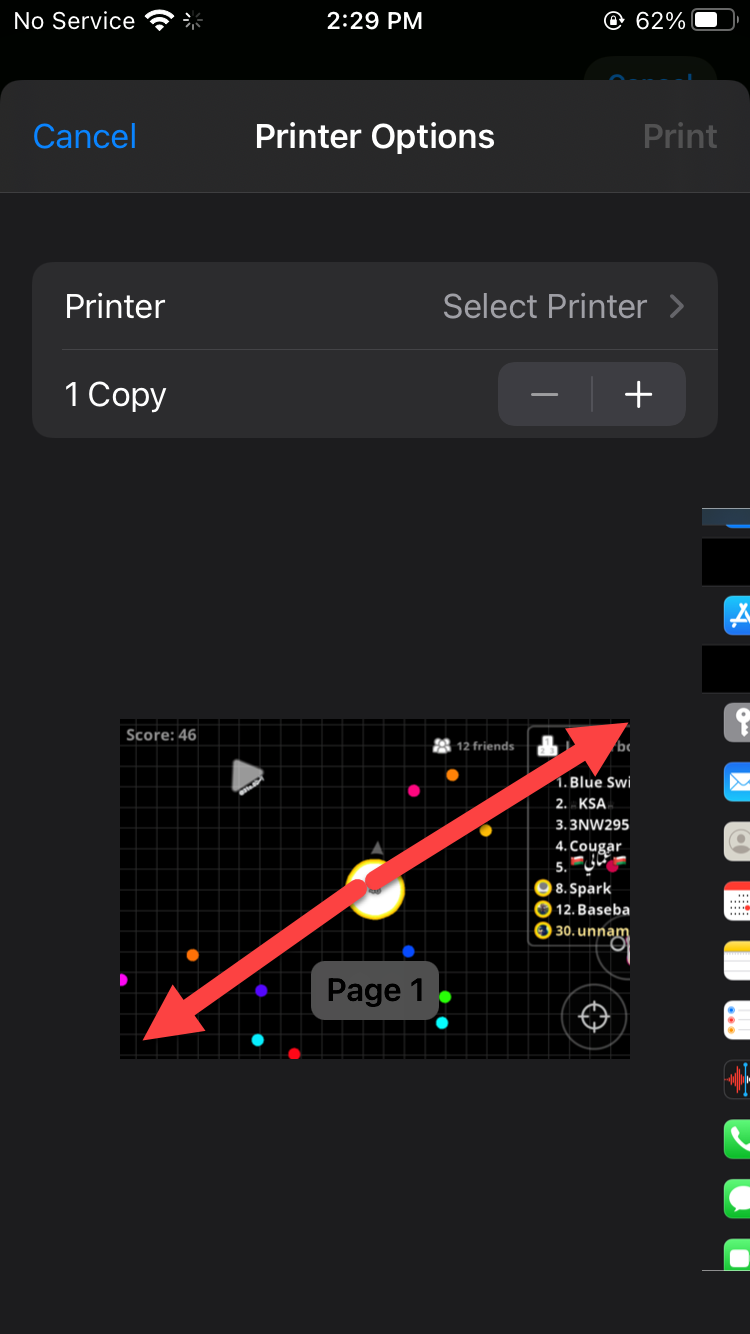
Step 5. Click on the Share at the top right corner.
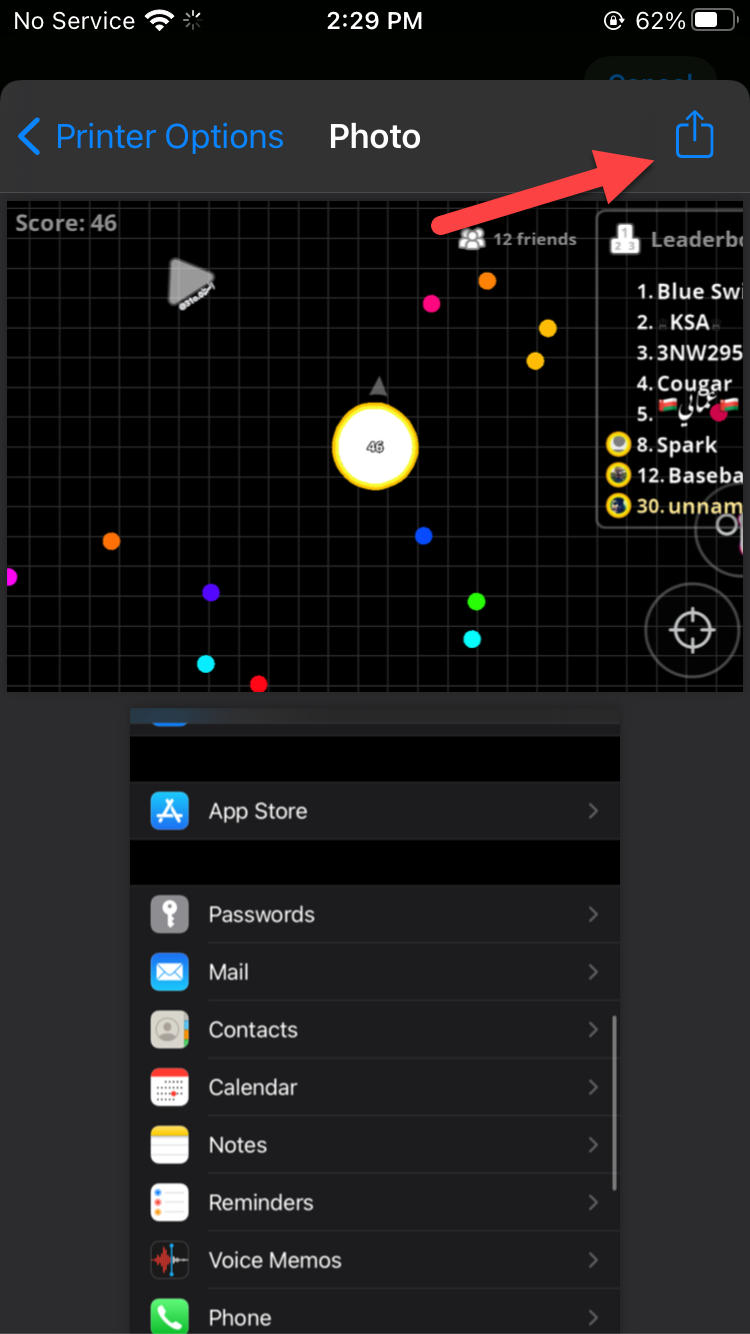 Click on the Share
 How to Save Photo As PDF on iPhone and iPad Via File App
This method saves photos as PDF using the file app. File app is installed on your device by default. You don’t need to download the file app.
Step 1. First of all, launch the Photos on your mobile then select any picture that you want to change to the PDF.
Step 2. Click on the Share at the bottom left corner of the Photos.
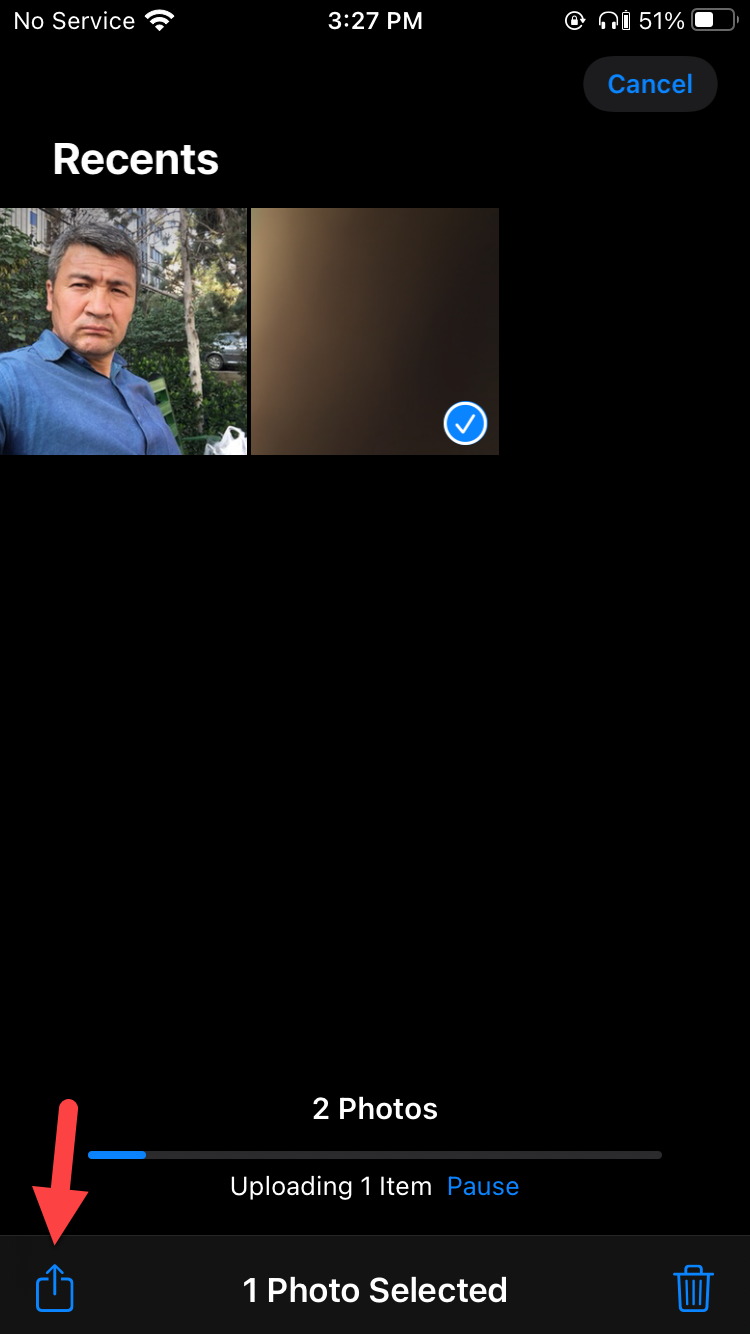 Click on the Share
 Step 3. Tap on the Save to Files.
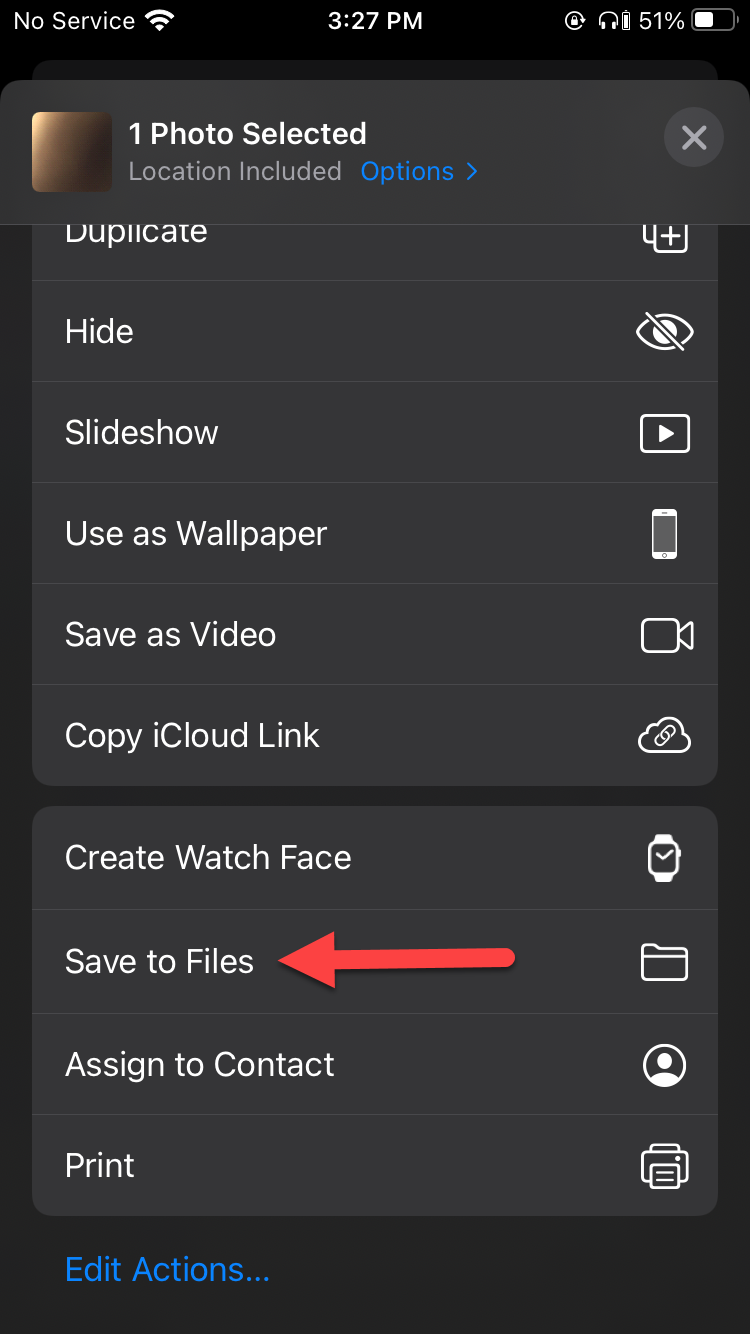 Tap on the Save to Files
 Step 4. Now, save the to any folder of the file then tap on the Save at the top right corner.
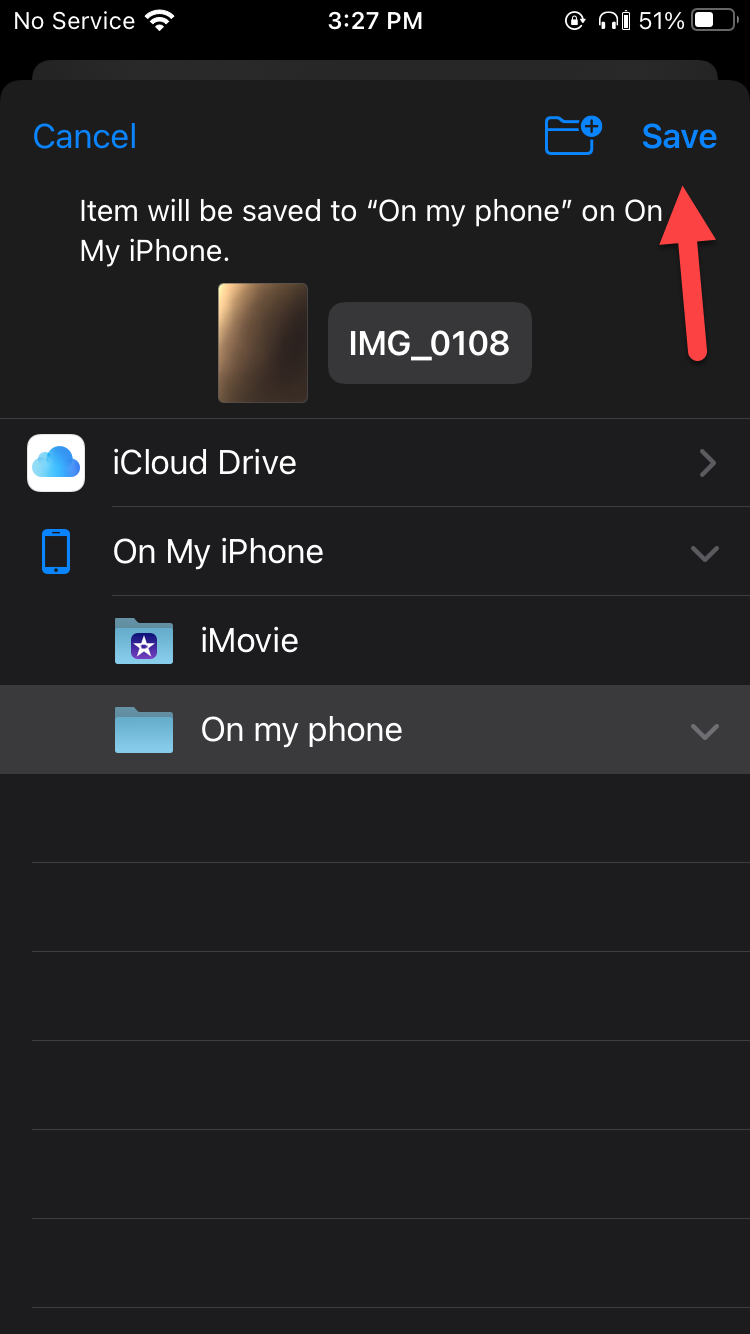 Tap on the Save
 Step 5. Next, open the folder in the file app where you save the photo after that long press on the photo then simply click on the Create PDF.
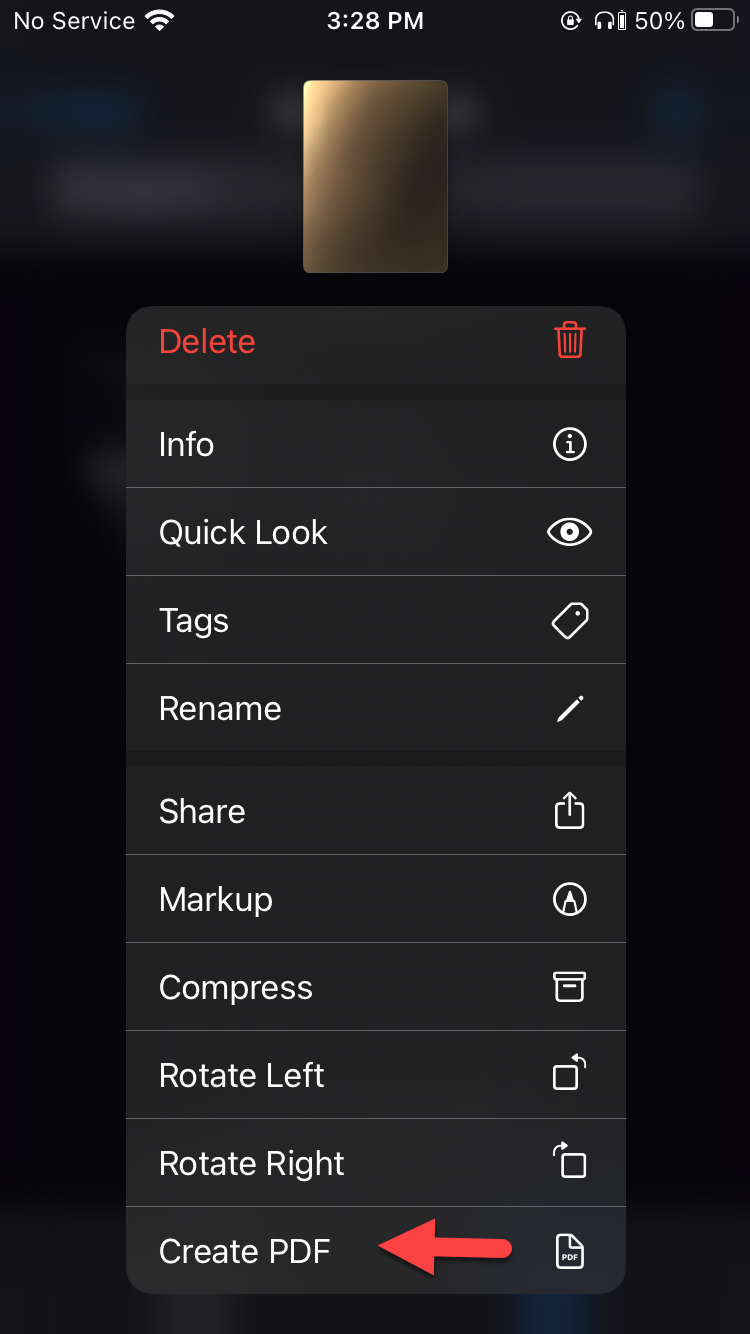 Click on the Create PDF
 Step 1. Open the Photos on your device then select the picture.
Step 2. Click on the Share at the bottom left screen of your screen then you need to click on the Books.
Step 3. So, when you click on the books then it will automatically convert to the PDF.
Step 4. Click on the Three Dots.
Related Post: How to Block Apple Ad Tracking on iPhone and iPad
Bottom Line
It was all about How to Convert Photo to PDF on iPhone (3 Simple Ways). I hope this article is very helpful for you to convert photos to PDF. From this article, you will get something good. After following these steps I hope you will not face any kind of problem. However, if you faced any kind of problem don’t hesitate to leave comments down below.
Related Post: How to Upload More Than 26 Seconds Videos on Facebook Story
Tagged
Share This Article
When you are using your mobile then you will take a picture. Once you take a picture then the photo will save on your photos after that you want to change the PDF. When you try to convert photos to PDF then you don’t know the way that you can convert your photo to PDF. But don’t worry I here to solve your problems. If you want to convert photos to PDF then you need to read this article. So, without wasting any time let’s get has started. From this article, you will learn How to Convert Photo to PDF on iPhone (3 Simple Ways).
This all method doesn’t want any third-party app to convert photo to PDF.
Related Post: How to Sync and Move Folders, Software, and Settings Between Windows 10 PCs
Convert Photo to PDF Using Print Option
This method is very easy to convert photo to PDF you will convert by the helpful feature of the photo.
Step 1. At first, open your Photos on your iPhone the select multiple photos.
Step 2. Once you select the multiple photos then click on the Share at the bottom left corner of your screen.
Click on the Share Step 3. Now, when you click on the share then scroll down after that click on the Print.
Click on the Print Step 4. Next, here you need to use your two fingers to view the photos.
Step 5. Click on the Share at the top right corner.
Click on the Share How to Save Photo As PDF on iPhone and iPad Via File App
This method saves photos as PDF using the file app. File app is installed on your device by default. You don’t need to download the file app.
Step 1. First of all, launch the Photos on your mobile then select any picture that you want to change to the PDF.
Step 2. Click on the Share at the bottom left corner of the Photos.
Click on the Share Step 3. Tap on the Save to Files.
Tap on the Save to Files Step 4. Now, save the to any folder of the file then tap on the Save at the top right corner.
Tap on the Save Step 5. Next, open the folder in the file app where you save the photo after that long press on the photo then simply click on the Create PDF.
Click on the Create PDF Step 1. Open the Photos on your device then select the picture.
Step 2. Click on the Share at the bottom left screen of your screen then you need to click on the Books.
Step 3. So, when you click on the books then it will automatically convert to the PDF.
Step 4. Click on the Three Dots.
Related Post: How to Block Apple Ad Tracking on iPhone and iPad
Bottom Line
It was all about How to Convert Photo to PDF on iPhone (3 Simple Ways). I hope this article is very helpful for you to convert photos to PDF. From this article, you will get something good. After following these steps I hope you will not face any kind of problem. However, if you faced any kind of problem don’t hesitate to leave comments down below.
Related Post: How to Upload More Than 26 Seconds Videos on Facebook Story