
How to Create macOS Big Sur USB Installer Disk – Step by Step
 Azaz Shaikh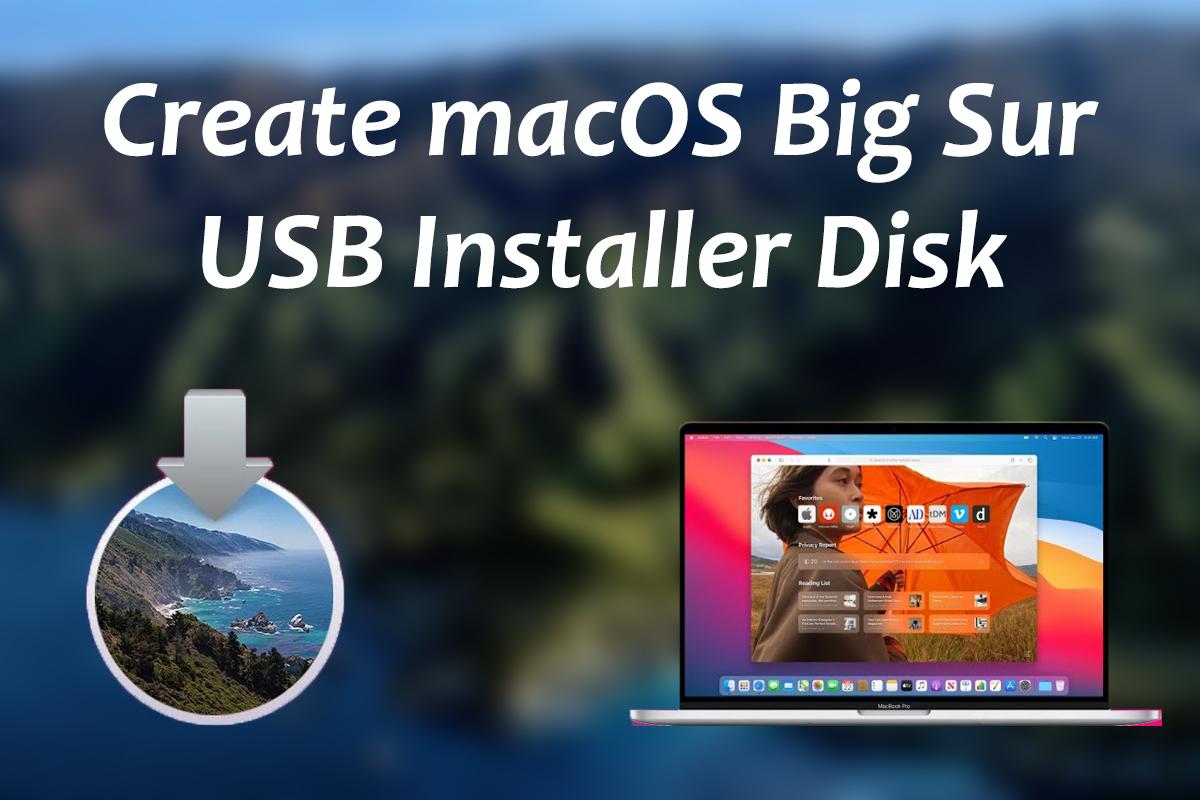
Apple kicked off its new Mac operating system which is macOS Big Sur. In this announcement, they have worked on improvements and redesigning the interface for macOS Big Sur. The macOS Big Sur is successful major release of Apple with tons of features. This operating system is somehow similar to iOS 14 which will make the work of its user easier. The design and features of macOS Big Sur are totally changed from the Catalina and Mojave. Therefore, most of the people want to test and use it on their Mac through USB installer disk which is good news for all. USB installer disk of macOS Big Sur will help the user in order to have a clean installation of it on Mac. That’s why, in this article, we are going to show you How to Create macOS Big Sur USB Installer Disk – Step by Step.
Nowadays, macOS Big Sur is in beta mode, because it is released for the users in order to get feedback from them. Also for its developer so that they should point the issue, the beta version contains too many issues and bugs. When they solve it then macOS Big Sur will be completely on the market for its user. Nothing to worry, you can download and install macOS Big Sur on your Mac with any method. But installing it with the help of USB installer disk is the way to go if you want to use and experience everything at its full potential. Without wasting time, let’s jump into it.
Which Mac Computer Supports macOS Big Sur?
Apple released it for its compatible Mac in order to install macOS Big Sur on it. If you are using a very old Mac then you have to forget about macOS Big Sur because it won’t be installed in it. Whenever Apple kicks off new operating system for Mac then it will be for a specific Mac. macOS Big Sur contains tons of features and redesigned toolbar and icons. Everyone is saying that it is a very powerful and completely changed the operating system overall. Therefore, all Mac computers even don’t support macOS Big Sur. So, you have to check before doing your hand dirty that is your Mac is compatible with macOS Big Sur or not. The following list of Mac computers down below will have ability in order to support macOS Big Sur.
- MacBook (2015 and newer)
- MacBook Air (2013 and newer)
- MacBook Pro (Late-2013 and newer)
- iMac (2014 and newer)
- iMac Pro (2017 and newer)
- Mac Pro (2013 and newer)
- Mac mini (2014 and newer)
Recommended guide: How to Install macOS Big Sur Developer Beta 1 on Mac.
How to Create macOS Big Sur USB Installer Disk
Willing to clean install macOS Big Sur on your Mac then you are in the right place. We will help you to create USB installer disk for macOS Big Sur. Therefore, you have to follow the below guidance so that you shouldn’t face any restrictions.
Step 1. First of all, you have to check is your Mac computer supports macOS Big Sur or not. If you have one of the above Mac then it is pretty fine.
Step 2. Insert a USB flash drive with minimum of 16GB storage or more storage.
Step 3. Now, it is time to download the macOS Big Sur Beta image file and you have to keep that in the Application folder.
Step 4. Then, you have to open the disk utility and erase your drive then make sure you name it untitled. You don’t have to change the parameter. And, set the drive to APFS and the scheme is set to GUID Partition Map. Finally, click on the Erase.
Step 5. Open the Terminal on your Mac and type the following command as shown down below.
| sudo /Applications/Install\ macOS\ 10.15\ Beta.app/Contents/Resources/createinstallmedia –volume /Volumes/Untitled –applicationpath /Applications/Install\ macOS\ 11\ Beta.app |
Step 6. Press the Return button on the keyboard and make sure to enter the administrator password of your Mac. It is the same password you use to log in to your Mac.
Step 7. The process of creating a macOS Big Sur USB installer disk will begin now. It will some minutes in order to be created, you have to sit back with a glass of coffee and relax until it completes the process. When the creating process is finished, you are done and ready to eject your USB flash drive from your Mac.
Bottom Line
Creating macOS Big Sur USB Installer Disk is very easy on Mac, but if you create it on Windows 10 PC then it will more time. It is the best way to have a clean installation of macOS Big Sur on Mac through USB installer disk. Therefore, I hope you have found this guide helpful for yourself. If you find any kind of problem then don’t hesitate to leave comments in the comment section down below. Leave your feedback and suggestion about macOS Big Sur in the comment section.
Tagged
Share This Article
Apple kicked off its new Mac operating system which is macOS Big Sur. In this announcement, they have worked on improvements and redesigning the interface for macOS Big Sur. The macOS Big Sur is successful major release of Apple with tons of features. This operating system is somehow similar to iOS 14 which will make the work of its user easier. The design and features of macOS Big Sur are totally changed from the Catalina and Mojave. Therefore, most of the people want to test and use it on their Mac through USB installer disk which is good news for all. USB installer disk of macOS Big Sur will help the user in order to have a clean installation of it on Mac. That’s why, in this article, we are going to show you How to Create macOS Big Sur USB Installer Disk – Step by Step.
Nowadays, macOS Big Sur is in beta mode, because it is released for the users in order to get feedback from them. Also for its developer so that they should point the issue, the beta version contains too many issues and bugs. When they solve it then macOS Big Sur will be completely on the market for its user. Nothing to worry, you can download and install macOS Big Sur on your Mac with any method. But installing it with the help of USB installer disk is the way to go if you want to use and experience everything at its full potential. Without wasting time, let’s jump into it.
Which Mac Computer Supports macOS Big Sur?
Apple released it for its compatible Mac in order to install macOS Big Sur on it. If you are using a very old Mac then you have to forget about macOS Big Sur because it won’t be installed in it. Whenever Apple kicks off new operating system for Mac then it will be for a specific Mac. macOS Big Sur contains tons of features and redesigned toolbar and icons. Everyone is saying that it is a very powerful and completely changed the operating system overall. Therefore, all Mac computers even don’t support macOS Big Sur. So, you have to check before doing your hand dirty that is your Mac is compatible with macOS Big Sur or not. The following list of Mac computers down below will have ability in order to support macOS Big Sur.
- MacBook (2015 and newer)
- MacBook Air (2013 and newer)
- MacBook Pro (Late-2013 and newer)
- iMac (2014 and newer)
- iMac Pro (2017 and newer)
- Mac Pro (2013 and newer)
- Mac mini (2014 and newer)
Recommended guide: How to Install macOS Big Sur Developer Beta 1 on Mac.
How to Create macOS Big Sur USB Installer Disk
Willing to clean install macOS Big Sur on your Mac then you are in the right place. We will help you to create USB installer disk for macOS Big Sur. Therefore, you have to follow the below guidance so that you shouldn’t face any restrictions.
Step 1. First of all, you have to check is your Mac computer supports macOS Big Sur or not. If you have one of the above Mac then it is pretty fine.
Step 2. Insert a USB flash drive with minimum of 16GB storage or more storage.
Step 3. Now, it is time to download the macOS Big Sur Beta image file and you have to keep that in the Application folder.
Step 4. Then, you have to open the disk utility and erase your drive then make sure you name it untitled. You don’t have to change the parameter. And, set the drive to APFS and the scheme is set to GUID Partition Map. Finally, click on the Erase.
Step 5. Open the Terminal on your Mac and type the following command as shown down below.
| sudo /Applications/Install\ macOS\ 10.15\ Beta.app/Contents/Resources/createinstallmedia –volume /Volumes/Untitled –applicationpath /Applications/Install\ macOS\ 11\ Beta.app |
Step 6. Press the Return button on the keyboard and make sure to enter the administrator password of your Mac. It is the same password you use to log in to your Mac.
Step 7. The process of creating a macOS Big Sur USB installer disk will begin now. It will some minutes in order to be created, you have to sit back with a glass of coffee and relax until it completes the process. When the creating process is finished, you are done and ready to eject your USB flash drive from your Mac.
Bottom Line
Creating macOS Big Sur USB Installer Disk is very easy on Mac, but if you create it on Windows 10 PC then it will more time. It is the best way to have a clean installation of macOS Big Sur on Mac through USB installer disk. Therefore, I hope you have found this guide helpful for yourself. If you find any kind of problem then don’t hesitate to leave comments in the comment section down below. Leave your feedback and suggestion about macOS Big Sur in the comment section.