
How to Format USB Flash Drive from Command Prompt 2020
 Azaz Shaikh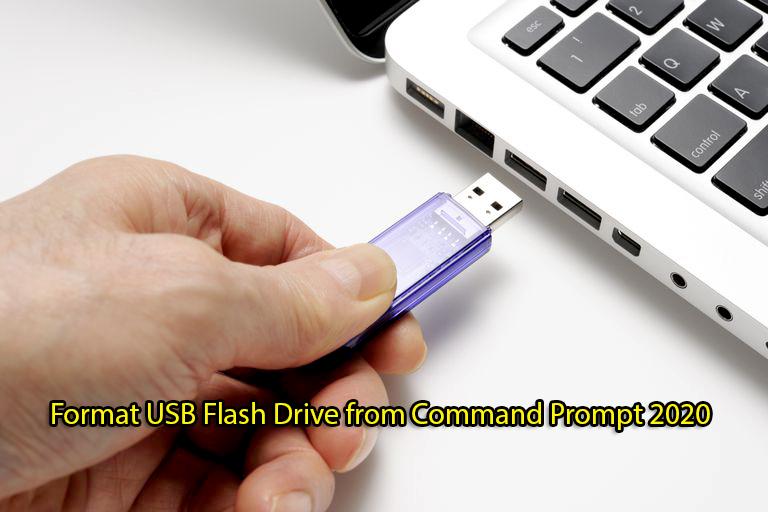
In this article, you will learn How to Format USB Flash Drive from Command Prompt 2020. You might know that about Command Prompt if you use Windows on a daily basis. Most of the people know Command prompt by the name of CMD. However, in Windows PC command prompt really us if something stops working. So, USB Flash Drive is the shortest way to transfer personal data through it. And also you can make it bootable in order to renew the Windows of your system. As well as you can take your data or things wherever you go and when it is needed then you can give the USB nothing else. Therefore, once it gets damaged or stops working then your Windows might not format because of error. When it gets damaged, once you format then the format process starts as usual but at last you might see an error.
Most of the time, you can easily format your USB Flash Drive from Disk Management and File Explorer. But sometimes you cannot finish the formatting operations as usual. That might be caused by USB drive read-only, virus attack, USB corrupted bad sectors or other unknown factors. Therefore, Command Prompt will be the best option to format it without any risk and problem. Command Prompt might fix the corrupted USB Flash Drive also. In the command prompt, you need to write some commands so that you can format it otherwise it is not possible. Therefore, the commands you will find from this guide. So, you need to follow each step below properly and get your USB Flash Drive Formatted.
How to Format USB Flash Drive from Command Prompt 2020
Before going to format the USB Flash Drive, make sure to take the data from the USB once you apply the commands then your USB will be completely clean and all data will be removed. You will walk through the whole formatting process in just some steps, and the time spent will depend on the USB flash drive capacity and used space on it.
Step 1. At the very first step, you need to search CMD in the start menu and right-click on that click on the Run as Administrator.
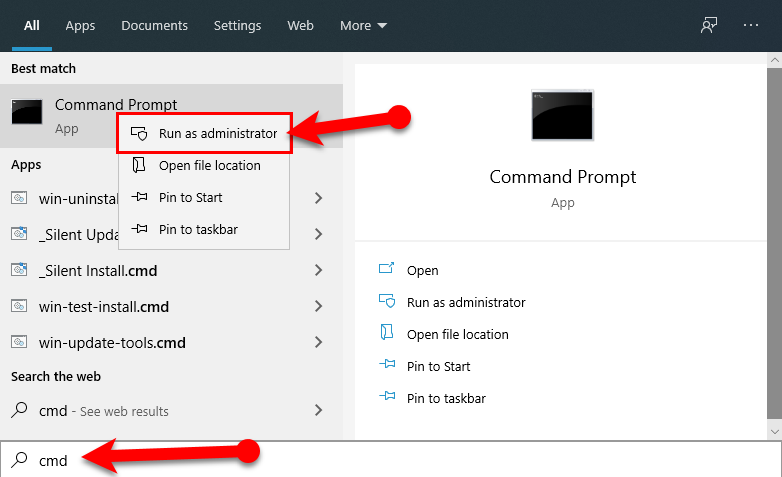 Run Command Prompt
 Step 2. Once the Command Prompt opens, there you need to type diskpart and hit enter button from the keyboard.
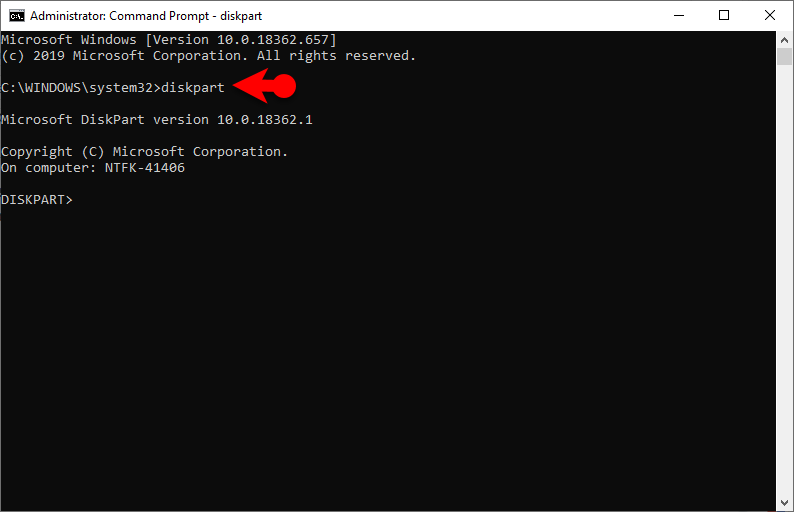 Diskpart
 Step 3. After that, you need to type list disk and hit Enter. It will show you all the disk which is available on your PC. Now check in which disk your USB Flash drive is, mine one is disk 1.
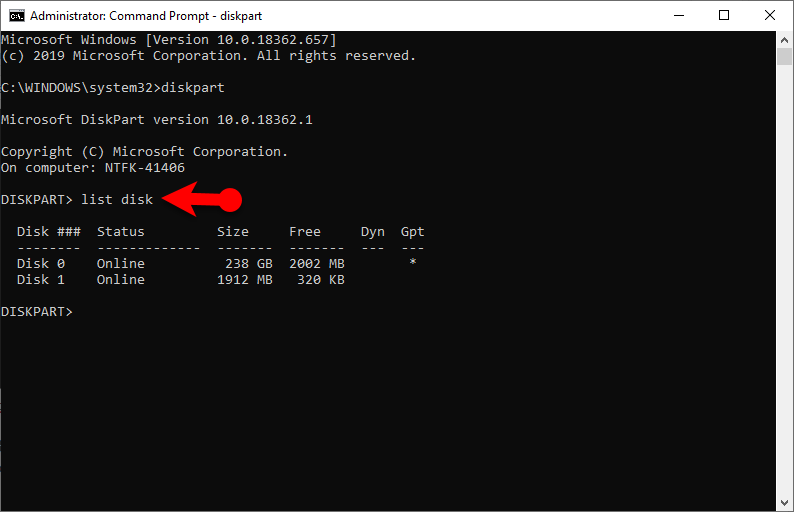 List disk
 Step 4. Now, select the USB Flash Drive, simply type select disk 1. Because my USB is disk 1.
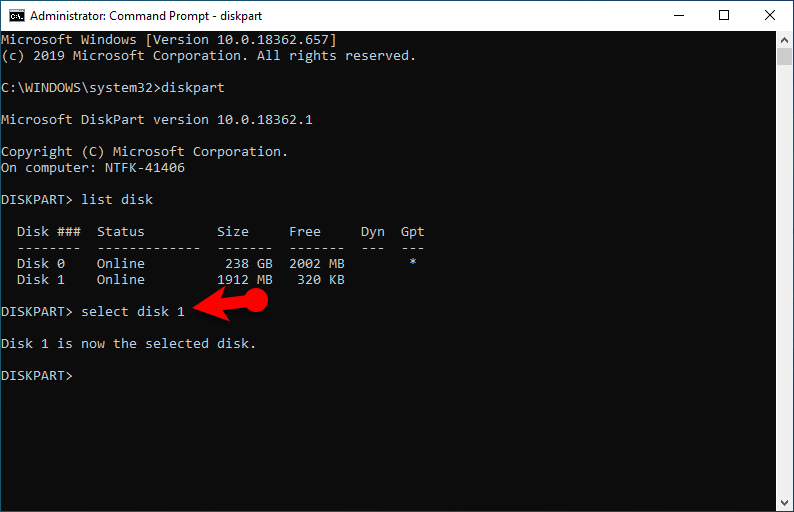 select the USB Flash Drive
 Step 5. Once the USB Flash Drive is selected, then you need to type clean. And hold for some moments so that it should clean the disk.
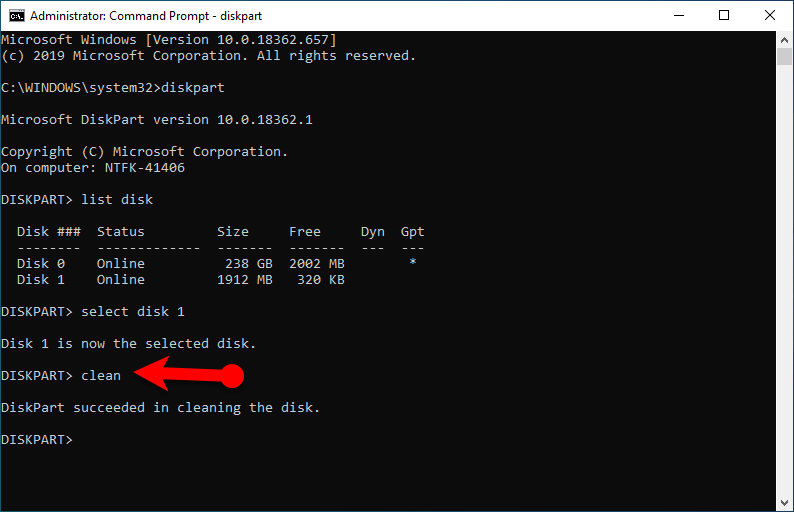 Clean the disk
 Step 6. When it cleaned the USB Flash Drive, afterward, you need to type create partition primary and hit enter.
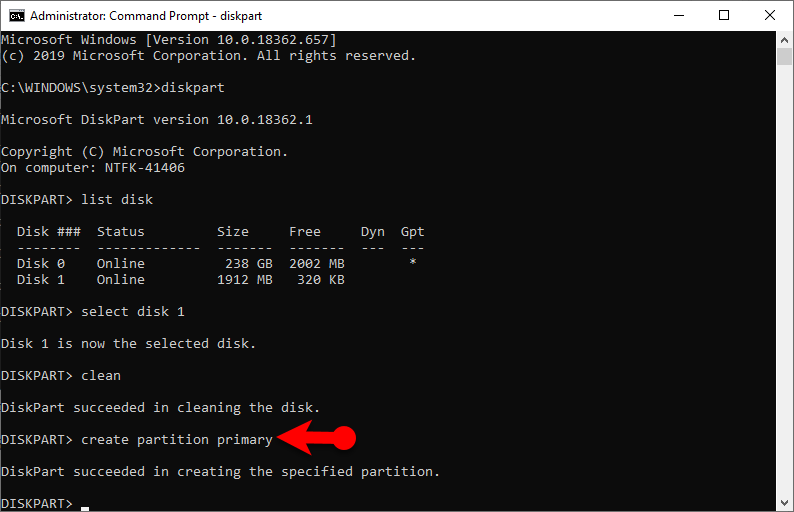 Create Partition
 Step 7. After diskpart successfully created the specified partition, then you need to type format fs=ntfs and hit enter. So, it will start to format your USB Flash Drive successfully. Therefore, wait for some seconds so that it should be formatted.
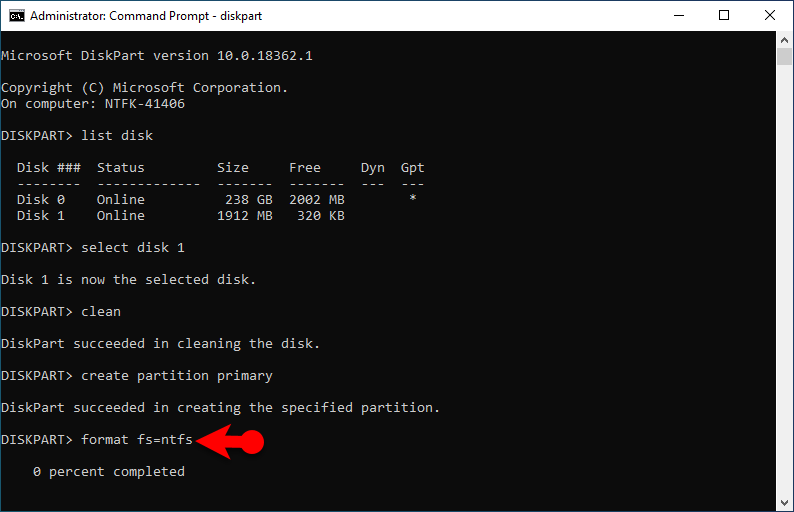 Formating USB Flash Drive
 Step 8. Once Diskpart successfully formated your USB, then you need to type assign in order to create a drive letter to the USB Flash Drive.
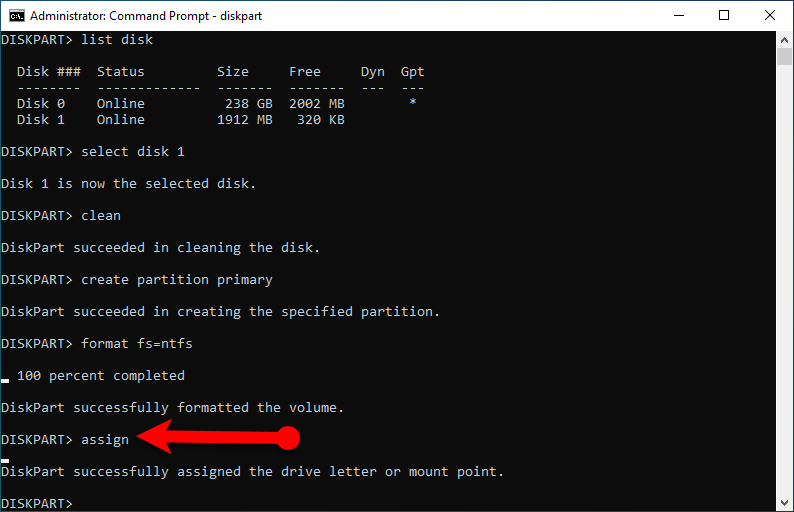 Assign the drive
 Step 9. When done each and everything greatly. Type exit and hit enter then again type exit and hit enter so that it should close the command prompt.
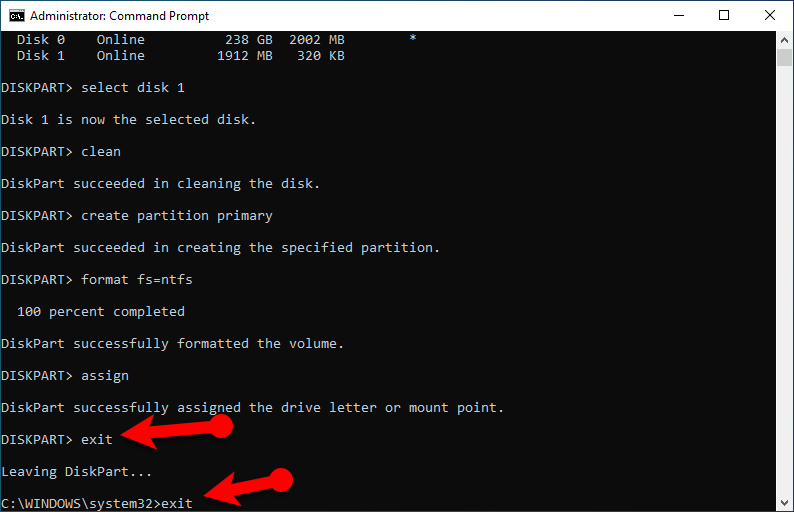 Exit the Command Prompt
 Related articles
Final Words
That’s all about How to Format USB Flash Drive from Command Prompt 2020. It is all the steps which require when formatting the USB Flash Drive. This way of formatting is pretty safe than going through disk management. I hope these commands was beneficial while formatting any USB Flash Drive. So, if you have any kind of problem, question, and suggestion then feel free to leave comments below.
Tagged
Share This Article
In this article, you will learn How to Format USB Flash Drive from Command Prompt 2020. You might know that about Command Prompt if you use Windows on a daily basis. Most of the people know Command prompt by the name of CMD. However, in Windows PC command prompt really us if something stops working. So, USB Flash Drive is the shortest way to transfer personal data through it. And also you can make it bootable in order to renew the Windows of your system. As well as you can take your data or things wherever you go and when it is needed then you can give the USB nothing else. Therefore, once it gets damaged or stops working then your Windows might not format because of error. When it gets damaged, once you format then the format process starts as usual but at last you might see an error.
Most of the time, you can easily format your USB Flash Drive from Disk Management and File Explorer. But sometimes you cannot finish the formatting operations as usual. That might be caused by USB drive read-only, virus attack, USB corrupted bad sectors or other unknown factors. Therefore, Command Prompt will be the best option to format it without any risk and problem. Command Prompt might fix the corrupted USB Flash Drive also. In the command prompt, you need to write some commands so that you can format it otherwise it is not possible. Therefore, the commands you will find from this guide. So, you need to follow each step below properly and get your USB Flash Drive Formatted.
How to Format USB Flash Drive from Command Prompt 2020
Before going to format the USB Flash Drive, make sure to take the data from the USB once you apply the commands then your USB will be completely clean and all data will be removed. You will walk through the whole formatting process in just some steps, and the time spent will depend on the USB flash drive capacity and used space on it.
Step 1. At the very first step, you need to search CMD in the start menu and right-click on that click on the Run as Administrator.
Run Command Prompt Step 2. Once the Command Prompt opens, there you need to type diskpart and hit enter button from the keyboard.
Diskpart Step 3. After that, you need to type list disk and hit Enter. It will show you all the disk which is available on your PC. Now check in which disk your USB Flash drive is, mine one is disk 1.
List disk Step 4. Now, select the USB Flash Drive, simply type select disk 1. Because my USB is disk 1.
select the USB Flash Drive Step 5. Once the USB Flash Drive is selected, then you need to type clean. And hold for some moments so that it should clean the disk.
Clean the disk Step 6. When it cleaned the USB Flash Drive, afterward, you need to type create partition primary and hit enter.
Create Partition Step 7. After diskpart successfully created the specified partition, then you need to type format fs=ntfs and hit enter. So, it will start to format your USB Flash Drive successfully. Therefore, wait for some seconds so that it should be formatted.
Formating USB Flash Drive Step 8. Once Diskpart successfully formated your USB, then you need to type assign in order to create a drive letter to the USB Flash Drive.
Assign the drive Step 9. When done each and everything greatly. Type exit and hit enter then again type exit and hit enter so that it should close the command prompt.
Exit the Command Prompt Related articles
Final Words
That’s all about How to Format USB Flash Drive from Command Prompt 2020. It is all the steps which require when formatting the USB Flash Drive. This way of formatting is pretty safe than going through disk management. I hope these commands was beneficial while formatting any USB Flash Drive. So, if you have any kind of problem, question, and suggestion then feel free to leave comments below.