
How to Install macOS Big Sur Developer Beta 1 on Mac
 Azaz Shaikh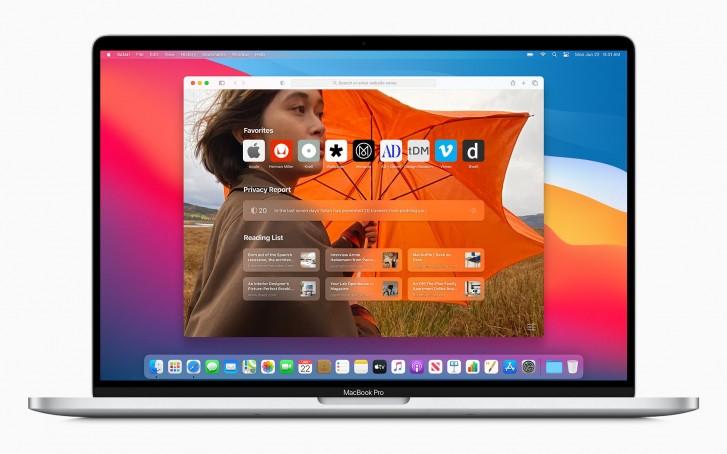
Finally, at WWDC (World Wide Developer Conference) 2020, Apple company kicked off its new version or operating system full of incredible features. Every year we are blessed with the new operating system of Mac. So, the same in June 2020, we have got the new and only operating system by the name of macOS Big Sur. Whenever Apple releases its new operating system in the market with tons of hand features for the betterment of its users. However, you will see more improvements and functionalities as compared to previous versions of Mac. macOS `Big Sur operating system is somehow redesigned of macOS Catalina. So, in some cases, macOS Big Sure is much better and amazing features in it. If you wish to try the latest operating of Mac then you can do without restriction. You will learn How to Install macOS Big Sur Developer Beta 1 on Mac.
Till now, the complete version is not released yet. Because it is going to be released in September or October of 2020. Now, the beta version is released only, don’t worry Apple confirmed that macOS Big Sur will be the newest operating system of Mac. There is a piece of good news that you can easily install and use macOS Big Sur on your Mac.
The operating system of Mac which is macOS Big Sur has tons of new features. In macOS Big Sur, there is a great feature that is Faster access apps, files, folders, and many more. Fortunately, this year, we also have the iOS 14 in the new version of the iPhone. Apple also introduced iOS 14 for the iPhone which has many new features as compared to the older version of iOS.
Before you Start Installing macOS Big Sur:
The first thing you should do is that you need to get the backup before your start installing macOS Big Sur on your Mac. Due to technical issues sometimes things go wrong while installing a new operating system. Make sure that you need to get the backup of your Mac with the help of Time Machine available on your Mac. Because you are going to bring the necessary changes to your Mac. You get stuck on some problem then it is the best option to have the backup.
You can Install macOS Big Sur on following Mac system
Well, macOS Big Sur is a very powerful operating system out there. According to the rumors, macOS Big Sur is not going to compatible with all Mac. Because it is somehow stong and every Mac can support macOS Big Sur. You have to check the compatibility of your Mac whether it supports macOS Big Sur in order to run it. If you want in a hurry that which Mac supports the macOS Big Sur then we will tell you. Check out the below listed Mac, these are the Macs in which you can install macOS Big Sur.
- 12-inch MacBook 2015 and Later
- MacBook Air 2013 and later
- MacBook Pro Late 2013 or later
- Mac Mini 2014 or later
- iMac 2014 or later
- iMac Pro all models
- Mac Pro 2013 or later
How to Install macOS Big Sur Developer Beta 1 on Mac
Step 1. Open your favorite web browser on your Mac, head over towards the Developer.apple.com website. It will definitely ask you in order to login in with your developer account.
Step 2. When you log in to it, make sure to click on the Download button which is available in the upper right corner.
Step 3. After going to your developer account details, you have to scroll down and click on the Install Profile for macOS Big Sur 10.16.
Step 4. After downloading it, this will automatically download a file on your Mac, keep in mind that the file will be saved in the Downloads folder.
Step 5. Now you have to go to Downloads Folder, then double-click macOS DeveloperBetaAccessUtility.pkg in order to run the installer.
Step 6. Whenever the downloading process completes, you will be notified in order to install it on your Mac. You have to click on Continue and Agree to the terms and conditions. After that, click on the Install button.
Step 7. Then, you have to follow the instruction to install the macOS Developer Beta. Your Mac will restart automatically, Once your Mac has restarted then macOS will be installed.
Step 8. Once done, you have to click on the Apple Logo at the top right corner of Mac. Select the System Preference and click on the Software update.
Step 9. There you can see the macOS Big Sur Developer Beta option. Click on the Upgrade now > Continue > Agree > Install. Then the installation process will start up automatically. Therefore, you have to wait until it should be finished.
Related Posts:
Bottom Line
Keep in mind that the Beta version of macOS Big Sur contains too many bugs, you have to deal with them. Because yet the complete version is not roll out. For the experience, we have briefly discussed on How to Install macOS Big Sur Developer Beta 1 on Mac. I hope you have learned something from this article. You can enjoy the macOS Big Sur beta version on your Mac. Therefore, if you got any sort of problem while installing macOS Big Sur then don’t hesitate to leave comments in the comment section down below. Don’t forget to comment on your views, suggestion, and feedback about macOS Big Sur, we will be happy to read.
Share This Article
Finally, at WWDC (World Wide Developer Conference) 2020, Apple company kicked off its new version or operating system full of incredible features. Every year we are blessed with the new operating system of Mac. So, the same in June 2020, we have got the new and only operating system by the name of macOS Big Sur. Whenever Apple releases its new operating system in the market with tons of hand features for the betterment of its users. However, you will see more improvements and functionalities as compared to previous versions of Mac. macOS `Big Sur operating system is somehow redesigned of macOS Catalina. So, in some cases, macOS Big Sure is much better and amazing features in it. If you wish to try the latest operating of Mac then you can do without restriction. You will learn How to Install macOS Big Sur Developer Beta 1 on Mac.
Till now, the complete version is not released yet. Because it is going to be released in September or October of 2020. Now, the beta version is released only, don’t worry Apple confirmed that macOS Big Sur will be the newest operating system of Mac. There is a piece of good news that you can easily install and use macOS Big Sur on your Mac.
The operating system of Mac which is macOS Big Sur has tons of new features. In macOS Big Sur, there is a great feature that is Faster access apps, files, folders, and many more. Fortunately, this year, we also have the iOS 14 in the new version of the iPhone. Apple also introduced iOS 14 for the iPhone which has many new features as compared to the older version of iOS.
Before you Start Installing macOS Big Sur:
The first thing you should do is that you need to get the backup before your start installing macOS Big Sur on your Mac. Due to technical issues sometimes things go wrong while installing a new operating system. Make sure that you need to get the backup of your Mac with the help of Time Machine available on your Mac. Because you are going to bring the necessary changes to your Mac. You get stuck on some problem then it is the best option to have the backup.
You can Install macOS Big Sur on following Mac system
Well, macOS Big Sur is a very powerful operating system out there. According to the rumors, macOS Big Sur is not going to compatible with all Mac. Because it is somehow stong and every Mac can support macOS Big Sur. You have to check the compatibility of your Mac whether it supports macOS Big Sur in order to run it. If you want in a hurry that which Mac supports the macOS Big Sur then we will tell you. Check out the below listed Mac, these are the Macs in which you can install macOS Big Sur.
- 12-inch MacBook 2015 and Later
- MacBook Air 2013 and later
- MacBook Pro Late 2013 or later
- Mac Mini 2014 or later
- iMac 2014 or later
- iMac Pro all models
- Mac Pro 2013 or later
How to Install macOS Big Sur Developer Beta 1 on Mac
Step 1. Open your favorite web browser on your Mac, head over towards the Developer.apple.com website. It will definitely ask you in order to login in with your developer account.
Step 2. When you log in to it, make sure to click on the Download button which is available in the upper right corner.
Step 3. After going to your developer account details, you have to scroll down and click on the Install Profile for macOS Big Sur 10.16.
Step 4. After downloading it, this will automatically download a file on your Mac, keep in mind that the file will be saved in the Downloads folder.
Step 5. Now you have to go to Downloads Folder, then double-click macOS DeveloperBetaAccessUtility.pkg in order to run the installer.
Step 6. Whenever the downloading process completes, you will be notified in order to install it on your Mac. You have to click on Continue and Agree to the terms and conditions. After that, click on the Install button.
Step 7. Then, you have to follow the instruction to install the macOS Developer Beta. Your Mac will restart automatically, Once your Mac has restarted then macOS will be installed.
Step 8. Once done, you have to click on the Apple Logo at the top right corner of Mac. Select the System Preference and click on the Software update.
Step 9. There you can see the macOS Big Sur Developer Beta option. Click on the Upgrade now > Continue > Agree > Install. Then the installation process will start up automatically. Therefore, you have to wait until it should be finished.
Related Posts:
Bottom Line
Keep in mind that the Beta version of macOS Big Sur contains too many bugs, you have to deal with them. Because yet the complete version is not roll out. For the experience, we have briefly discussed on How to Install macOS Big Sur Developer Beta 1 on Mac. I hope you have learned something from this article. You can enjoy the macOS Big Sur beta version on your Mac. Therefore, if you got any sort of problem while installing macOS Big Sur then don’t hesitate to leave comments in the comment section down below. Don’t forget to comment on your views, suggestion, and feedback about macOS Big Sur, we will be happy to read.