
How to Remove All Junk Files From Windows 10
 Azaz Shaikh
If you are using windows then the junk files will save on your computer. In this situation, your computer will be slow, then it better to delete all the junk files from your computer. When the junk files will be saved on your computer your PC storage will be finished then you need to delete all the junk files from your computer. after that when you will open any app and software then it very slow to open the software. Most of the people don’t know to delete junk files then don’t worry I am here to help you to delete all the junk files from your PC. I will find for you 5 methods to delete all the junk files from your computer. From this article, you will learn How to Remove All Junk Files From Windows 10.
How to Remove All Junk Files From Windows 10
1. Delete Files From Recycle Bin
If you want to delete junk files from your PC then I will find for you the easiest way to delete all the junk files. You can delete the junk files then you need from the recycle bin. The recycle bin located on your desktop. You need to simply go to desktop find recycle the Right-click on the recycle bin then click on the Empty Recycle Bin. And you can press Shift + Delete if you delete any file by pressing on Shift + delete after that it will delete permanently.
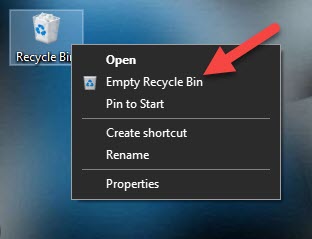 Right-Click on the Recycle Bin Then Click on the Empty Recycle Bin
 2. Free Up Space Now
This is another easy to delete junk files you can choose the junk files after that you can delete the thumbnail, antivirus, temporary files many more files you can delete. When you delete junk files from free up space now then it will delete permanently. For this, you need to go to Setting then click on the System, go to storage, click on the Free up Space Now.
3. Disk CleanUp
By disk cleanup option you can remove all junk files from the hard disk, it can free up your space. It means, disk cleanup can delete temporary files, recycle bin, temporary internet files, thumbnails, and also you can Clean up system files. If you want to free up more space you can choose the compress the drive to save the disk space option. Right-click then click on the Properties after that check the Compress this drive to Save Disk Space then click on the Disk Cleanup, click on the Clean Up System Files then click on the Ok.
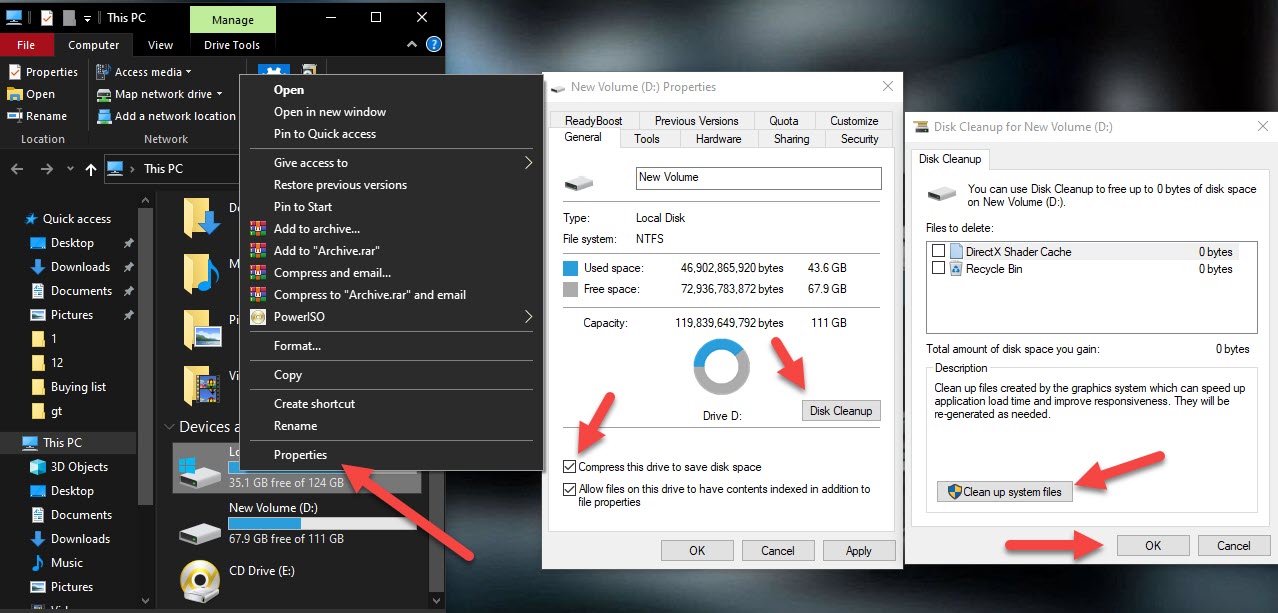 Right-click then click on the Properties after that check the Compress this drive to Save Disk Space then click on the Disk Cleanup, click on the Clean Up System Files then click on the Ok.
 4. Remove Tamp File
Now we are going to delete the temp file this easy way to delete the junk file. On your desktop, you cant see these junk files but we are going to delete all junk files and unnecessary files. For this, you need to press Windows + R then type %temp%, select all the files after that click on the Delete.
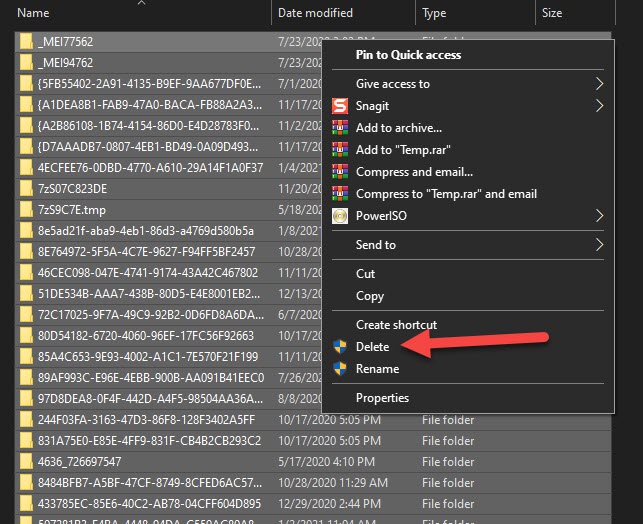 Windows + R then type %temp%, select all the files after that click on the Delete
 5. Storage Sense
Storage sense on your windows 10 to help automatically clean up temporary files that are just taking up space where items in your recycle bin this a newer feature and they were builds of windows 10. The first thing you need to do is to optimize the space you already have by getting rid of junk files, and apps, and games you don’t use. For this, you need to go to Setting then click on the System after that click on the Change How We Free Up Space Automatically.
Related Post:
How to download Mega File With no Limit
How to Download Facebook Videos Using Snaptube
Remove or Unlink Microsoft Account From Windows 10
Bottom Line
It was all about How to Remove All Junk Files From Windows 10. This all the best ways to delete all the junk files from windows 10. I hope after reading this article you will get something about junk files. So if you are faced with any kind of problem and if you have any suggestions then go down leave your comment.
Tagged
Share This Article
If you are using windows then the junk files will save on your computer. In this situation, your computer will be slow, then it better to delete all the junk files from your computer. When the junk files will be saved on your computer your PC storage will be finished then you need to delete all the junk files from your computer. after that when you will open any app and software then it very slow to open the software. Most of the people don’t know to delete junk files then don’t worry I am here to help you to delete all the junk files from your PC. I will find for you 5 methods to delete all the junk files from your computer. From this article, you will learn How to Remove All Junk Files From Windows 10.
How to Remove All Junk Files From Windows 10
1. Delete Files From Recycle Bin
If you want to delete junk files from your PC then I will find for you the easiest way to delete all the junk files. You can delete the junk files then you need from the recycle bin. The recycle bin located on your desktop. You need to simply go to desktop find recycle the Right-click on the recycle bin then click on the Empty Recycle Bin. And you can press Shift + Delete if you delete any file by pressing on Shift + delete after that it will delete permanently.
Right-Click on the Recycle Bin Then Click on the Empty Recycle Bin 2. Free Up Space Now
This is another easy to delete junk files you can choose the junk files after that you can delete the thumbnail, antivirus, temporary files many more files you can delete. When you delete junk files from free up space now then it will delete permanently. For this, you need to go to Setting then click on the System, go to storage, click on the Free up Space Now.
3. Disk CleanUp
By disk cleanup option you can remove all junk files from the hard disk, it can free up your space. It means, disk cleanup can delete temporary files, recycle bin, temporary internet files, thumbnails, and also you can Clean up system files. If you want to free up more space you can choose the compress the drive to save the disk space option. Right-click then click on the Properties after that check the Compress this drive to Save Disk Space then click on the Disk Cleanup, click on the Clean Up System Files then click on the Ok.
Right-click then click on the Properties after that check the Compress this drive to Save Disk Space then click on the Disk Cleanup, click on the Clean Up System Files then click on the Ok. 4. Remove Tamp File
Now we are going to delete the temp file this easy way to delete the junk file. On your desktop, you cant see these junk files but we are going to delete all junk files and unnecessary files. For this, you need to press Windows + R then type %temp%, select all the files after that click on the Delete.
Windows + R then type %temp%, select all the files after that click on the Delete 5. Storage Sense
Storage sense on your windows 10 to help automatically clean up temporary files that are just taking up space where items in your recycle bin this a newer feature and they were builds of windows 10. The first thing you need to do is to optimize the space you already have by getting rid of junk files, and apps, and games you don’t use. For this, you need to go to Setting then click on the System after that click on the Change How We Free Up Space Automatically.
Related Post:
How to download Mega File With no Limit
How to Download Facebook Videos Using Snaptube
Remove or Unlink Microsoft Account From Windows 10
Bottom Line
It was all about How to Remove All Junk Files From Windows 10. This all the best ways to delete all the junk files from windows 10. I hope after reading this article you will get something about junk files. So if you are faced with any kind of problem and if you have any suggestions then go down leave your comment.