
How to Set Up Auto Reply in Gmail? (2022 Methods)
 Azaz Shaikh
Making Gmail is very essential for every Android user. If you don’t have any Gmail account on your Android phone then you can’t access anything like Play Store, YouTube, and many more. Besides having access to the Play Store or something else, it is very perfect marketing. If you give you information that how many people were using Gmail or having Gmail account, in 2017, people were using Gmail accounts almost 3.7 billion. And if you want to know how many people are currently (2022) using Gmail account then according to Skyrocketed it is 4.5 billion. However, if you are holding and business or you are the owners of any company then you will send and receive lots of Emails. Then you will always want to reply and read Emails. From this article, I’ll guide you about How to Setup Auto Reply in Gmail?
When you want to reply to lots of Emails then the Gmail app has a great feature that you can set an auto-reply for the Emails. If you are wondering if it is working simply have to set a date or timing after that automatically send for the one whom you want. If you want to set up an auto-reply to Gmail then you need to read this article. Without wasting any time let’s get started.
How to Setup Auto Reply in Gmail?
Step 1. First of all, you have to log in to your account in Gmail then click on the Settings icon at the top right side.
Step 2. Now, click on the See All Settings.
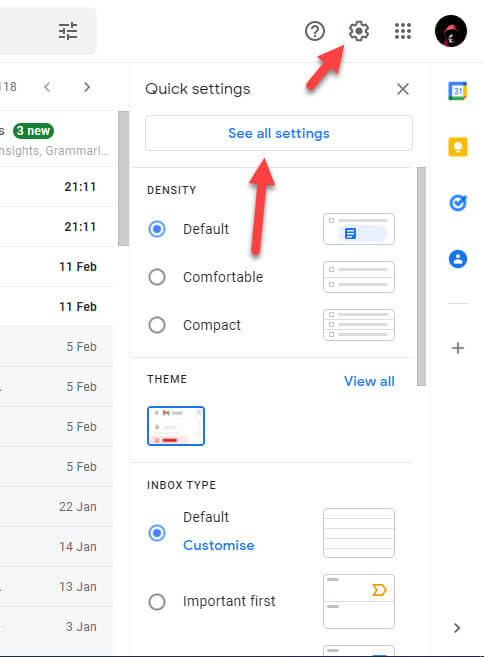 Click on the See All Settings
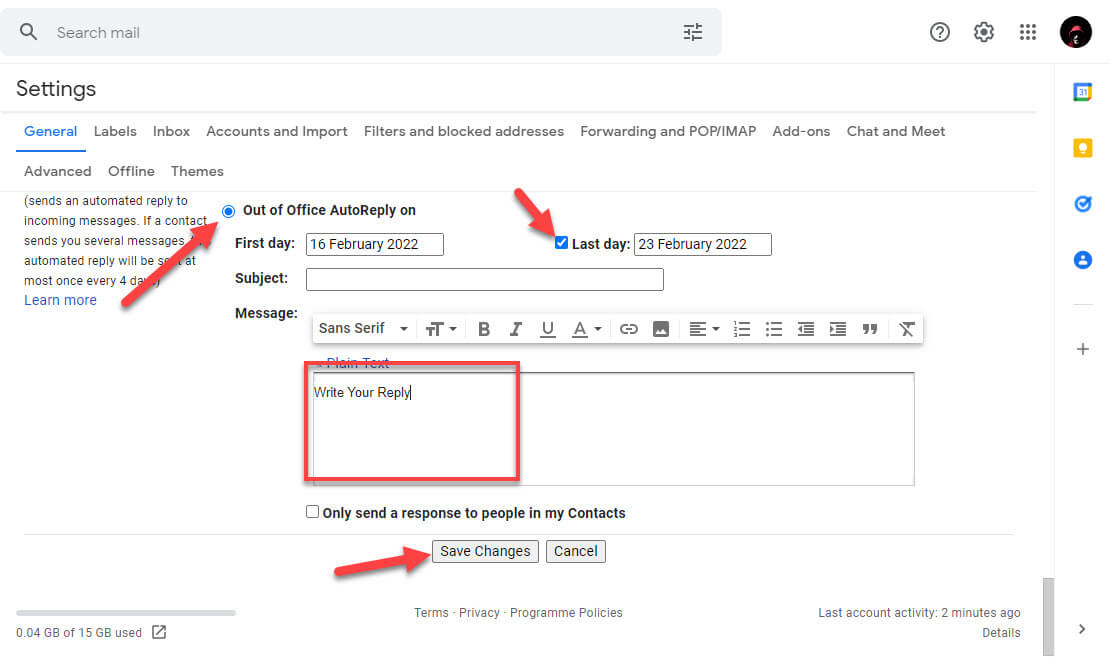
Step 3. Then simply check the box of Vacation Responder.
Step 4. Next, enable Last Day, and don’t forget to choose the date when it auto-reply to him or her.
Step 5. At last, type your reply message from the one whom you want then click on the Save Changes. It will save all the changes that you made.
On Android
When you want to set up auto-reply then this method will help you a lot. So, follow the steps down below to solve your issue easily.
Step 1. At first, open the Gmail app on your mobile.
Step 2. When you open the Gmail app then click on the Hamburger icon on the top left corner.
Step 3. Click on the Settings.
Step 4. Now, tap on the Out of Office AutoReply.
Step 5. Finally, set the first day and last day date then write everything that you want to them after that click on the Done at the top right side.
Bottom Line
It was all about How to Setup Auto Reply in Gmail? I hope this article is very helpful for you to set up an auto-reply in Gmail. From this article, you will get something good. This is the right place where you can easily solve your problem. After following these steps I hope you will not face any kind of problem. If you faced any kind of problem and if you have any type of suggestions then do comment.
Explore More:
Tagged
Share This Article
Making Gmail is very essential for every Android user. If you don’t have any Gmail account on your Android phone then you can’t access anything like Play Store, YouTube, and many more. Besides having access to the Play Store or something else, it is very perfect marketing. If you give you information that how many people were using Gmail or having Gmail account, in 2017, people were using Gmail accounts almost 3.7 billion. And if you want to know how many people are currently (2022) using Gmail account then according to Skyrocketed it is 4.5 billion. However, if you are holding and business or you are the owners of any company then you will send and receive lots of Emails. Then you will always want to reply and read Emails. From this article, I’ll guide you about How to Setup Auto Reply in Gmail?
When you want to reply to lots of Emails then the Gmail app has a great feature that you can set an auto-reply for the Emails. If you are wondering if it is working simply have to set a date or timing after that automatically send for the one whom you want. If you want to set up an auto-reply to Gmail then you need to read this article. Without wasting any time let’s get started.
How to Setup Auto Reply in Gmail?
Step 1. First of all, you have to log in to your account in Gmail then click on the Settings icon at the top right side.
Step 2. Now, click on the See All Settings.
Click on the See All Settings
Step 3. Then simply check the box of Vacation Responder.
Step 4. Next, enable Last Day, and don’t forget to choose the date when it auto-reply to him or her.
Step 5. At last, type your reply message from the one whom you want then click on the Save Changes. It will save all the changes that you made.
On Android
When you want to set up auto-reply then this method will help you a lot. So, follow the steps down below to solve your issue easily.
Step 1. At first, open the Gmail app on your mobile.
Step 2. When you open the Gmail app then click on the Hamburger icon on the top left corner.
Step 3. Click on the Settings.
Step 4. Now, tap on the Out of Office AutoReply.
Step 5. Finally, set the first day and last day date then write everything that you want to them after that click on the Done at the top right side.
Bottom Line
It was all about How to Setup Auto Reply in Gmail? I hope this article is very helpful for you to set up an auto-reply in Gmail. From this article, you will get something good. This is the right place where you can easily solve your problem. After following these steps I hope you will not face any kind of problem. If you faced any kind of problem and if you have any type of suggestions then do comment.
Explore More: