

How to Uninstall/Delete Application in macOS Big Sur?
 Azaz Shaikh
2020 is a great year for Apple users because Apple has kicked off the operating system for Mac computers. They have announced it on 22nd June 2020 by the name of macOS Big Sur. It has tons of amazing and handy features. And to the users about the changes, updates, and improvements of macOS Big Sur on the online events. At first, Apple released the Beta version of macOS Big Sur in order to check and test it and send their feedback to Apple so that they should rectify that.
You might have installed macOS Big Sur on your Mac or on virtual machines, then you probably start using it with full of enjoyment. Using much application with great performance is really interesting for everyone. If you are using Mac for the first time, you might download many applications from App Store. Using several applications will give much experience, but it can slow down the performance of your Mac.
If you want to have a free space on your Mac then it is the smart way to uninstall all those applications which you are not using. Uninstalling an application in macOS Big Sur is really best for the performance of your Mac and even for your whole operating system. If you want to keep safe your Mac from viruses and malware then it is great to delete all of the unnecessary applications.
How to Uninstall/Delete Application in macOS Big Sur
If you are a Mac user then you surely know the deleting or uninstalling process of applications. You might use third-party software while uninstalling the application. But if you don’t want to use third-party software then don’t worry because there are too many methods out there.
As Apple suggests, it is the best method ever to uninstall the application from the manual settings. The method is very easy and it can work on all operating systems of Apple. It doesn’t matter which operating system right now, it will probably work on any Mac.
1. Turn on your Mac and open the Finder from the bottom left side.
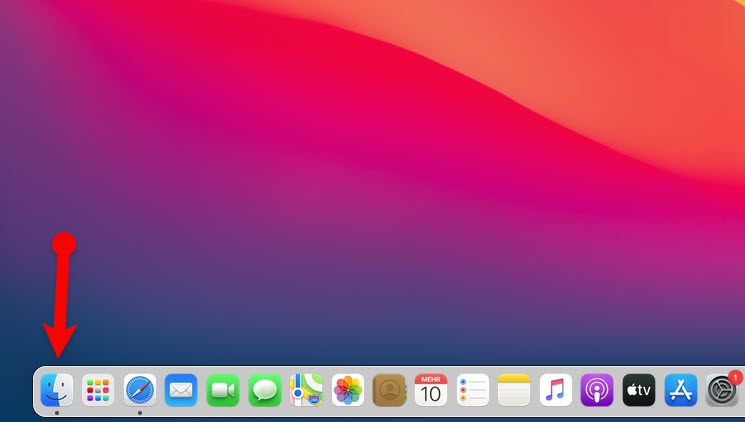 Finder
 2. On the Finder window, click on the Applications from the left side.
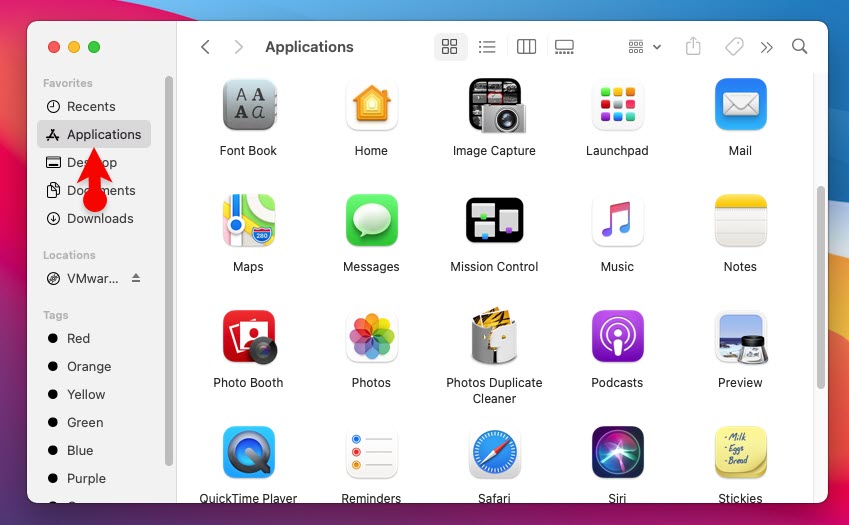 Applications
 3. You will see all those applications which are installed on your Mac. Search the app that you are going to uninstall that. To do so, you have to click on the Search bar from the top right-hand side and search for the app which you want.
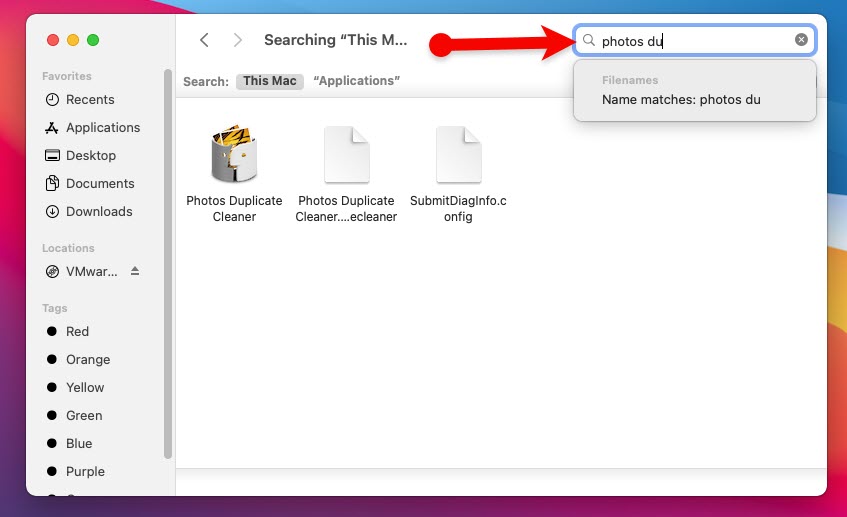 Search for the Application
 4. Still it is not the exact place of uninstalling the application. However, it is the application that you have installed. Click on the + icon and select the Other option.
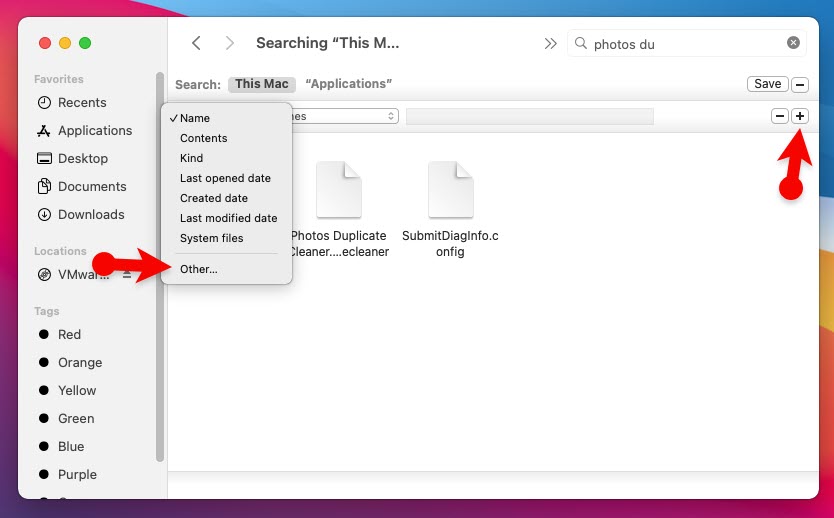 Other
Other 5. A new window will be opened, you will see too many files. You have to search for the System Files and check the box then click on the Ok.
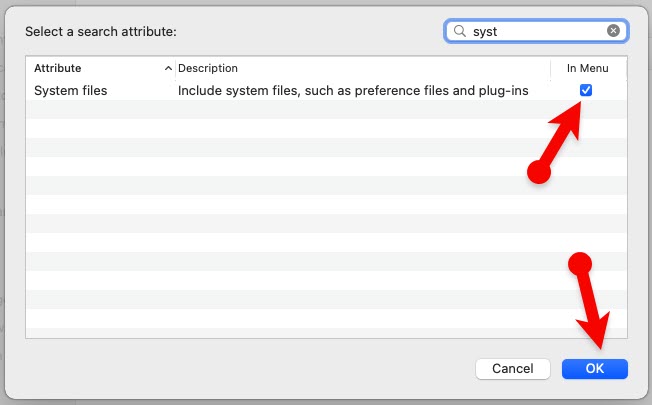 Check the option
 6. You will get back to the previous window, click on the Name, and select System Files.
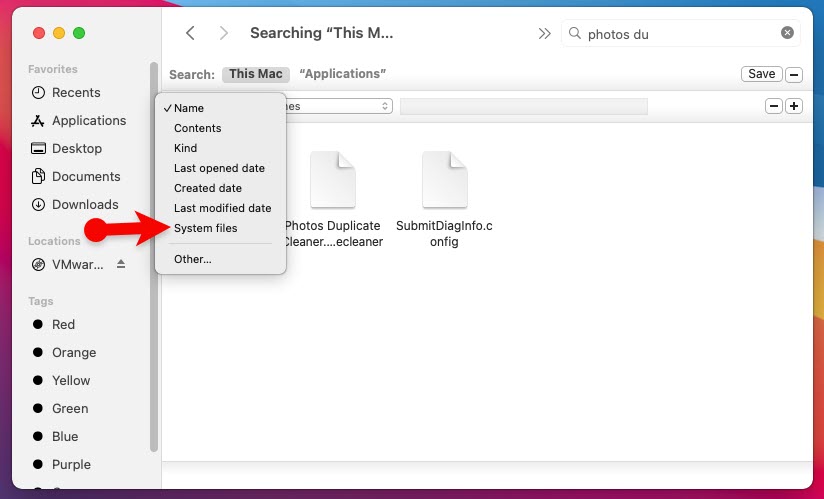 System files
 7. Next up, make sure to select are included options so that you should have all the files of the application.
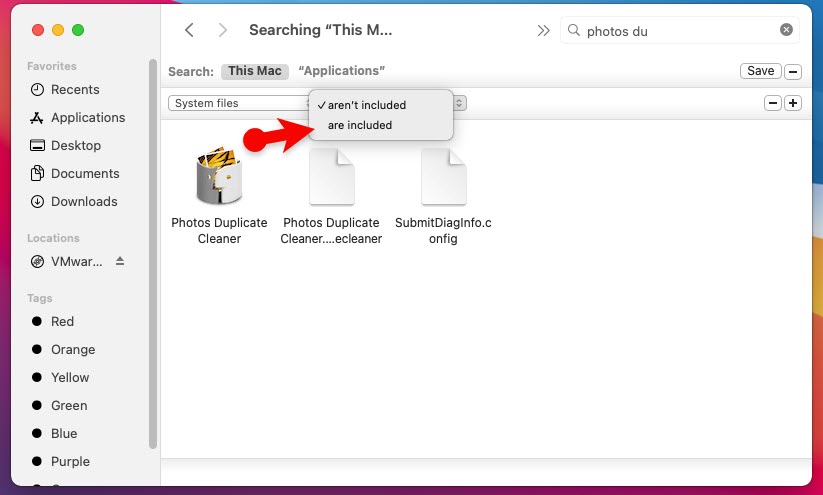 Are included
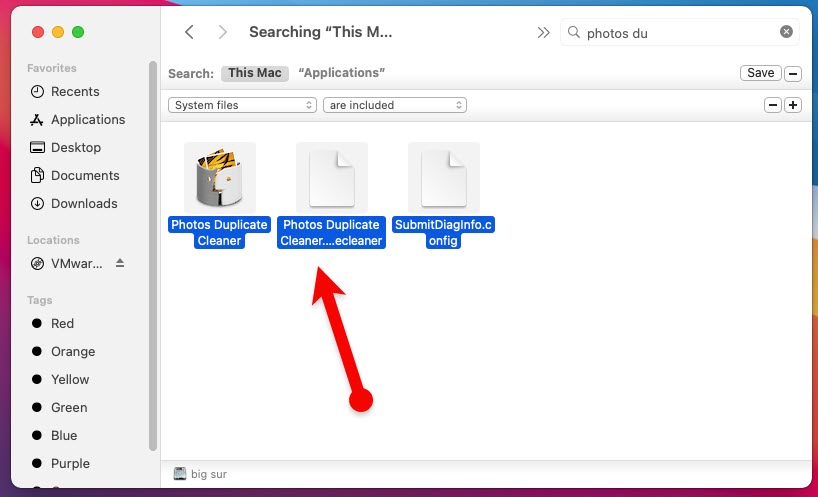
 8. After that, you will get all the files that are included with the application which you are going to uninstall. Make sure to delete all files so that you should uninstall the application permanently.
 Delete to uninstall
 - Recommended Guide: How to Delete/Uninstall Application in macOS Catalina
Bottom Line
It was all about How to Uninstall/Delete Application in macOS Big Sur?. You can uninstall application in macOS Big Sur permanently if you do it in the correct way. The manual setting is the best for uninstalling the app. However, I hope you ave got something from this guide. If you faced any problem then don’t hesitate to leave comments in the comment section down below.
Tagged
Share This Article
2020 is a great year for Apple users because Apple has kicked off the operating system for Mac computers. They have announced it on 22nd June 2020 by the name of macOS Big Sur. It has tons of amazing and handy features. And to the users about the changes, updates, and improvements of macOS Big Sur on the online events. At first, Apple released the Beta version of macOS Big Sur in order to check and test it and send their feedback to Apple so that they should rectify that.
You might have installed macOS Big Sur on your Mac or on virtual machines, then you probably start using it with full of enjoyment. Using much application with great performance is really interesting for everyone. If you are using Mac for the first time, you might download many applications from App Store. Using several applications will give much experience, but it can slow down the performance of your Mac.
If you want to have a free space on your Mac then it is the smart way to uninstall all those applications which you are not using. Uninstalling an application in macOS Big Sur is really best for the performance of your Mac and even for your whole operating system. If you want to keep safe your Mac from viruses and malware then it is great to delete all of the unnecessary applications.
How to Uninstall/Delete Application in macOS Big Sur
If you are a Mac user then you surely know the deleting or uninstalling process of applications. You might use third-party software while uninstalling the application. But if you don’t want to use third-party software then don’t worry because there are too many methods out there.
As Apple suggests, it is the best method ever to uninstall the application from the manual settings. The method is very easy and it can work on all operating systems of Apple. It doesn’t matter which operating system right now, it will probably work on any Mac.
1. Turn on your Mac and open the Finder from the bottom left side.
Finder 2. On the Finder window, click on the Applications from the left side.
Applications 3. You will see all those applications which are installed on your Mac. Search the app that you are going to uninstall that. To do so, you have to click on the Search bar from the top right-hand side and search for the app which you want.
Search for the Application 4. Still it is not the exact place of uninstalling the application. However, it is the application that you have installed. Click on the + icon and select the Other option.
Other 5. A new window will be opened, you will see too many files. You have to search for the System Files and check the box then click on the Ok.
Check the option 6. You will get back to the previous window, click on the Name, and select System Files.
System files 7. Next up, make sure to select are included options so that you should have all the files of the application.
Are included 8. After that, you will get all the files that are included with the application which you are going to uninstall. Make sure to delete all files so that you should uninstall the application permanently.
Delete to uninstall - Recommended Guide: How to Delete/Uninstall Application in macOS Catalina
Bottom Line
It was all about How to Uninstall/Delete Application in macOS Big Sur?. You can uninstall application in macOS Big Sur permanently if you do it in the correct way. The manual setting is the best for uninstalling the app. However, I hope you ave got something from this guide. If you faced any problem then don’t hesitate to leave comments in the comment section down below.