
How to Install Android on VirtualBox on Windows PC
 Azaz Shaikh
Android is a great and best operating system for phones. It is really handy, versatile, fast, and comes with many amazing functions and features. You might be using the Android operating system on your phone. Basically, Android is a mobile operating system based on a modified version of the Linux kernel and other open-source software, designed primarily for touchscreen mobile devices such as smartphones and tablets. Nowadays, smartphones are getting really advanced, every year we are having such amazing smartphones which have made our work easier.
If you want to try Android on Windows 10, there is not any direct procedure to get Android installed. But you can easily install Android on a virtual machine which means virtually. On the market, you will find several virtual machines free and also paid. As we have experienced and tried some of the virtual machines, we finally found the best virtual machines which are VMware Workstation and VirtualBox. Installing any kind of operating system on a virtual machine is pretty easy and simple but it has somehow a long and lengthy procedure.
However, installing any operating system on a virtual machine will require the ISO file of a particular operating system. For example, if you want to install Android OS on a VirtualBox, then you must have the ISO of it. If you don’t have the ISO File of Android then don’t we will help you to find out. For this, you have to follow the below guidance to install Android on a VirtualBox.
1. How to download Android ISO file
Step 1: First open your google chrome then click on the android-x 68org to download the Android iso file.
Step 2: When this web is open then you choose which version you want to download.
 Choose Which Version You Want.
 Step 3: When you choose a version then click on the 2nd one.
 Click On The 2nd One
 Step 4: You can scroll down and click on the android-x86_64-9.0-r2.iso.
 Click On The Last One
 Step 5: Now you see can see that the Android ISO File is downloaded successfully.
 Now You See That Android iso Is Download
 How to Install Android on VirtualBox
Step 1: Open the VirtualBox and click on the New.
 Click On The New
 Step 2: In the name you can type Android 9 and in type, you select Linux, and then in the version, you select the other Linux (64 bit) and again Click On The Next.
 Click On The Next
 Step 3: We just want to make we have enough ram then click on the Next.
 Click On The Next
 Step 4: Further, Click on Create a virtual hard disk now and click on the Create.
 Click On Create a Virtual Hard Disk Now and Click On The Create.
 Step 5: However, Click on the VDI (VirtualBox Disk Image) and click on the Next.
 Click On The VDI (VirtualBox Disk Image) And Click On The Next.
 Step 6: Now, Click on the Dynamically allocated and click on the Next.
 Click On The Dynamically allocated And Click On The Next.
 Step 7: Now, You can click on the Create.
 Click On The Create
 Step 8: So, Click on the Start.
 Click On The Start
 Step 9: Now, from that click on the Start.
 Click On The Start
 Step 10: However, Click on the Advanced option.
 Click On The Advanced option.
 Step 11:However, Click on the 4Th One.
 Click On The 4TH one
 Step 12. At least click on the Yes.
Step 13. However, When your installing is done then click on the OK.
Step 14. First, choose your langue and click on the Start.
Step 15. If you want to connect your wifi and if you do not connect the wifi then click on the Skip.
Step 16. Then click on the Continue.
Step 17. You can select your date and time and click on the Next.
Step 18. However, Click on the More then click on the accept.
Step 19. So, If you want to set a password for the android which you have installed in VirtualBox, then you can choose one of them to make a password.
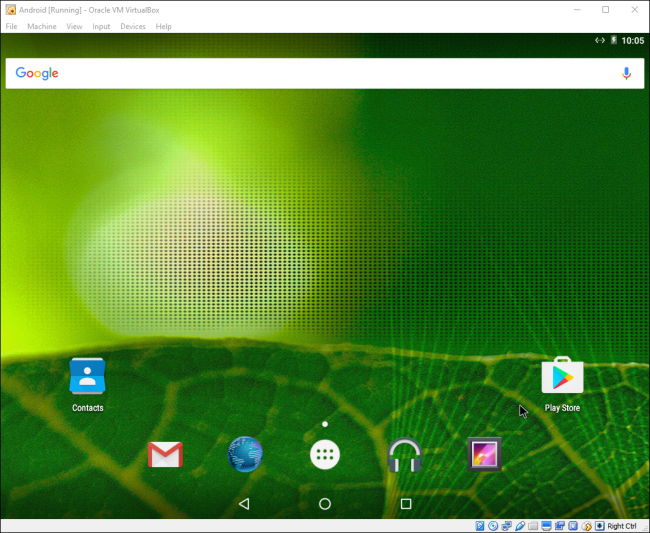
Step 20. Now, it is successfully installed on your VirtualBox. Start using your favorite apps on Android.
Signing off…
So, it is all about How to Install Android on VirtualBox. There is one to Install Android on VirtualBox Lastly, if you have so, faced any kind of problem while following the steps then don’t hesitate to leave comments in the comment section below.
Tagged
Share This Article
Android is a great and best operating system for phones. It is really handy, versatile, fast, and comes with many amazing functions and features. You might be using the Android operating system on your phone. Basically, Android is a mobile operating system based on a modified version of the Linux kernel and other open-source software, designed primarily for touchscreen mobile devices such as smartphones and tablets. Nowadays, smartphones are getting really advanced, every year we are having such amazing smartphones which have made our work easier.
If you want to try Android on Windows 10, there is not any direct procedure to get Android installed. But you can easily install Android on a virtual machine which means virtually. On the market, you will find several virtual machines free and also paid. As we have experienced and tried some of the virtual machines, we finally found the best virtual machines which are VMware Workstation and VirtualBox. Installing any kind of operating system on a virtual machine is pretty easy and simple but it has somehow a long and lengthy procedure.
However, installing any operating system on a virtual machine will require the ISO file of a particular operating system. For example, if you want to install Android OS on a VirtualBox, then you must have the ISO of it. If you don’t have the ISO File of Android then don’t we will help you to find out. For this, you have to follow the below guidance to install Android on a VirtualBox.
1. How to download Android ISO file
Step 1: First open your google chrome then click on the android-x 68org to download the Android iso file.
Step 2: When this web is open then you choose which version you want to download.
Choose Which Version You Want. Step 3: When you choose a version then click on the 2nd one.
Click On The 2nd One Step 4: You can scroll down and click on the android-x86_64-9.0-r2.iso.
Click On The Last One Step 5: Now you see can see that the Android ISO File is downloaded successfully.
Now You See That Android iso Is Download How to Install Android on VirtualBox
Step 1: Open the VirtualBox and click on the New.
Click On The New Step 2: In the name you can type Android 9 and in type, you select Linux, and then in the version, you select the other Linux (64 bit) and again Click On The Next.
Click On The Next Step 3: We just want to make we have enough ram then click on the Next.
Click On The Next Step 4: Further, Click on Create a virtual hard disk now and click on the Create.
Click On Create a Virtual Hard Disk Now and Click On The Create. Step 5: However, Click on the VDI (VirtualBox Disk Image) and click on the Next.
Click On The VDI (VirtualBox Disk Image) And Click On The Next. Step 6: Now, Click on the Dynamically allocated and click on the Next.
Click On The Dynamically allocated And Click On The Next. Step 7: Now, You can click on the Create.
Click On The Create Step 8: So, Click on the Start.
Click On The Start Step 9: Now, from that click on the Start.
Click On The Start Step 10: However, Click on the Advanced option.
Click On The Advanced option. Step 11:However, Click on the 4Th One.
Click On The 4TH one Step 12. At least click on the Yes.
Step 13. However, When your installing is done then click on the OK.
Step 14. First, choose your langue and click on the Start.
Step 15. If you want to connect your wifi and if you do not connect the wifi then click on the Skip.
Step 16. Then click on the Continue.
Step 17. You can select your date and time and click on the Next.
Step 18. However, Click on the More then click on the accept.
Step 19. So, If you want to set a password for the android which you have installed in VirtualBox, then you can choose one of them to make a password.
Step 20. Now, it is successfully installed on your VirtualBox. Start using your favorite apps on Android.
Signing off…
So, it is all about How to Install Android on VirtualBox. There is one to Install Android on VirtualBox Lastly, if you have so, faced any kind of problem while following the steps then don’t hesitate to leave comments in the comment section below.