
How to Send Large Files Directly From Gmail?
 Azaz Shaikh
A frustrating moment will occur when you want to send any large files to someone, the large file is not allowed to send when you send it says files are too long. If you are thinking to send large files through the Gmail app then Gmail only holds up to 25MB. However, if you feel sad that there is no way to send large videos, files many more then you are fully wrong there are three methods that are provided for you down below. If you want to send large files then you need to read this article. In this article, I’ll guide you on How to Send Large Files Directly From Gmail. So, without wasting any time let’s get started.
Method 1. Send Large Files Using Google Drive
If your file size is large then Google Drive is the choice. Even though most of the people are using this way because you can send up to 15GB. And you can send multiple files that the file size is large. Follow the below strategy to send large files.
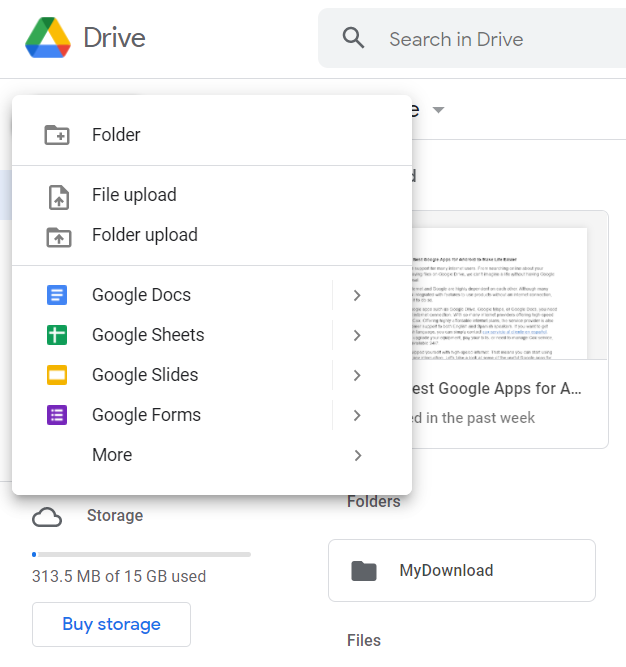
Step 1. First of all, open Google Drive then click on the Plus icon or click on the New. Now, add the files that you want to upload.
Step 2. Next, to the section where we send an email, type the Gmail him/her then click on the Drive at the bottom side.
Step 3. Select the large file which you want to send, keep in mind when you send a file size of is 25MB then you will face a reminder that the selected file will change into an attachment after that click on the Insert at the bottom left corner.
Method 2. Via Dropbox
This is the second easy method to send large files Dropbox is also good. You can add it as an extension on your PC to send large files. Once you added the extension then you will get its icon.
Step 1. Download and install the extension of Dropbox.
Step 2. Once the installation is done set it up.
Step 3. Click on the Upload then select the files.
Step 4. Compose the Gmail then click on the Dropbox icon.
Step 5. At last, choose a file or folder that you want to share.
Method 3. Compress the File
If you don’t wanna use the above methods then this is simple to do it. When you compress any large file into a zip folder then the size of the files will be less that will be easy to share large size of files. To compress the files into a zip folder then follow the below steps.
Right-click on the file that you want to compress then select Send to after that click on the Compressed (Zipped) Folder. Then send the folder through the Gmail app.
Final Words
It was all about How to Send Large Files Directly From Gmail. I hope this article is very helpful for you to send large files. This was step by step guide to sending large size of files. From this article, you will get something good. This is the right place where you can easily solve your problem. After following these steps I hope you will not face any kind of problem. If you faced any kind of problem and if you have any type of suggestions then do comment.
Explore More:
Tagged
Share This Article
A frustrating moment will occur when you want to send any large files to someone, the large file is not allowed to send when you send it says files are too long. If you are thinking to send large files through the Gmail app then Gmail only holds up to 25MB. However, if you feel sad that there is no way to send large videos, files many more then you are fully wrong there are three methods that are provided for you down below. If you want to send large files then you need to read this article. In this article, I’ll guide you on How to Send Large Files Directly From Gmail. So, without wasting any time let’s get started.
Method 1. Send Large Files Using Google Drive
If your file size is large then Google Drive is the choice. Even though most of the people are using this way because you can send up to 15GB. And you can send multiple files that the file size is large. Follow the below strategy to send large files.
Step 1. First of all, open Google Drive then click on the Plus icon or click on the New. Now, add the files that you want to upload.
Step 2. Next, to the section where we send an email, type the Gmail him/her then click on the Drive at the bottom side.
Step 3. Select the large file which you want to send, keep in mind when you send a file size of is 25MB then you will face a reminder that the selected file will change into an attachment after that click on the Insert at the bottom left corner.
Method 2. Via Dropbox
This is the second easy method to send large files Dropbox is also good. You can add it as an extension on your PC to send large files. Once you added the extension then you will get its icon.
Step 1. Download and install the extension of Dropbox.
Step 2. Once the installation is done set it up.
Step 3. Click on the Upload then select the files.
Step 4. Compose the Gmail then click on the Dropbox icon.
Step 5. At last, choose a file or folder that you want to share.
Method 3. Compress the File
If you don’t wanna use the above methods then this is simple to do it. When you compress any large file into a zip folder then the size of the files will be less that will be easy to share large size of files. To compress the files into a zip folder then follow the below steps.
Right-click on the file that you want to compress then select Send to after that click on the Compressed (Zipped) Folder. Then send the folder through the Gmail app.
Final Words
It was all about How to Send Large Files Directly From Gmail. I hope this article is very helpful for you to send large files. This was step by step guide to sending large size of files. From this article, you will get something good. This is the right place where you can easily solve your problem. After following these steps I hope you will not face any kind of problem. If you faced any kind of problem and if you have any type of suggestions then do comment.
Explore More: