

How to Write Urdu in Ms Word? Microsoft Office All Versions Windows 10
 Azaz Shaikh
In this article, I want to show that How to Write Urdu in Ms. Word? Microsoft Office All Versions Windows 10. Since Urdu is the most popular language. So, most of the people in Pakistan and India write Urdu script in Ms word. Since Ms word helps in writing letters, applications, CV, question papers and Books. Therefore without knowing How to Write Urdu in Ms Word? Microsoft Office All Versions Windows 10 is difficult to deal with all these categories. So, don’t worry I am going to guide you the easiest trick and easy way to write Urdu in Ms word. You just need to follow the step below.
How to Write Urdu in Ms Word? Microsoft Office All Versions Windows 10
Before writing Urdu in Ms word firstly you need to download the software by the name of Urdu Phonetic Keyboard. Because it works like English alphabets. If you are writing Alf just press A and if you are going to write Ba just press B.
How to install Urdu phonetic keyboard?
For downloading in page 2018 just click on the download button below. And to install also follow the steps down below.
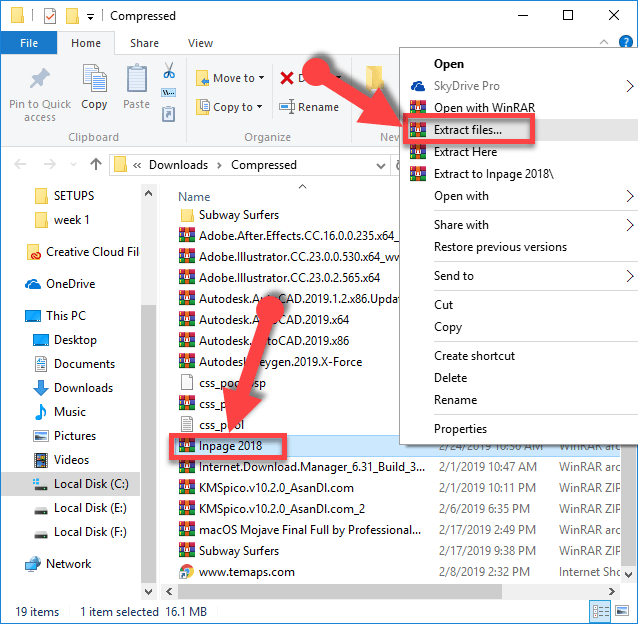
Step 1: First of all, you need to need to extract the downloaded WinRAR file as shown in the picture.
 extract the WinRAR file
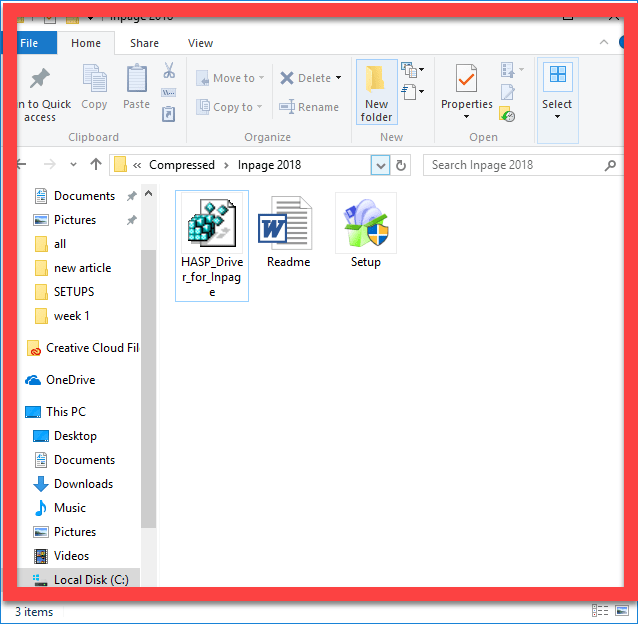
 Step 2: After that double click on the file which you extracted.
 open the file
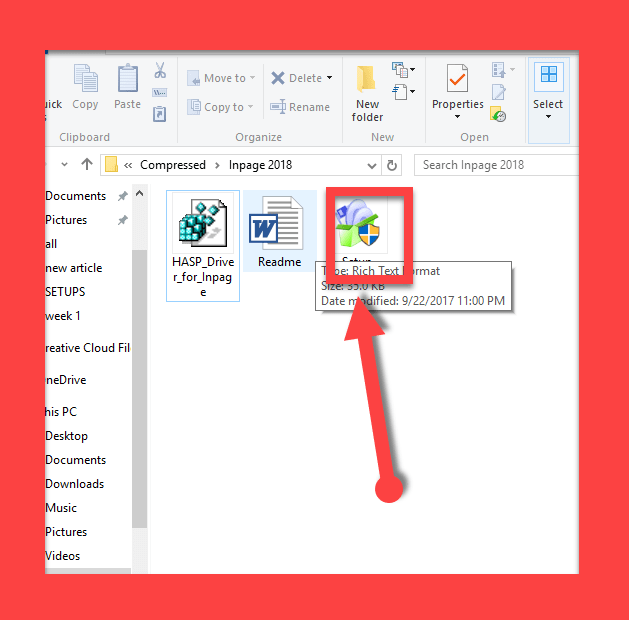
 Step 3: Then you will see three option you have to double-click on the setup option.
 double-click on the software
 The installing method is very easy and simple there will not in need of me to guide to.
Step 4: Once you installed the software you need to open that.
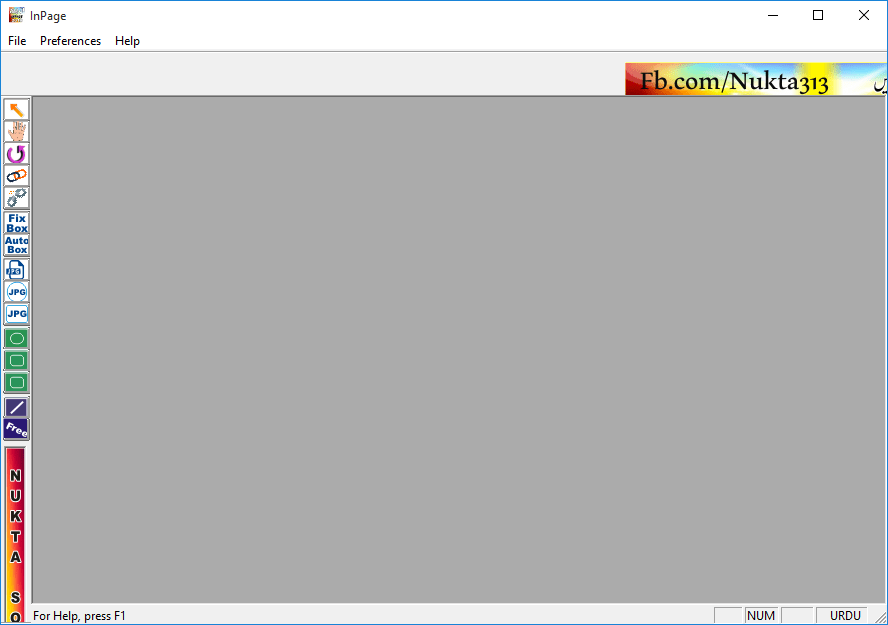 on page 2018
 Step 5: Now click on the file then click on the new option to open the document for you to write clearly. And press OK.
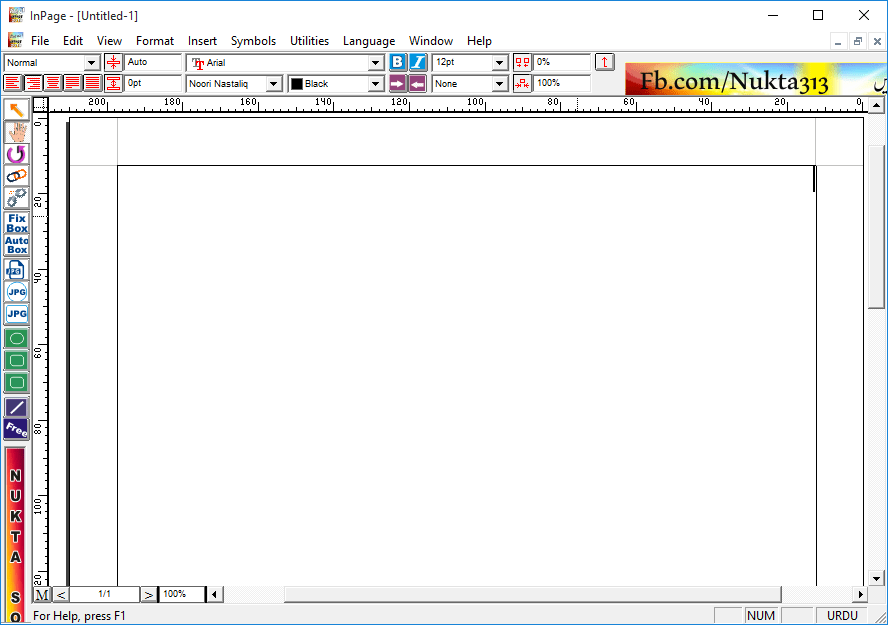 new document
 How to Write Urdu in Ms Word? Microsoft Office All Versions Windows 10
Now you have to save the picture from the given picture below. The screenshot of the keyboard.
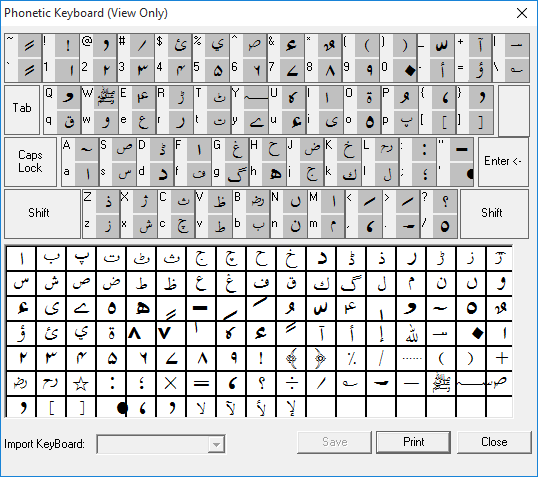 keyboard
 How to Write Urdu in Ms Word? Microsoft Office All Versions Windows 10
Write Urdu in Ms. Word
Now we have configured the keyboard. And I believe that you have also watched out the layout and learn how to write the Alphabets of Urdu. Next, we need to write Urdu in Ms. Word. For writing Urdu in MS Word follow the steps below.
Step 1. Run MS Word.
Step 2. Check-in status bar of Windows. You will find the ENG.
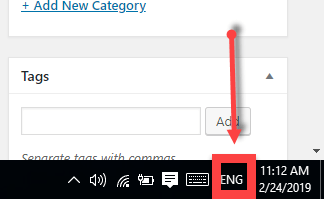
After clicking on ENG. You will get different options Click on Urdu.
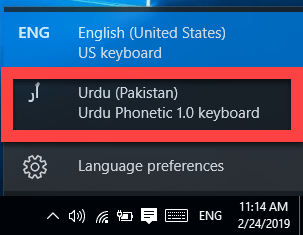 choose Urdu
 Now you are ready to write Urdu in MS Word. Just click on the document of your word and start writing and you will see that it working perfectly.
Note: You are also changing the keyboard by press Windows key + Space. It will change from English to Urdu and again press Windows Key + Space. It will change from Urdu to English. And you can change the keyboard by simply these shortcuts.
How to Write Urdu in Ms. Word? Microsoft Office All Versions Windows 10
Check the articles:
How to Change Windows 10 Desktop icons?
Conclusion:
If you face any problem then feel free to comment. Daily visit our website for best tech learning point. Thanks for visiting.
Tagged
Share This Article
In this article, I want to show that How to Write Urdu in Ms. Word? Microsoft Office All Versions Windows 10. Since Urdu is the most popular language. So, most of the people in Pakistan and India write Urdu script in Ms word. Since Ms word helps in writing letters, applications, CV, question papers and Books. Therefore without knowing How to Write Urdu in Ms Word? Microsoft Office All Versions Windows 10 is difficult to deal with all these categories. So, don’t worry I am going to guide you the easiest trick and easy way to write Urdu in Ms word. You just need to follow the step below.
How to Write Urdu in Ms Word? Microsoft Office All Versions Windows 10
Before writing Urdu in Ms word firstly you need to download the software by the name of Urdu Phonetic Keyboard. Because it works like English alphabets. If you are writing Alf just press A and if you are going to write Ba just press B.
How to install Urdu phonetic keyboard?
For downloading in page 2018 just click on the download button below. And to install also follow the steps down below.
Step 1: First of all, you need to need to extract the downloaded WinRAR file as shown in the picture.
extract the WinRAR file Step 2: After that double click on the file which you extracted.
open the file Step 3: Then you will see three option you have to double-click on the setup option.
double-click on the software The installing method is very easy and simple there will not in need of me to guide to.
Step 4: Once you installed the software you need to open that.
on page 2018 Step 5: Now click on the file then click on the new option to open the document for you to write clearly. And press OK.
new document How to Write Urdu in Ms Word? Microsoft Office All Versions Windows 10
Now you have to save the picture from the given picture below. The screenshot of the keyboard.
keyboard How to Write Urdu in Ms Word? Microsoft Office All Versions Windows 10
Write Urdu in Ms. Word
Now we have configured the keyboard. And I believe that you have also watched out the layout and learn how to write the Alphabets of Urdu. Next, we need to write Urdu in Ms. Word. For writing Urdu in MS Word follow the steps below.
Step 1. Run MS Word.
Step 2. Check-in status bar of Windows. You will find the ENG.
After clicking on ENG. You will get different options Click on Urdu.
choose Urdu Now you are ready to write Urdu in MS Word. Just click on the document of your word and start writing and you will see that it working perfectly.
Note: You are also changing the keyboard by press Windows key + Space. It will change from English to Urdu and again press Windows Key + Space. It will change from Urdu to English. And you can change the keyboard by simply these shortcuts.
How to Write Urdu in Ms. Word? Microsoft Office All Versions Windows 10
Check the articles:
How to Change Windows 10 Desktop icons?
Conclusion:
If you face any problem then feel free to comment. Daily visit our website for best tech learning point. Thanks for visiting.