

How to Enable Dark Mode in Notepad on Windows 11?
 Azaz Shaikh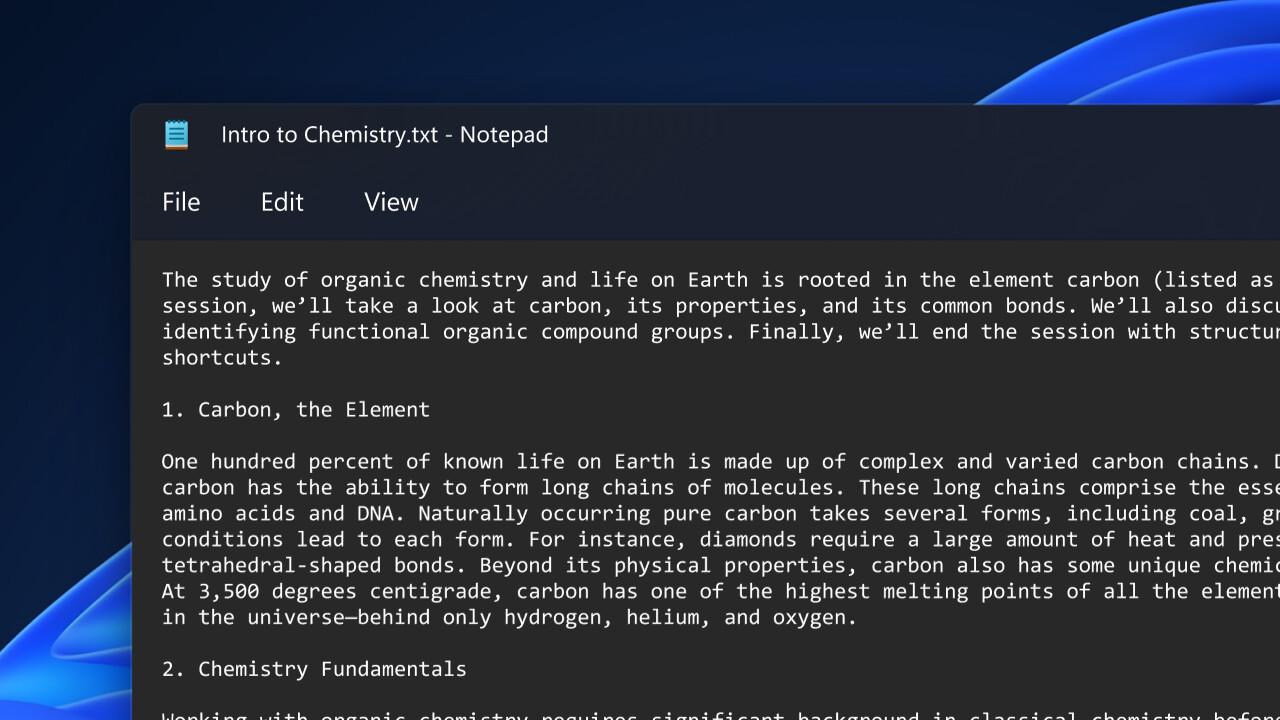
In this article, I’ll guide you How to Enable Dark Mode in Notepad on Windows 11? To turn dark mode in Notepad then it will keep your eyesight safe from getting damaged. Most of the people have full-time jobs by using Notepad. Before that when you want to enable dark mode in Notepad on Windows 10 then you should change the system theme after that you will dark theme in Notepad. But in Windows 11 you are not in need of changing the system theme simply you are having the option for that to change the theme of Notepad to dark mode. And you don’t have to download any third-party software for that. If you want to enable dark mode in Notepad then you need to read this article.
What is Notepad?
In a simple word if I explain Notepad for you that it is text editor software. Which you can edit and create text, document and it will give access to change the text and type of computer file. Without creating and editing text you can also open PDF files in Notepad to read it carefully. Basically, this software is installed on our PC by default. Whenever you save any kind of file then the file type will be .txt.
How to Enable Dark Mode in Notepad on Windows 11?
Step 1. First of all, you need to open the Settings by pressing Win Key + I.
Step 2. Once the Settings is launched then go to the Personalization from the left pane after that click on the Colors.
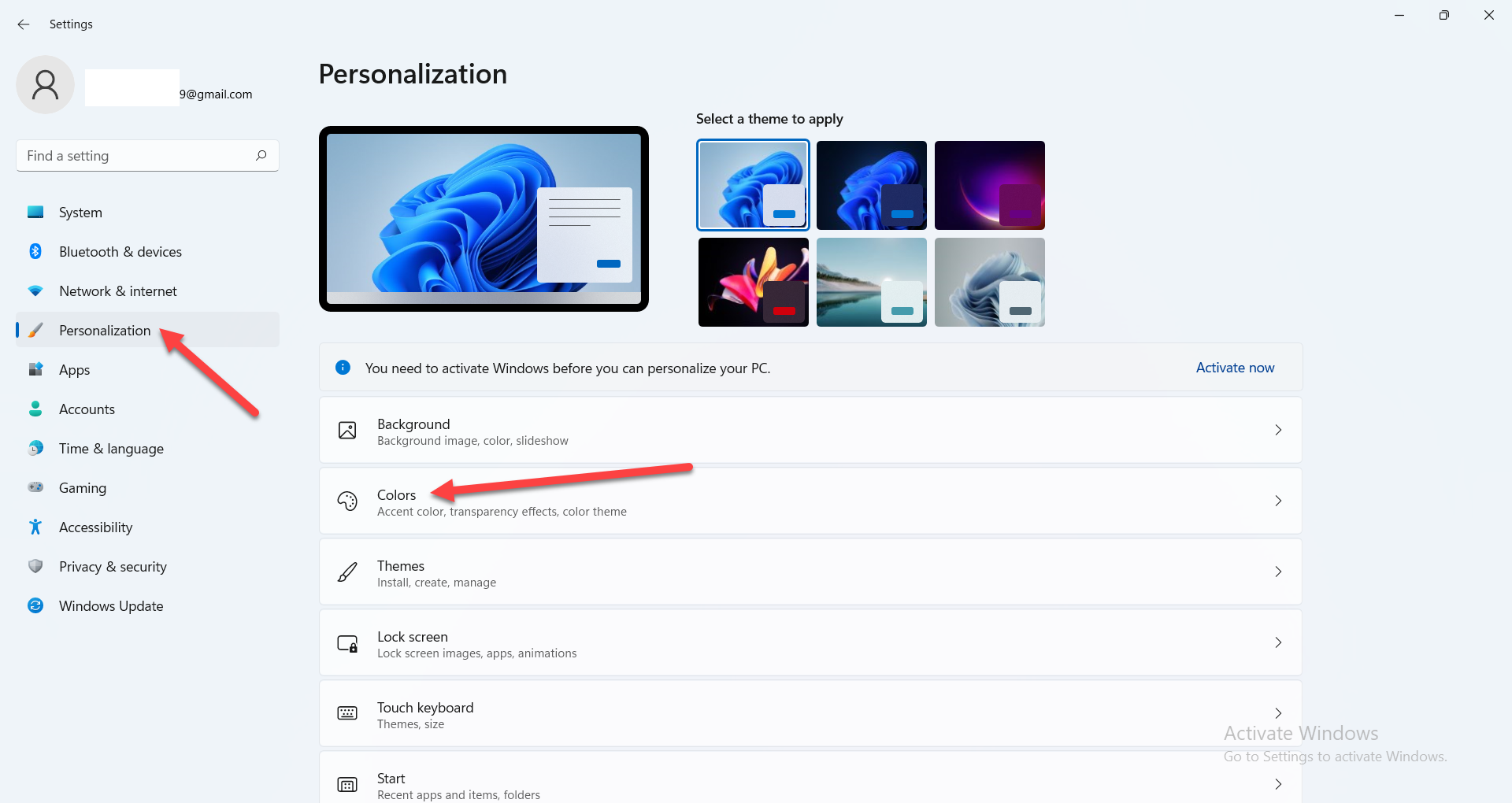 Click on the Colors
 Step 3. Now, open the drop-down from the section of choose your mode then select Dark.
How to Enable Dark Mode in Notepad Using Notepad
Step 1. First, open the Notepad of your PC.
Step 2. Then click on the Setting icon on the top right side.
Step 3. When the notepad’s settings are opened then simply click on the App Theme to open the drop-down section.
Step 4. At last select Dark and without dark can choose system setting also.
Bottom Line
It was all about How to Enable Dark Mode in Notepad on Windows 11?. I hope this is very helpful for you to enable dark mode in Notepad. From this article, you will get something good. This is the right place where you can easily solve your problem. After following these steps I hope you will not face any kind of problem. If you faced any kind of problem and if you have any type of suggestions then do comment.
Explore More:
Share This Article
In this article, I’ll guide you How to Enable Dark Mode in Notepad on Windows 11? To turn dark mode in Notepad then it will keep your eyesight safe from getting damaged. Most of the people have full-time jobs by using Notepad. Before that when you want to enable dark mode in Notepad on Windows 10 then you should change the system theme after that you will dark theme in Notepad. But in Windows 11 you are not in need of changing the system theme simply you are having the option for that to change the theme of Notepad to dark mode. And you don’t have to download any third-party software for that. If you want to enable dark mode in Notepad then you need to read this article.
What is Notepad?
In a simple word if I explain Notepad for you that it is text editor software. Which you can edit and create text, document and it will give access to change the text and type of computer file. Without creating and editing text you can also open PDF files in Notepad to read it carefully. Basically, this software is installed on our PC by default. Whenever you save any kind of file then the file type will be .txt.
How to Enable Dark Mode in Notepad on Windows 11?
Step 1. First of all, you need to open the Settings by pressing Win Key + I.
Step 2. Once the Settings is launched then go to the Personalization from the left pane after that click on the Colors.
Click on the Colors Step 3. Now, open the drop-down from the section of choose your mode then select Dark.
How to Enable Dark Mode in Notepad Using Notepad
Step 1. First, open the Notepad of your PC.
Step 2. Then click on the Setting icon on the top right side.
Step 3. When the notepad’s settings are opened then simply click on the App Theme to open the drop-down section.
Step 4. At last select Dark and without dark can choose system setting also.
Bottom Line
It was all about How to Enable Dark Mode in Notepad on Windows 11?. I hope this is very helpful for you to enable dark mode in Notepad. From this article, you will get something good. This is the right place where you can easily solve your problem. After following these steps I hope you will not face any kind of problem. If you faced any kind of problem and if you have any type of suggestions then do comment.
Explore More: