

How to Uninstall Microsoft Edge from Windows 11?
 Azaz Shaikh
In this article, you will learn How to Uninstall Microsoft Edge from Windows 11? Microsoft is the biggest browser. It is just like chrome, internet explorer. If you buy a new PC or Laptop then your PC won’t have any browser without Microsoft Edge. Microsoft Edge is created by Microsoft. Moreover, Microsoft Edge is not a rammed-hungry source. You can also access this browser on Android, and iOS. With the help of Microsoft Edge, you can download Google Chrome. When you don’t want to use Microsoft Edge anymore. Whenever you want to disable Microsoft Edge then you need to read this article. So, without wasting any time let’s get has started.
How to Uninstall Microsoft Edge from Windows 11?
First, you need to change the file associations. Follow the steps to change it.
Step 1. First of all, open the Settings from the Start menu.
Step 2. When the settings are open then click on the Apps on the left side after that head towards the Default Apps.
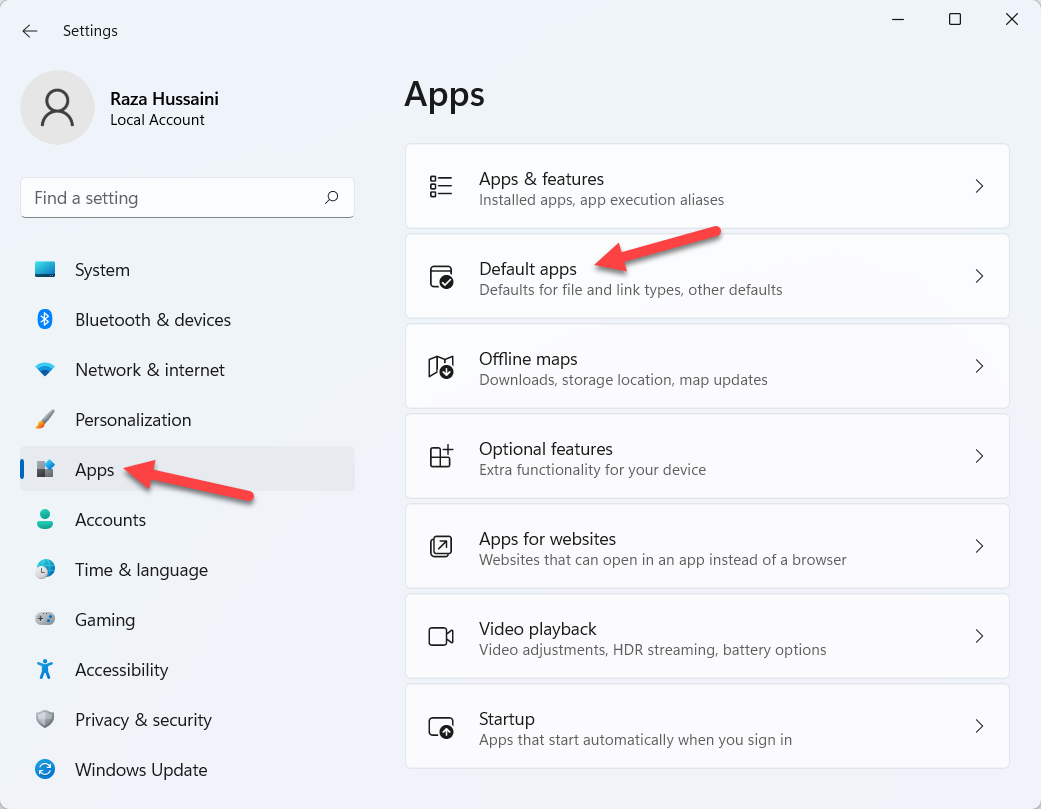 Default Apps
 Step 3. Now, you will get many options from that options you need to click on the Microsoft Edge.
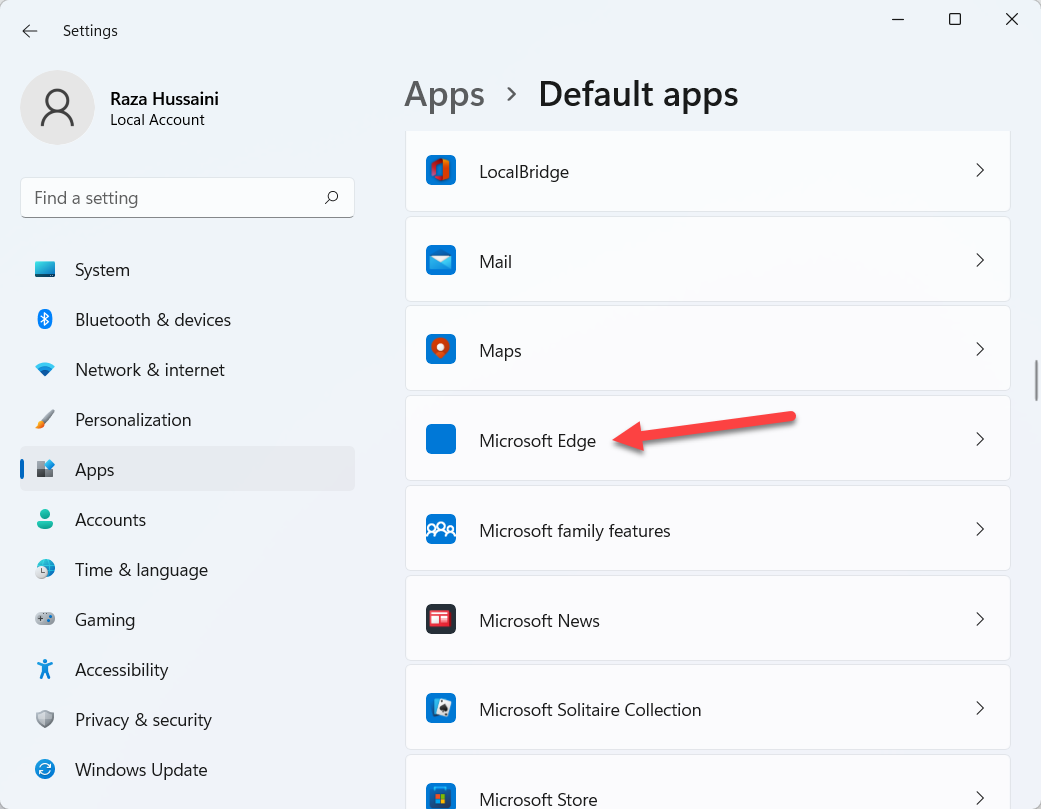 Click on the Microsoft Edge
 Step 4. Next, you need to select the first file of htm.
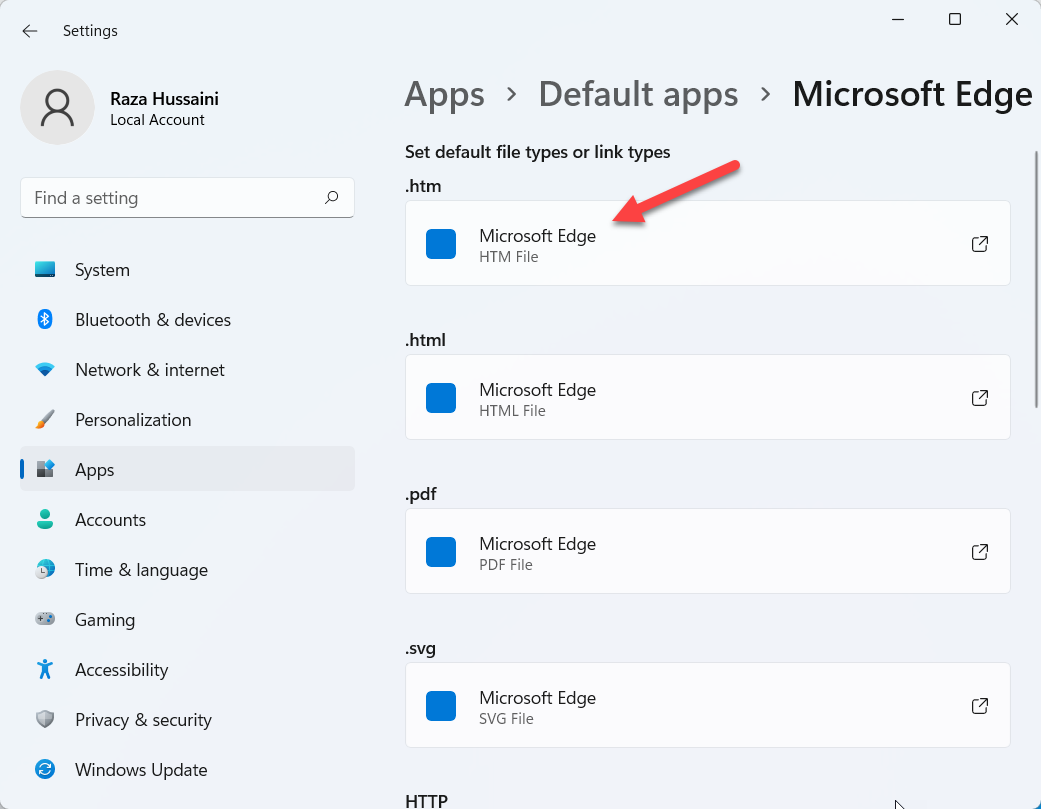 Select the File
 Step 5. Then click on the Switch Anyway.
Step 6. In this step choose a browser after that click on the Ok.
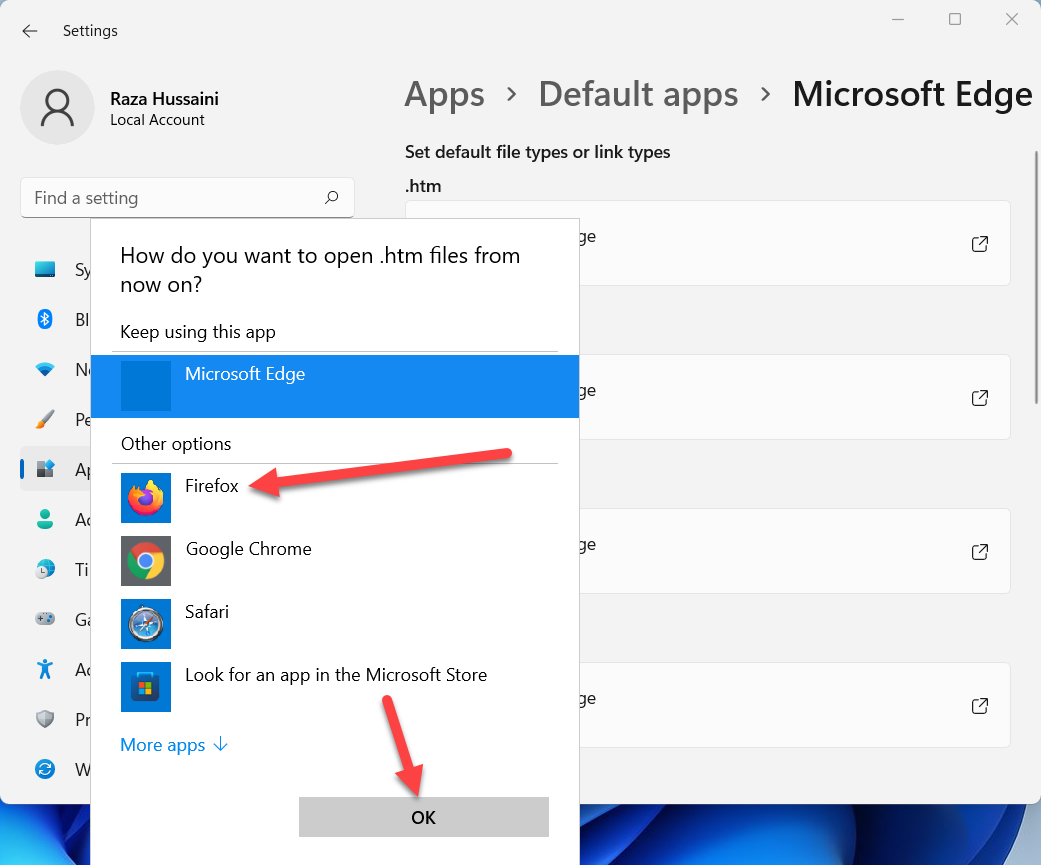 Click on the Ok
 Step 7. At last, repeat the step on files to replace all instances of Microsoft Edge.
Rename Microsoft Edge Installation
Step 1. At first, open the File Explorer from the Taskbar.
Step 2 Once the file explorer is open then follow with this C:\Windows\SystemApps.
Step 3. Now, find this file with the name of Microsoft.MicrosoftEdge_8wekyb3d8bbwe.

Step 4. However, when you find the file then right-click on it then click on the icon of rename after that name the file as DISABLED_Microsoft.MicrosoftEdge_8wekyb3d8bbwe.
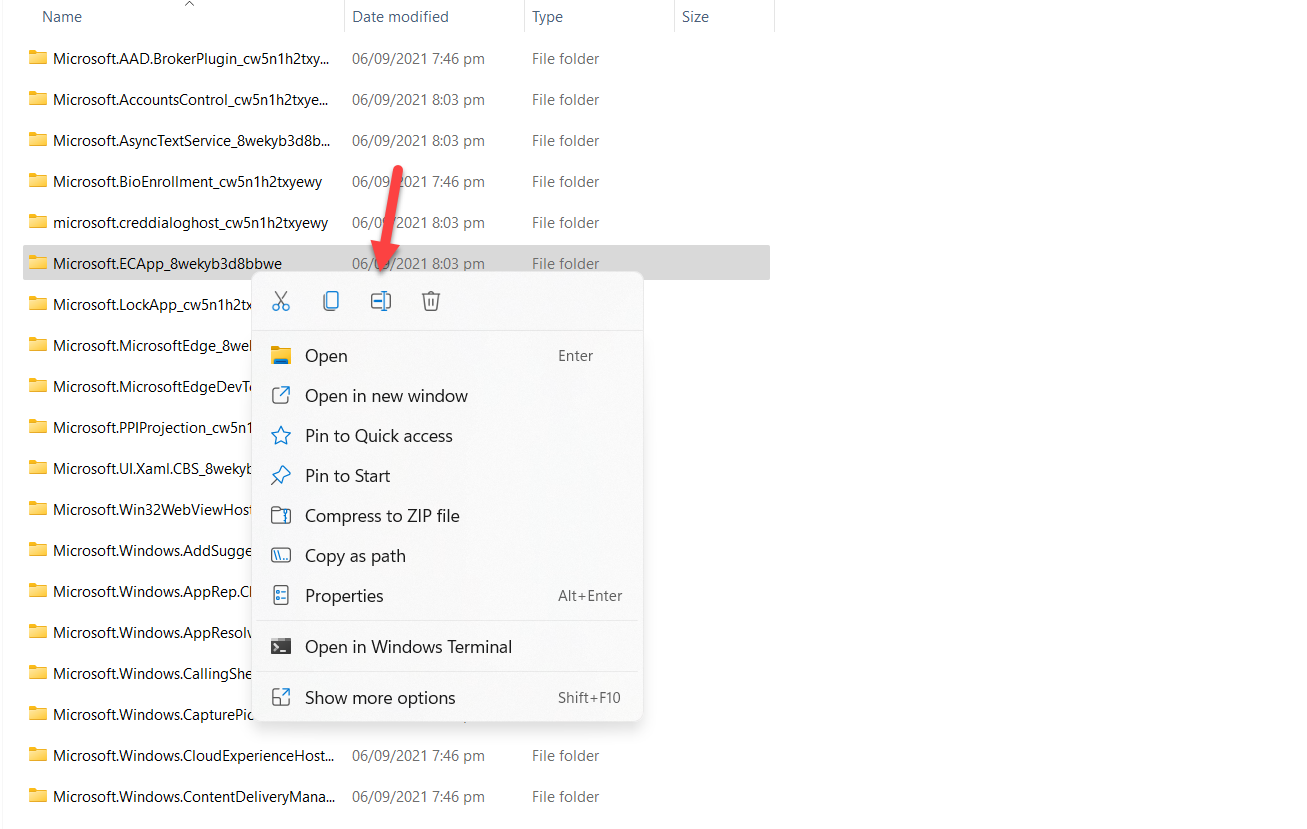 DISABLED_Microsoft.MicrosoftEdge_8wekyb3d8bbwe
 Botton Line
It was all about How to Uninstall Microsoft Edge from Windows 11? I hope this article is very helpful for you to disable Microsoft Edge. From this article, you will get something good. This is the right place where you can easily solve your problem. After following these steps I hope you will not face any kind of problem. If you faced any kind of problem and if you have any type of suggestions then do comment.
Share This Article
In this article, you will learn How to Uninstall Microsoft Edge from Windows 11? Microsoft is the biggest browser. It is just like chrome, internet explorer. If you buy a new PC or Laptop then your PC won’t have any browser without Microsoft Edge. Microsoft Edge is created by Microsoft. Moreover, Microsoft Edge is not a rammed-hungry source. You can also access this browser on Android, and iOS. With the help of Microsoft Edge, you can download Google Chrome. When you don’t want to use Microsoft Edge anymore. Whenever you want to disable Microsoft Edge then you need to read this article. So, without wasting any time let’s get has started.
How to Uninstall Microsoft Edge from Windows 11?
First, you need to change the file associations. Follow the steps to change it.
Step 1. First of all, open the Settings from the Start menu.
Step 2. When the settings are open then click on the Apps on the left side after that head towards the Default Apps.
Default Apps Step 3. Now, you will get many options from that options you need to click on the Microsoft Edge.
Click on the Microsoft Edge Step 4. Next, you need to select the first file of htm.
Select the File Step 5. Then click on the Switch Anyway.
Step 6. In this step choose a browser after that click on the Ok.
Click on the Ok Step 7. At last, repeat the step on files to replace all instances of Microsoft Edge.
Rename Microsoft Edge Installation
Step 1. At first, open the File Explorer from the Taskbar.
Step 2 Once the file explorer is open then follow with this C:\Windows\SystemApps.
Step 3. Now, find this file with the name of Microsoft.MicrosoftEdge_8wekyb3d8bbwe.
Step 4. However, when you find the file then right-click on it then click on the icon of rename after that name the file as DISABLED_Microsoft.MicrosoftEdge_8wekyb3d8bbwe.
DISABLED_Microsoft.MicrosoftEdge_8wekyb3d8bbwe Botton Line
It was all about How to Uninstall Microsoft Edge from Windows 11? I hope this article is very helpful for you to disable Microsoft Edge. From this article, you will get something good. This is the right place where you can easily solve your problem. After following these steps I hope you will not face any kind of problem. If you faced any kind of problem and if you have any type of suggestions then do comment.