
How to Install VirtualBox on Windows 11?
 Azaz Shaikh
The Windows 11 Developer Preview has been resealed by Microsoft. Now, we can finally get a real look into Windows 11. And you might think we already saw it from that leaked build, right? but not really. According to Microsoft, that was some early weird build. It running off Windows 11, but basically just had the visual elements of Windows 11. But now with this build, we can get an official actual look at the real Windows 11. If you want to install VirtualBox on Windows 11 then you need to read this article. So, without wasting any time let’s get has started. From this article, you will learn How to Install VirtualBox on Windows 11?.
Now, I do like like the overall modern look. I think it was a really cool redesign. I think looks really nice with the glass look very modern, very nice looking, stuff like that. However, overall the redesign looks really cool. And I do also like and I’m excited about some of the upcoming features that we haven’t seen here yet, such as the auto HDR for gaming, apparently, there’s going to be also other HDR options. And of course the android apps on Windows 11.
Related Post: How to Fix This PC Can’t Run Windows 11
How to Install VirtualBox on Windows 11?
Step 1. First of all, you need to head towards VirtualBox.org once you open the website after that click on the Download VirtualBox at the bottom of the screen.
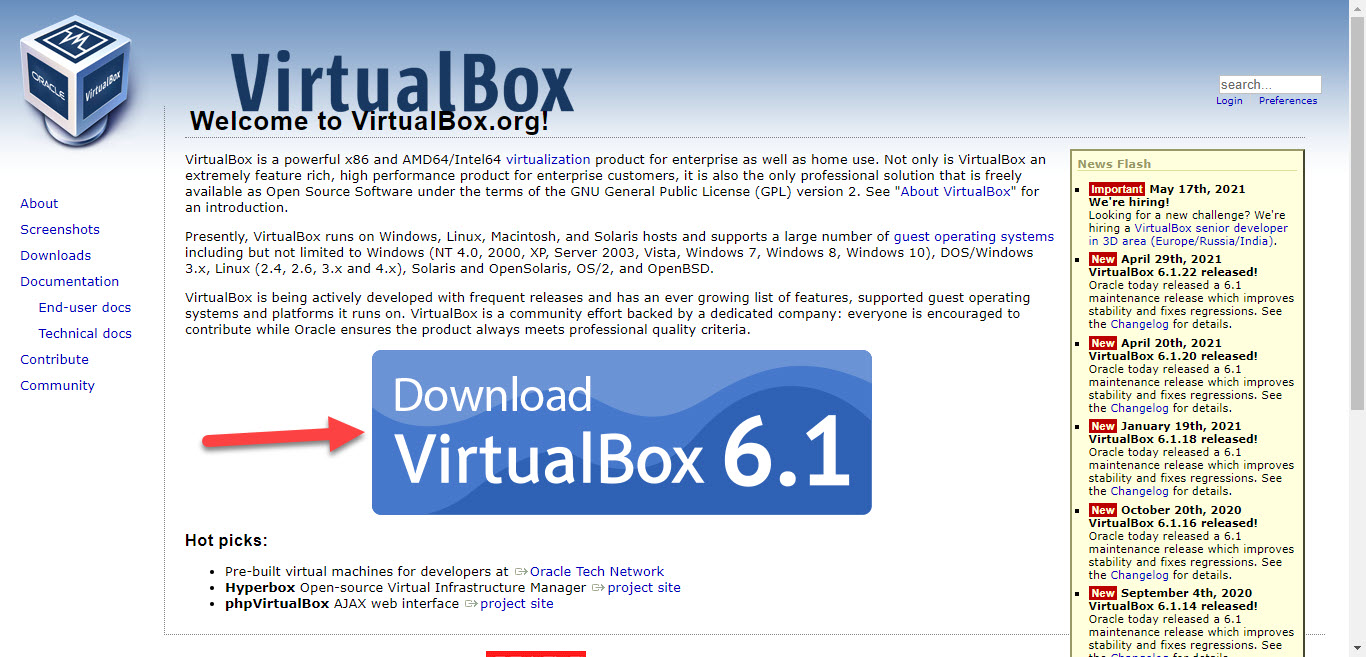 Click on the Download VirtualBox
 Step 2. Now, read the platform packages which are appropriate for the operating system that you want to install on your PC.
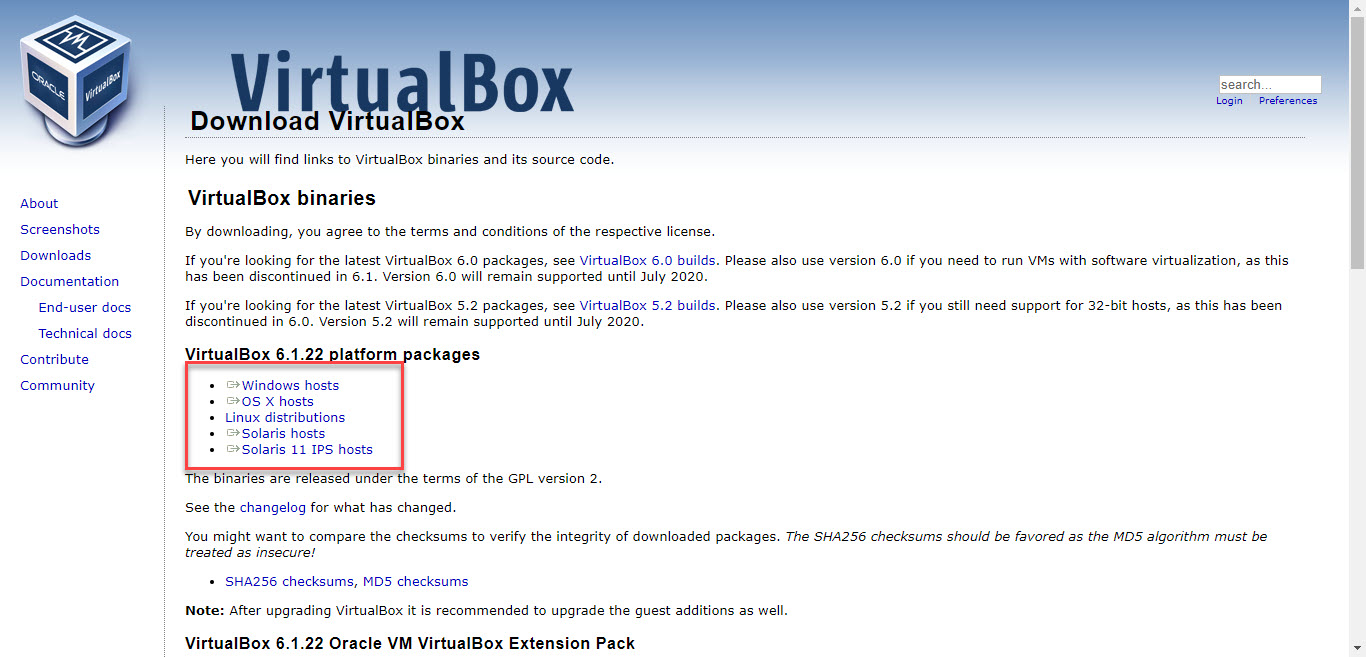 Select
 Step 3. Next, double-click on the VirtualBox to open it and the other way to open it then simply right-click on the VirtualBox after that tap on the Open.
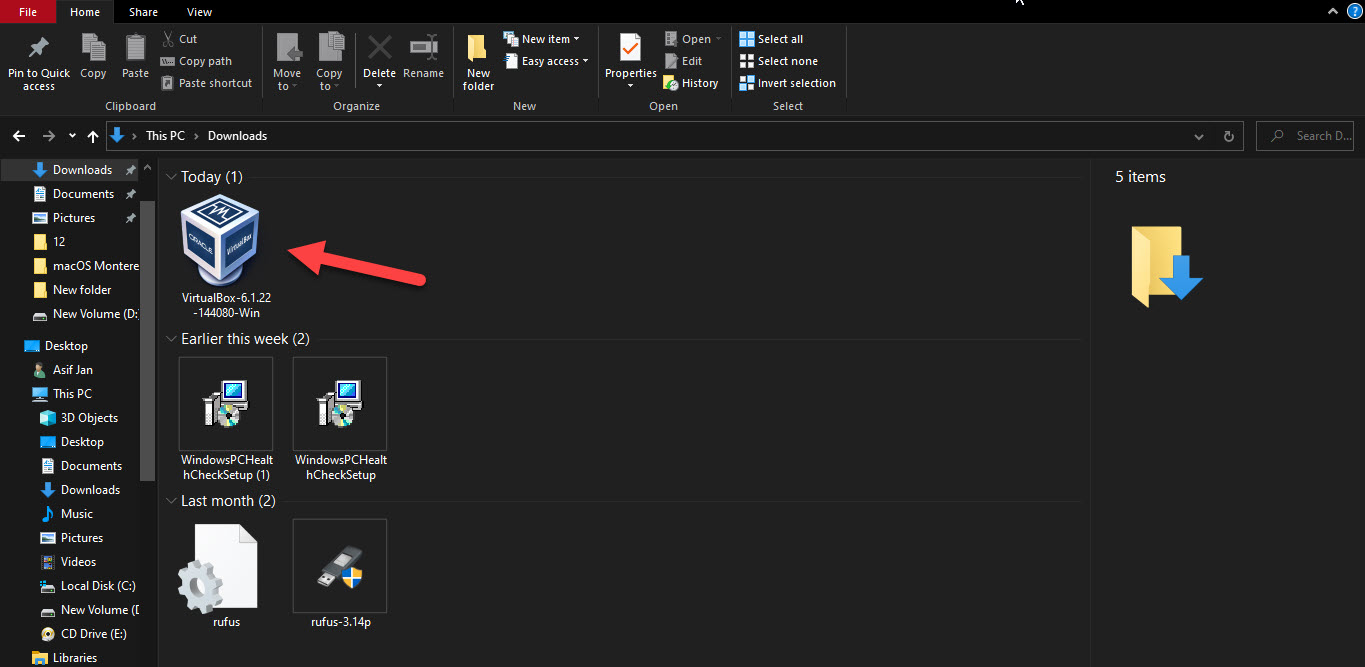
Step 4. When the VirtualBox is launch then you need to click on Next to continue the process.
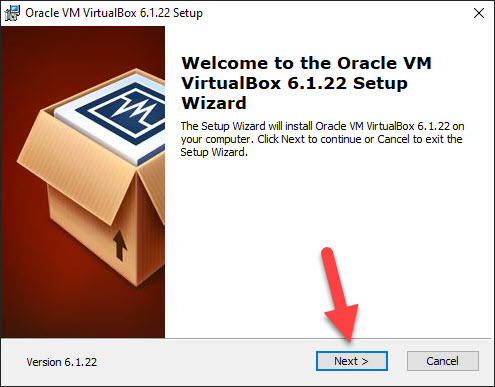 Click on the Next
 Step 5. Now, you need to select the default settings of it after that click on the Next.
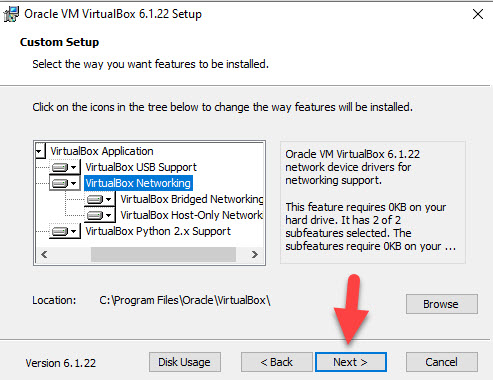 Click on the Next
 Step 6. Next, choose the options according to your self then tap on the Next.
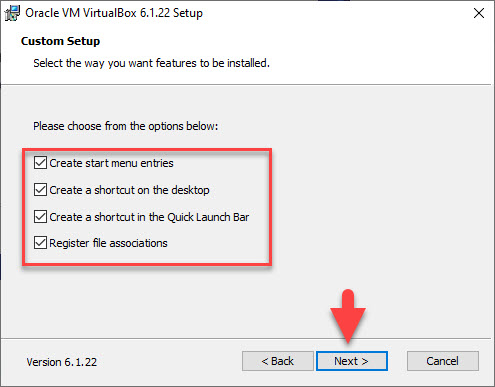 Tap on the Next
 Step 7. Here you will face the warning network interfaces that say the feature will reset your network connection and temporarily disconnect you from the network. Tap on the Yes.
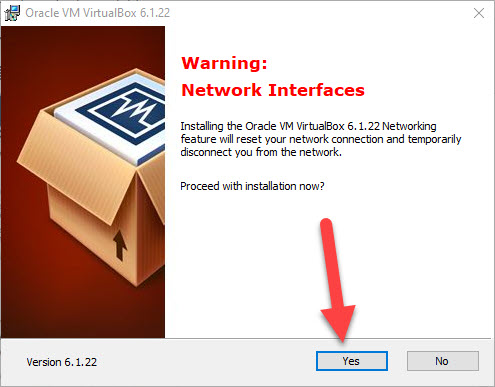 Tap on the Yes
 Step 8. All setup is complete to install the VirtualBox click on the Install.
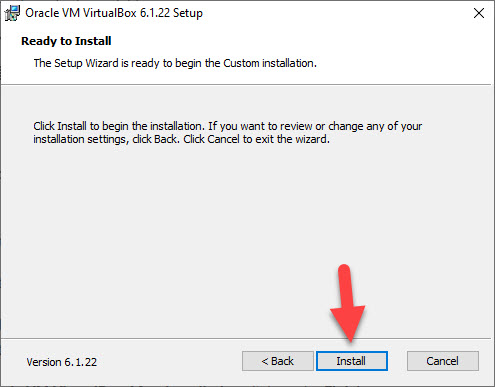 Click on the Yes
 Step 9. In this step, it will ask that do you want to install this device software. No matter that you will install it or no. I will go to install it and wait till the installation is not done.
Step 10. Check the box of Start Oracle VM VirtualBox After Installation click on the Finish.
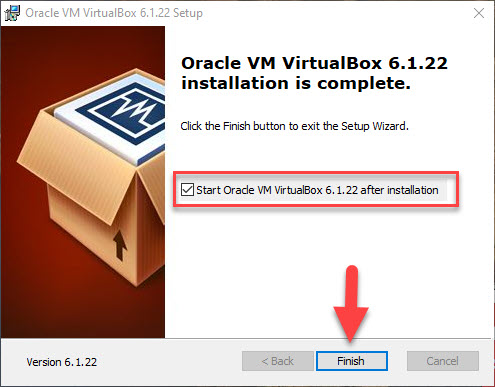 Click on the Install
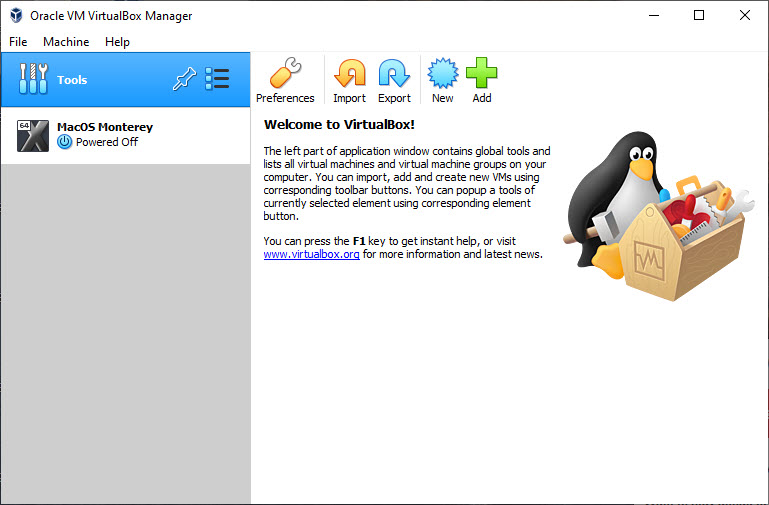
 Step 11. At last, you will see the interface of VirtualBox and go create the machine that you want like Windows, macOS, or Linux.
Related Post: How to Check If Your Windows 10 PC Can Run Windows 11
Bottom Line
It was all about How to Install VirtualBox on Windows 11? I hope this article is very helpful for you to install VirtualBox on Windows 11. From this article, you will get something good. This is the place where you can easily solve your problem. However, after following these steps I hope you will not face any kind of problem. If you faced any kind of problem and if you have any type of suggestions then do comment.
Tagged
Share This Article
The Windows 11 Developer Preview has been resealed by Microsoft. Now, we can finally get a real look into Windows 11. And you might think we already saw it from that leaked build, right? but not really. According to Microsoft, that was some early weird build. It running off Windows 11, but basically just had the visual elements of Windows 11. But now with this build, we can get an official actual look at the real Windows 11. If you want to install VirtualBox on Windows 11 then you need to read this article. So, without wasting any time let’s get has started. From this article, you will learn How to Install VirtualBox on Windows 11?.
Now, I do like like the overall modern look. I think it was a really cool redesign. I think looks really nice with the glass look very modern, very nice looking, stuff like that. However, overall the redesign looks really cool. And I do also like and I’m excited about some of the upcoming features that we haven’t seen here yet, such as the auto HDR for gaming, apparently, there’s going to be also other HDR options. And of course the android apps on Windows 11.
Related Post: How to Fix This PC Can’t Run Windows 11
How to Install VirtualBox on Windows 11?
Step 1. First of all, you need to head towards VirtualBox.org once you open the website after that click on the Download VirtualBox at the bottom of the screen.
Click on the Download VirtualBox Step 2. Now, read the platform packages which are appropriate for the operating system that you want to install on your PC.
Select Step 3. Next, double-click on the VirtualBox to open it and the other way to open it then simply right-click on the VirtualBox after that tap on the Open.
Step 4. When the VirtualBox is launch then you need to click on Next to continue the process.
Click on the Next Step 5. Now, you need to select the default settings of it after that click on the Next.
Click on the Next Step 6. Next, choose the options according to your self then tap on the Next.
Tap on the Next Step 7. Here you will face the warning network interfaces that say the feature will reset your network connection and temporarily disconnect you from the network. Tap on the Yes.
Tap on the Yes Step 8. All setup is complete to install the VirtualBox click on the Install.
Click on the Yes Step 9. In this step, it will ask that do you want to install this device software. No matter that you will install it or no. I will go to install it and wait till the installation is not done.
Step 10. Check the box of Start Oracle VM VirtualBox After Installation click on the Finish.
Click on the Install Step 11. At last, you will see the interface of VirtualBox and go create the machine that you want like Windows, macOS, or Linux.
Related Post: How to Check If Your Windows 10 PC Can Run Windows 11
Bottom Line
It was all about How to Install VirtualBox on Windows 11? I hope this article is very helpful for you to install VirtualBox on Windows 11. From this article, you will get something good. This is the place where you can easily solve your problem. However, after following these steps I hope you will not face any kind of problem. If you faced any kind of problem and if you have any type of suggestions then do comment.