
How to Fix Windows 10 Mouse Double Clicks on Single Click
 Azaz Shaikh
In this article, you will learn How to Fix Windows 10 Mouse Double Clicks on Single Click. Sometimes you will realize that your mouse is working as a double-click when you want to click single. If your mouse single click work as a double-click then it may take you in trouble. Like whether you want to select anything then you click on it then it functions as a double-click. However, if you want to fix a mouse that double-click on a single click then you need to read this article. So, without wasting any time let’s get has started.
Method 1: Check Your Double-Click Settings
Step 1. First of all, you need to open your File Explorer then click on the Three Dots after that click on the Options from the right side. In the section of click item as follows you need to check the box of Single-Click to Open an Item (Point to Select). At last, click on the Apply the tap on the Ok at the bottom of your screen.
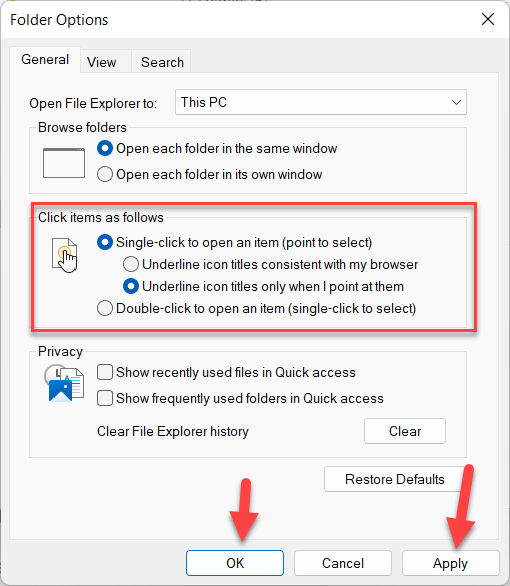 Tap on the Ok
 Method 2: Change the Mouse Double-Click Speed
Step 1. At first, open your Settings.
Step 2. Once the settings are open the click on the Devices.
Step 3. Go to Mouse from the left side.
Step 4. Tap on the Additional Mouse Option at the right panel.
Step 5. Now, head towards the Button from the menu.
Step 6. In the section of Double-click speed simply drag that towards Speed.
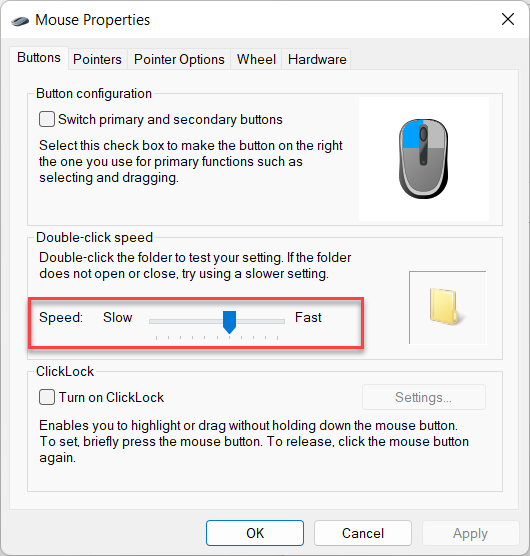 Drag
Drag Method 3: Reinstall or Uninstall the Drivers of Mouse
Step 1. Launch the Device Manager from the Start menu or press or hold Win Key + X then select Device Manager.
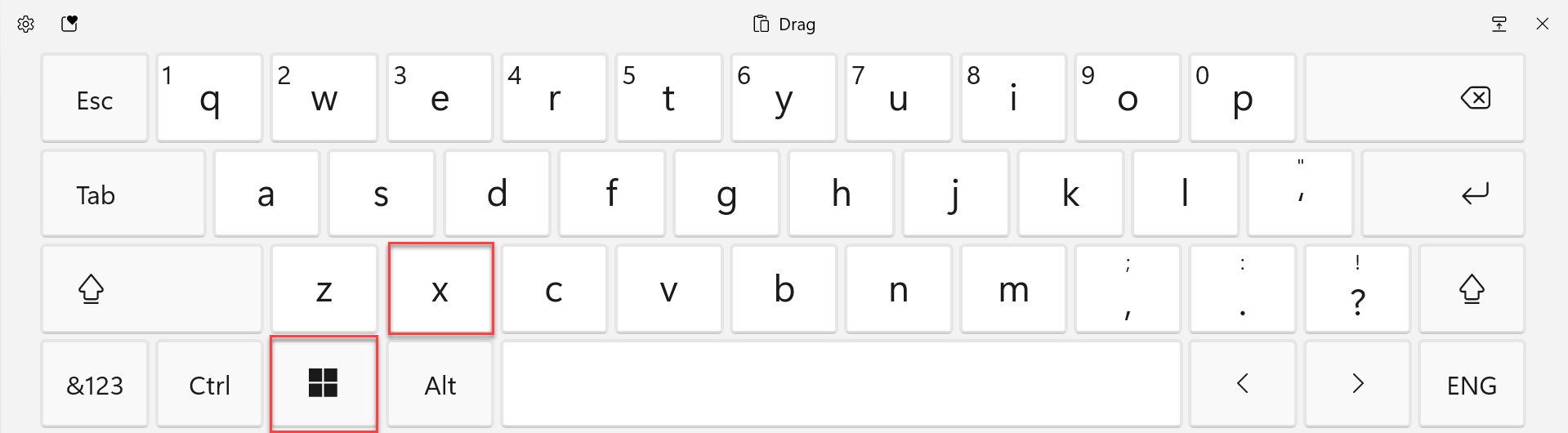 Win Key + X
 Step 2. Next, double-click on the Mice and Other Pointing Device.
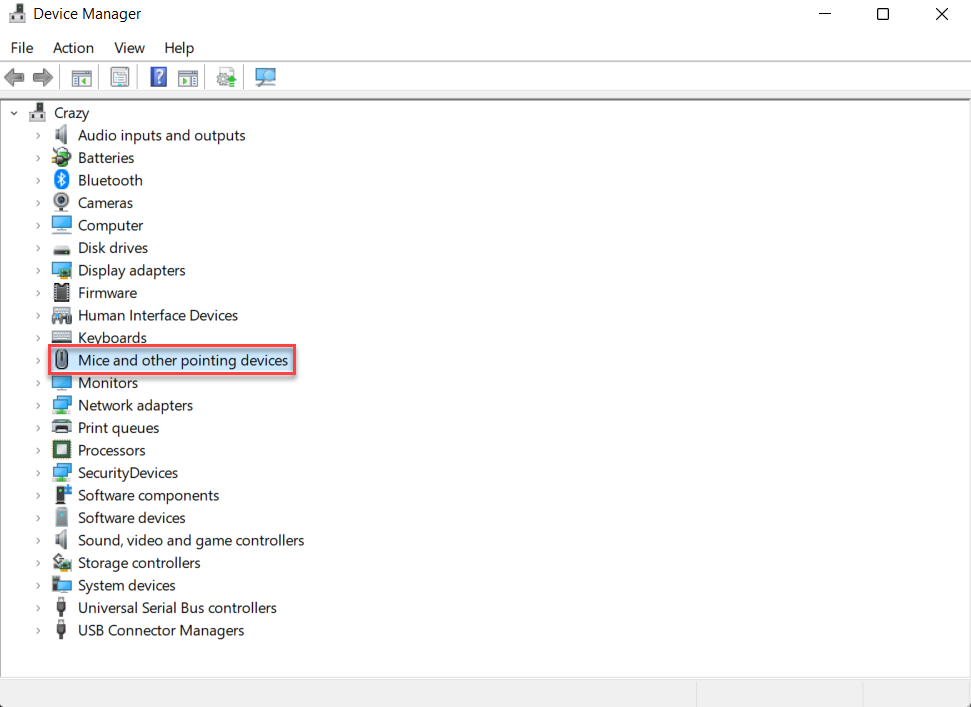 Double-Click on the Mice and Other Pointing Device
 Step 3. Moreover, find the name of your mouse then right-clicks on it after that select Uninstall Device.
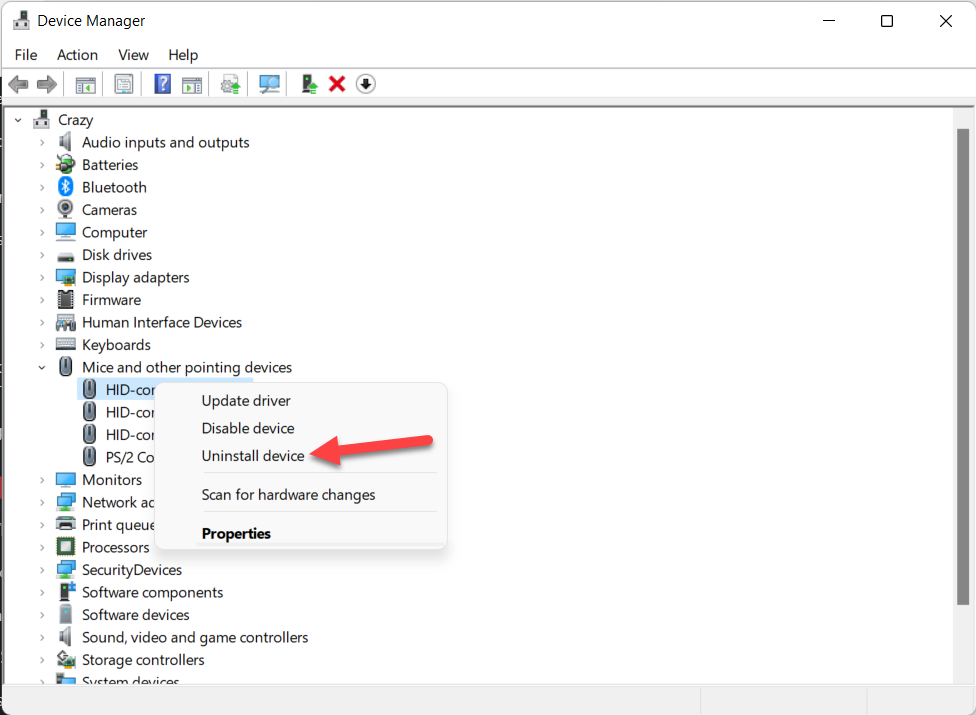 Select Uninstall Device
 Step 4. Give the prompt after that restart your PC.
Bottom Line
It was all about How to Fix Windows 10 Mouse Double Clicks on Single Click. I hope this article is very helpful for you to fix a mouse. From this article, you will get something good. This is the right place where you can easily solve your problem. After following these steps I hope you will not face any kind of problem. If you faced any kind of problem and if you have any type of suggestions then do comment.
Related Post:
Share This Article
In this article, you will learn How to Fix Windows 10 Mouse Double Clicks on Single Click. Sometimes you will realize that your mouse is working as a double-click when you want to click single. If your mouse single click work as a double-click then it may take you in trouble. Like whether you want to select anything then you click on it then it functions as a double-click. However, if you want to fix a mouse that double-click on a single click then you need to read this article. So, without wasting any time let’s get has started.
Method 1: Check Your Double-Click Settings
Step 1. First of all, you need to open your File Explorer then click on the Three Dots after that click on the Options from the right side. In the section of click item as follows you need to check the box of Single-Click to Open an Item (Point to Select). At last, click on the Apply the tap on the Ok at the bottom of your screen.
Tap on the Ok Method 2: Change the Mouse Double-Click Speed
Step 1. At first, open your Settings.
Step 2. Once the settings are open the click on the Devices.
Step 3. Go to Mouse from the left side.
Step 4. Tap on the Additional Mouse Option at the right panel.
Step 5. Now, head towards the Button from the menu.
Step 6. In the section of Double-click speed simply drag that towards Speed.
Drag Method 3: Reinstall or Uninstall the Drivers of Mouse
Step 1. Launch the Device Manager from the Start menu or press or hold Win Key + X then select Device Manager.
Win Key + X Step 2. Next, double-click on the Mice and Other Pointing Device.
Double-Click on the Mice and Other Pointing Device Step 3. Moreover, find the name of your mouse then right-clicks on it after that select Uninstall Device.
Select Uninstall Device Step 4. Give the prompt after that restart your PC.
Bottom Line
It was all about How to Fix Windows 10 Mouse Double Clicks on Single Click. I hope this article is very helpful for you to fix a mouse. From this article, you will get something good. This is the right place where you can easily solve your problem. After following these steps I hope you will not face any kind of problem. If you faced any kind of problem and if you have any type of suggestions then do comment.
Related Post: